July 15, 2019 at 00:05
Introducing 3CX V16 Update 2 and PC Remote Management via WebMeeting
Update 3CX v16 Update 2
Last week we released 3CX V16 Update 2. If you did not install the beta version of Update 2 , recall that the update includes the new 3CX SBC (Session Border Controller) remote connection manager. In addition, now when creating a new user, a PDF booklet is sent to him by e-mail - a 3CX short user guide in Russian. And finally, we added some interesting widget customization options for the 3CX Live Chat & Talk website .
New Version 3CX SBC

In 3CX Update 2, the 3CX SBC service was rewritten from scratch. It is used by many clients to connect IP phones in remote offices. The new SBC offers the following features:
- Simplified connection. Creating a new SBC connection is now very easy. Add the SBC connection in the 3CX interface, the SIP Trunks section. After that, install SBC in the remote office and specify the FQDN of the PBX and the authentication key of the SBC connection. When the connection is established (this can be seen in the 3CX interface), restart the IP phones - they will connect automatically .
- Complete SBC connection management. Updating and reconfiguring SBC connections is now done remotely from the 3CX interface.
- Monitoring SBC connections. Each SBC connection shows detailed statistics for system administrators - connection status updates, system information and event logging. Also added e-mail notifications of various events.
- Automatic update of obsolete SBC. Linux-based SBCs can be updated manually or automatically. When updating, a new SBC connection is created - select it and click the "Send Configuration" button - the connection will be configured automatically.
Customization of the communication widget for the 3CX Live Chat and Talk site
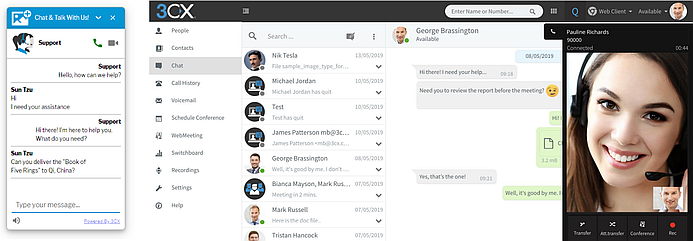
3CX v16 Update 2 introduces new customization options for the 3CX Live Chat and Talk widget:
- Additional mode of operation. The option “Chat and Phone - ignore queue ownership” ignores the action “Take yourself” in the Contact Center Queue. The visitor of the site always has voice and video calls available regardless of whether one of the operators “took” the call.
- Sound notifications. It is now more convenient for the site visitor to communicate with the operator thanks to sound notifications when receiving chat messages.
- Resize the chat window. Now you can adjust the vertical and horizontal size of the chat window or offline communication form.
- Minimized widget icon. You can set the type of minimized widget - a small circle or panel.
- Show widget on mobile. You can show or hide the widget if the user accessed the site from a mobile device.
Download or update the plugin for WordPress CMS or install the Javascript version of the widget for other CMS.
Installing 3CX v16 Update 2
Please note that the new 3CX SBC and 3CX Live Chat & Talk only work with 3CX V16 Update 2 with a trusted SSL certificate. Self-signed certificates are not supported.
The update is installed as usual - from the "Updates" section of the 3CX interface. You can also install the 3CX v16 Update 2 distribution for Windows or Linux:
- Windows: 3CX v16 Update 2
- Linux: 3CX v16 on Debian 9 ISO - From the 3CX Update Channel screen, select Stable.
- Manual installation on Debian and Raspbian .
Complete change log .
SBC Performance in 3CX V16 Update 2
In preparation for the release of 3CX v16 Update 2, we conducted a load testing of the 3CX SBC Remote Connection Manager. And now you will see that the new service has excellent performance!
SBC Performance on the Raspberry Pi
In our SBC test for 30 min. supported simultaneous conversations on 40 IP phones. More than 600 BLF indicators were configured on the phones. We used different codecs - PCMA, PCMU, G722 and G729 through an encrypted tunnel, and got the following results:
- CPU usage. The new SBC loads the Raspberry PI processor by about 20%.
- The use of RAM. Service takes up only 18% of 1 GB of RAM installed in the Pi.
- Network traffic. Average traffic amounted to 11.23 Mbps - approximately 5% of the bandwidth of the Pi network adapter at 224 Mb / s. During the test, we made a test call with the PCMU codec. The average jitter was 2.54 ms., And the maximum - 7.24 ms. at zero packet loss.
- Temperature condition. The temperature sensor showed maximum warming up to 59.5 ° C at peak load.
SBC performance on Intel x64
On a fairly common processor, the Core i7-2600 SBC also showed excellent results - thanks to the multi-threaded architecture, it can use all the CPU cores. In the test for 30 minutes. 100 IP phones simultaneously received calls in the Queue (distribution - priority call). At the same time, more than 1700 BLF indicators were configured. Judge the results yourself:
- CPU usage. When using different codecs - PCMA, PCMU, G722 and G729 through an encrypted tunnel, the average CPU load did not exceed 6.25%.
- The use of RAM. On a machine with 8 GB of RAM, the average memory consumption did not exceed 19%, i.e. less than 2 GB.
- Network traffic. The average traffic at maximum load was approximately 34.6 Mbps. - 3.5% of the bandwidth of the gigabit adapter. During the experiment, we made a test call with the G729 codec. The average jitter was 0.61 ms., And the maximum - 2.92 ms. at zero packet loss.
Keep in mind that the network load and performance of the PBX server and the SBC server are important factors affecting the operation of IP-telephony. Therefore, test results are provided only to assess the capabilities of the new SBC. When planning a real network, they should be used taking into account other factors.
No matter what equipment you use, do not forget that the SBC performance is greatly influenced by the logging mode (Verbose mode consumes resources significantly - turn it off as soon as the problem is resolved).
3CX WebMeeting Update - A utility for remote PC management
Along with the release of 3CX v16 Update 2, we released the 3CX WebMeeting update, which now includes the remote control utility for the conference participant’s PC. In addition, there was a transfer of any files through the chat panel - they will be available to all participants in the meeting.
PC Remote Management Utility

Remote PC control has been improved for quick and easy use - you do not need to install third-party software and make specific settings. Just start WebMeeting and send a remote control request . The following features are available:
- Instant client installation. The conference participant receives a link to install the Remote Control Client application - and you can immediately connect!
- Two-way clipboard. If Remote Control Client is installed on both session participants, a common clipboard for text is available.
- Screen display. The screen selection function uses the Windows display settings API to work with any number of screens. Screen selection is not offered if there is only one screen on the managed PC.
- Secure connection. Full support for the Windows security framework, UAC and launch with Run as Administrator privileges.
- Minimum access. The utility works with a user with limited rights in the system.
- Record remote control sessions. If after connecting click the “Record” button, recording of the remote control session will begin. At the end of the work you will receive a finished video.
Remote Control Client is compatible with Windows 7 x64 and above, and must be installed on a managed PC.
WebMeeting Chat File Transfer
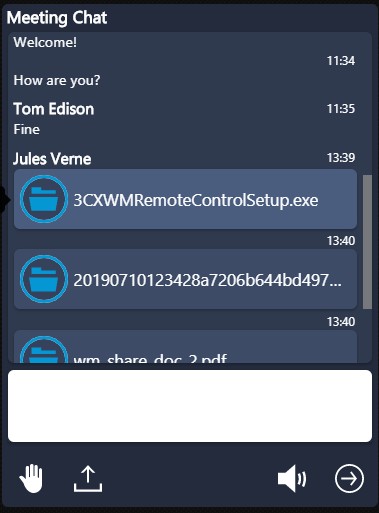
This 3CX WebMeeting update introduces the long-awaited file transfer between conference participants.
- File transfer with one click. Drag the files to the conference chat panel or click the “File upload” icon and select a file. File transfers up to 64MB in size are supported.
- File Transfer Monitoring. Visual indication of the sending and receiving of each file.
- Temporary storage. Shared files are placed in temporary storage, and after the end of the conference they are automatically deleted.
See the full 3CX WebMeeting changelog .
Here is such a collection of 3CX new products in mid-summer - we work for you to relax!