April 18, 2018 at 18:49
Subtleties of choosing SSD for laptop
Hello GT! High-quality SSD reveals the potential of any laptop. Well, if it is installed immediately, but if not? We deal with different options for solid state drives and determine which one is best for upgrading a mobile computer.
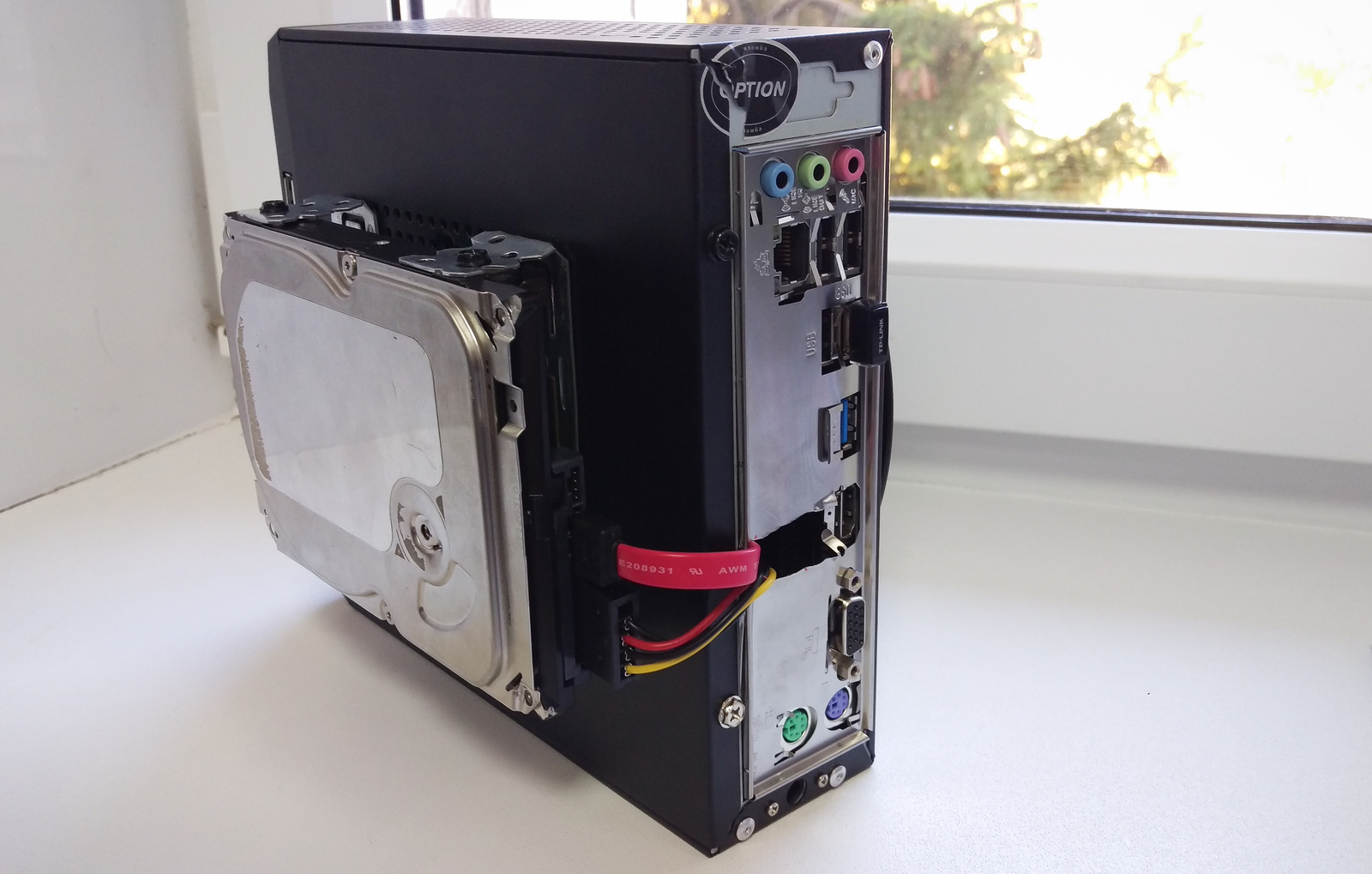
The massive use of SSDs in laptops began when Intel introduced the Ultrabook concept. Even small ultrabooks equipped with SSDs were much faster than HDD devices. And this has become the best motivation to upgrade for laptop users since removable processors and graphics accelerators in mobile computers disappeared as a class.
The reasons for choosing an SSD today are many - this is immunity to vibration and shock, and speed, and low power consumption. Until recently, the main obstacle to switching to SSDs was the high price, but today it has decreased markedly and the failure rate of memory cells has become so low that SSDs can be used for everyday work without worrying about their data at all.
Nevertheless, you should not buy the first SSD that comes to hand: the drive should be selected competently and take into account the features of the system. There are many products on the market in different price categories, and it is possible that a drive for 5 thousand rubles will give you the same result as its counterpart for 15. So is it worth spending extra money? To better understand this issue, consider different types of SSDs.
In really old laptops, the interface for connecting solid-state drives can be any, provided that it is SATA. In almost every model (except the most compact) we are talking about the classic-full-size SATA. It is also used to connect drives to desktop computers, and it is through SATA that the most affordable SSDs are connected. Depending on the antiquity of the laptop, this may be SATA 1, 2 or 3. The most prehistoric laptops use SATA 1, and upgrading to SSD in this case will be pretty pointless - this interface barely gives the desired speed for a regular disk, and many models SSDs do not support the SATA 1 protocol at all. However, in the vast majority of modern laptops, the third version controller is used.
Data transfer speed through SATA 3 - up to 6 Gb / s. This means that you can use a fairly modern SSD with it. Solid state drives in recent years have developed like startups and have repeatedly jumped above their heads, as a result of which they have run up to the bandwidth limit of the SATA 3 interface.
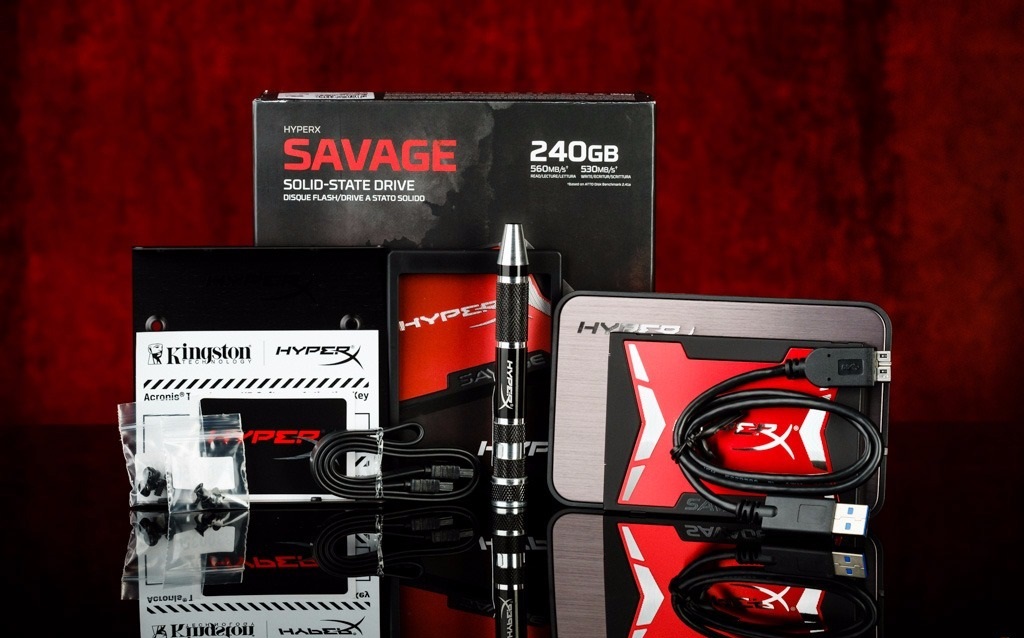
Some laptops also have an mSATA interface. It allows you to install a solid-state drive without a case - a flat board with chips soldered to it. It's almost the same SATA 3, butwith a new banana flavorin another form factor, so it is also suitable for installing SSDs in a laptop. Some laptops already have an mSATA interface, but it is either not used or an outdated SSD is installed in it. Also, often a mini-PCI interface can be provided in the system, which is designed to install expansion cards (such as Wi-Fi, Bluetooth-modules, 3G-modems, and so on). It looks great like mSATA, but it's still not worth confusing. In any case, installing a new drive will significantly increase the speed of the system, and which port to use for this can be found out from the laptop manufacturer or using the configurator on our website.
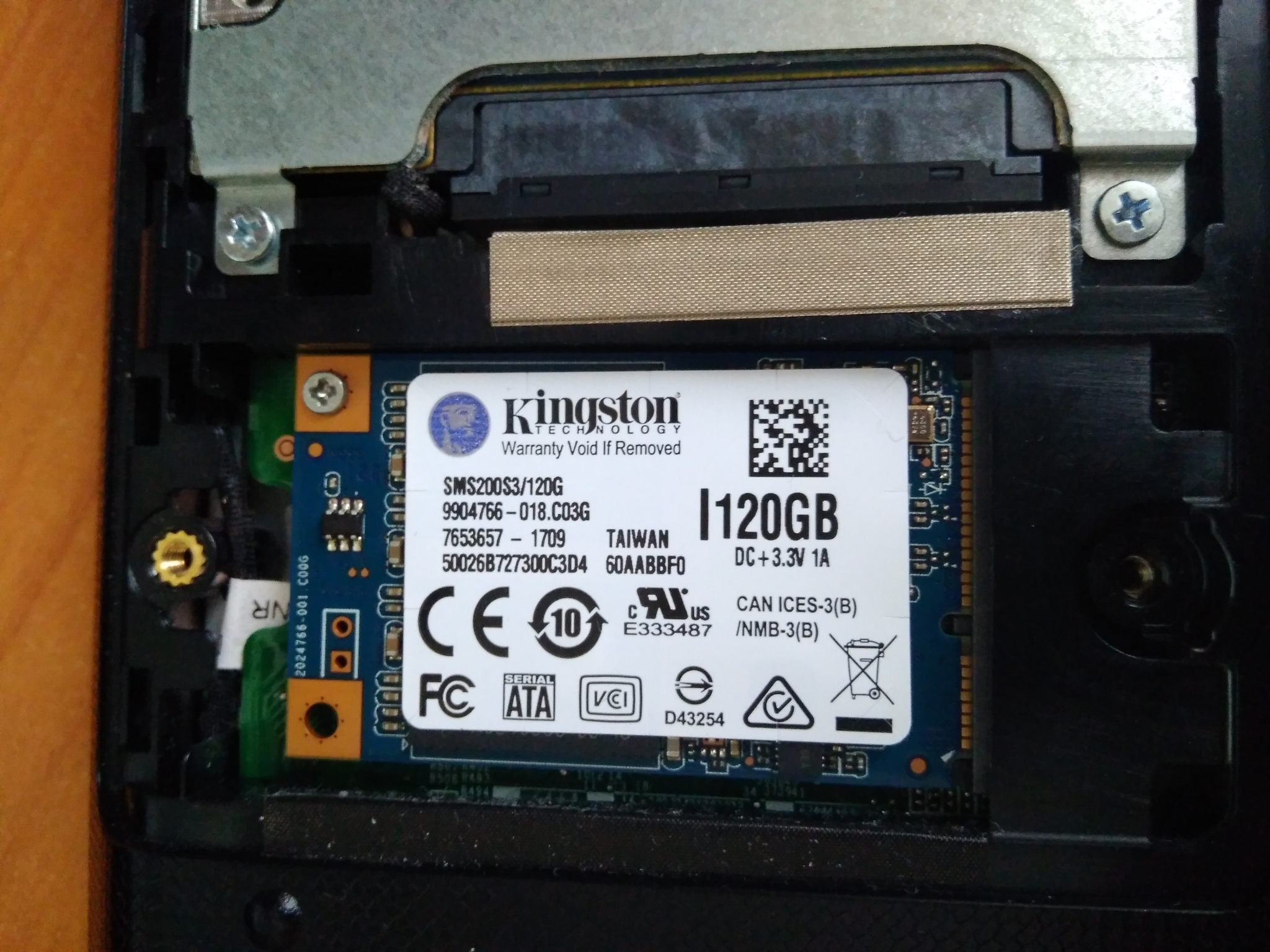
The most promising option is the M.2 connector. If you use a modern laptop, it is M.2 that will allow the system to work at maximum speed. M.2 - this is the bright future that was expected from mSATA. The new standard was distributed in laptops before mSATA gained popularity, and due to lower prices for drives it became popular almost immediately, and mSATA turned into a less popular "legacy-storage", for which manufacturers today produce one or two models of drives - for example, just in case. In practice, M.2 is a PCI Express 3.0 bus output option that supports 4 lines at once. Thus, M.2 allows you to achieve data transfer rates of up to 4 GB / s, which is much more than in any version of SATA.
But do not be especially happy ahead of time - even if the drive is installed in the M.2 connector, it can still use the SATA interface, which means that it works in the same high-speed mode as with older connectors. Nevertheless, the advantage will still be, as the carrier will be able to reveal its full speed potential.
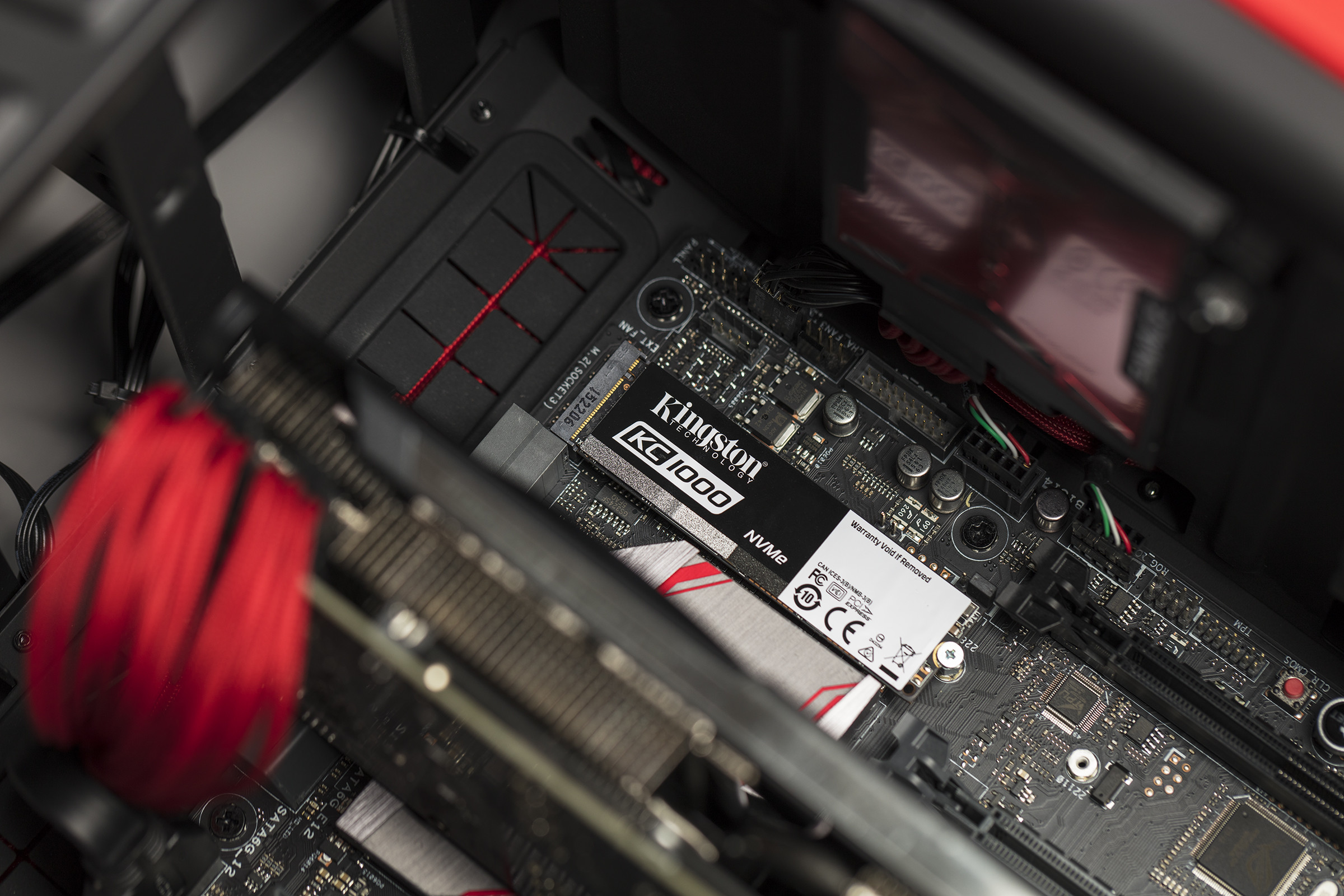
The farther into the forest, the more complicated the specifications, because the interface is not everything. Storage devices with different types of controllers can work on the same physical connector. In the era of the most popular hard drives, the AHCI controller learned to pump them by working with the NCQ (Native Command Queuing) command queue. But today it is a bottleneck between the disk and the processor, and its more modern competitor NVMe (Non-Volatile Memory) is actually a PCI device and, theoretically, could work at the speed of the PCI Express bus itself. What is the mere fact that NVMe can handle up to 65536 requests when the AHCI mode supports only 32 simultaneous requests.
True, drives that use the NVMe controller consume 2-3 times more electricity than their AHCI-based brothers. Therefore, if we are talking about a mobile laptop with a long battery life, using a drive with an AHCI controller may be preferable, despite the higher NVMe performance. In this case, disks with any of these controllers can be installed in the M.2 interface.
However, if you decide to purchase an NVMe drive, you need to clarify whether this specification is supported by the laptop manufacturer. If not, then you will not be able to install the operating system and boot from such a disk.
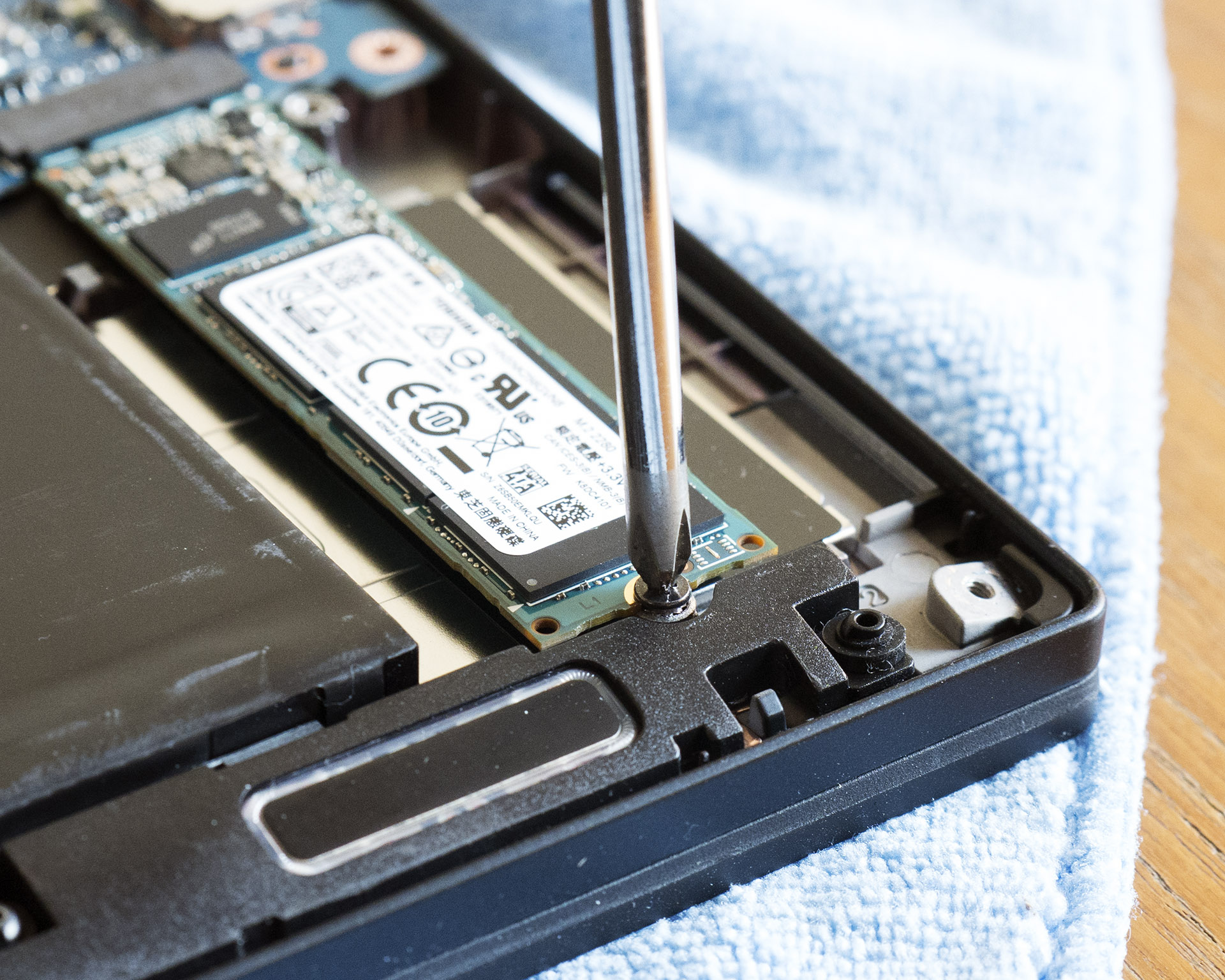
But, if you want to install a solid-state drive in your laptop, you must first make sure that the board has a connector for installing it. This information can be obtained from the manufacturer, found in video reviews with the inspection of the insides, using the configurator and on our website, or ask Kingston technical support specialists about the possibility of an upgrade . You can open the laptop yourself to check the required dimensions of the mounting holes. Next to the M.2 interface is usually marked, which indicates the presence of mounting holes. For example, 2260 means that media is supported 22 mm wide and 60 long, 2280-22 wide and 80 long, and so on.
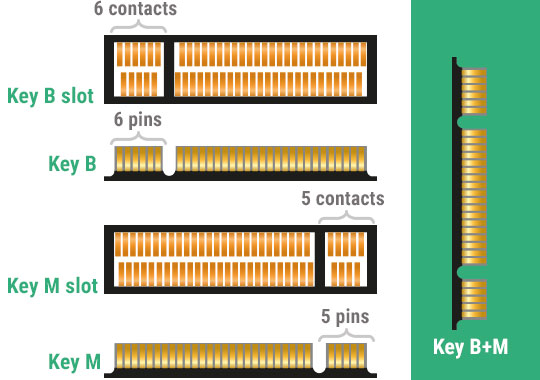
The M.2 interface is universal, but so that life does not seem to be honey, it has several varieties with different keys for installing expansion cards. The connector with key B is distinguished by the missing pins 12 through 19 and is called M.2 Socket 2. It can work with SATA, USB 3.0, PCIe × 2, PCM, IUM, SSIC, and I2C interfaces. When installing the M key with missing contacts 59 through 66, the connector is named in the M.2 Socket 3 documentation. This version already supports only PCIe x4 and SATA.
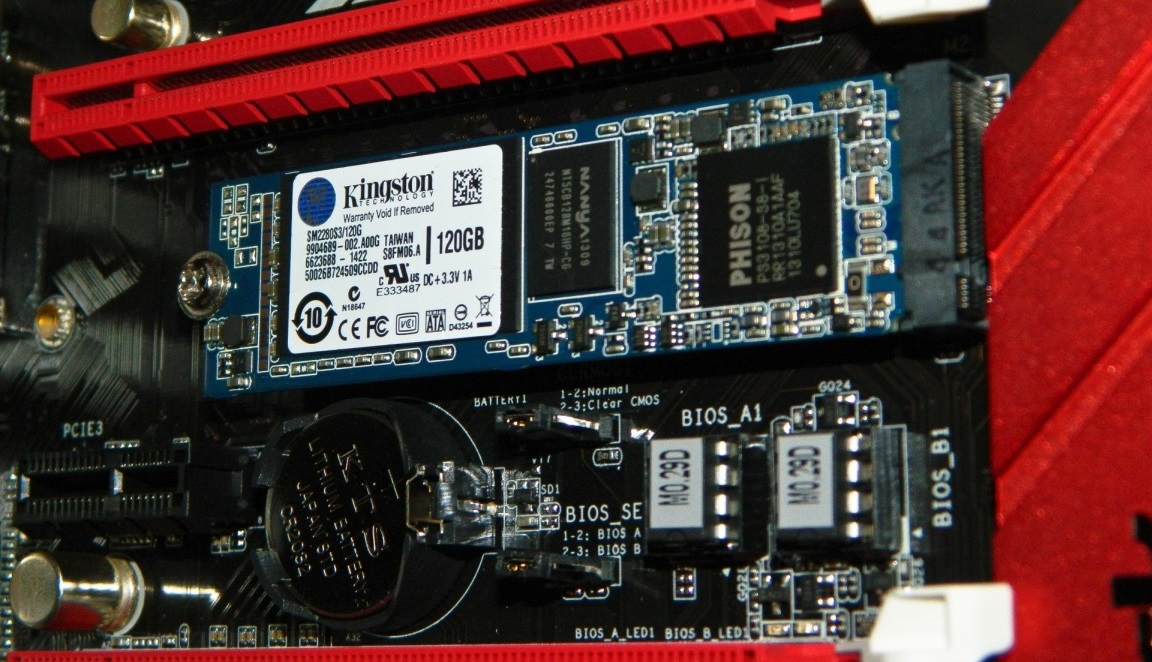
At the same time, there are various SSDs on sale - designed for installation in M.2 Socket 2, M.2 Socket 3 and universal, which have contacts for both keys. If you are not sure exactly which M.2 connector is available in the laptop, it is best to purchase a universal drive. In particular, in the Kingston line, the M.2 SATA models contain two keys at once and can be installed in any laptop with M.2 support.
But just sticking a disk into a laptop is not enough. That is why many rent a laptop to upgrade to a service center. By the way, if your car is still under warranty, it is possible to save it and at the same time replace the drive, contacting the SC will be a prerequisite. But many large manufacturers do not even mind replacing the disk on their own - you can always check this with the technical support service of your laptop. In addition, it is important to safely copy the contents of the old disk. If you decide to carry out this procedure yourself, it is best to use special migration software that comes with many Kingston SSDs.
Leading manufacturers also have utilities for optimizing the performance of SSDs, which you can use after starting the system on a new drive. For example, Kingston SSD Manager helps you monitor drive status, run self-diagnostic technologies, and update drive firmware.
For those whose laptop has only an mSATA connector, it is quite difficult to find a suitable model for replacement - there are not many mSATA drives on the market, and the only option from the Kingston line is the mS200 . If you have a M.2 connector with NVMe support, then the choice will be much wider - for example, the KC1000 model will allow you to get really high performance (you just don’t recognize your laptop), and SSDNow M.2 SATA G2 offers a good alternative in a case-free version with M.2 key via SATA. An excellent solution in the 2.5 form factor is HyperX Savage or the KC400 . But when you need only fast loading of OS and applications, more budget drives will be enough - A400or UV400 . Would you like some advice? Ask, we will answer in the comments!
Well, for all lovers of HyperX devices, we are reporting that the HyperX Pulsefire FPS mouse is now cheaper. And this is not a discount: the recommended price has been reduced forever, so hurry up until you take it apart!
For more information on Kingston and HyperX products, visit the company's official website .
The massive use of SSDs in laptops began when Intel introduced the Ultrabook concept. Even small ultrabooks equipped with SSDs were much faster than HDD devices. And this has become the best motivation to upgrade for laptop users since removable processors and graphics accelerators in mobile computers disappeared as a class.
The reasons for choosing an SSD today are many - this is immunity to vibration and shock, and speed, and low power consumption. Until recently, the main obstacle to switching to SSDs was the high price, but today it has decreased markedly and the failure rate of memory cells has become so low that SSDs can be used for everyday work without worrying about their data at all.
Nevertheless, you should not buy the first SSD that comes to hand: the drive should be selected competently and take into account the features of the system. There are many products on the market in different price categories, and it is possible that a drive for 5 thousand rubles will give you the same result as its counterpart for 15. So is it worth spending extra money? To better understand this issue, consider different types of SSDs.
M.2, PCIe, mSATA and SATA
In really old laptops, the interface for connecting solid-state drives can be any, provided that it is SATA. In almost every model (except the most compact) we are talking about the classic-full-size SATA. It is also used to connect drives to desktop computers, and it is through SATA that the most affordable SSDs are connected. Depending on the antiquity of the laptop, this may be SATA 1, 2 or 3. The most prehistoric laptops use SATA 1, and upgrading to SSD in this case will be pretty pointless - this interface barely gives the desired speed for a regular disk, and many models SSDs do not support the SATA 1 protocol at all. However, in the vast majority of modern laptops, the third version controller is used.
Data transfer speed through SATA 3 - up to 6 Gb / s. This means that you can use a fairly modern SSD with it. Solid state drives in recent years have developed like startups and have repeatedly jumped above their heads, as a result of which they have run up to the bandwidth limit of the SATA 3 interface.
Some laptops also have an mSATA interface. It allows you to install a solid-state drive without a case - a flat board with chips soldered to it. It's almost the same SATA 3, but
The most promising option is the M.2 connector. If you use a modern laptop, it is M.2 that will allow the system to work at maximum speed. M.2 - this is the bright future that was expected from mSATA. The new standard was distributed in laptops before mSATA gained popularity, and due to lower prices for drives it became popular almost immediately, and mSATA turned into a less popular "legacy-storage", for which manufacturers today produce one or two models of drives - for example, just in case. In practice, M.2 is a PCI Express 3.0 bus output option that supports 4 lines at once. Thus, M.2 allows you to achieve data transfer rates of up to 4 GB / s, which is much more than in any version of SATA.
But do not be especially happy ahead of time - even if the drive is installed in the M.2 connector, it can still use the SATA interface, which means that it works in the same high-speed mode as with older connectors. Nevertheless, the advantage will still be, as the carrier will be able to reveal its full speed potential.
AHCI or NVMe?
The farther into the forest, the more complicated the specifications, because the interface is not everything. Storage devices with different types of controllers can work on the same physical connector. In the era of the most popular hard drives, the AHCI controller learned to pump them by working with the NCQ (Native Command Queuing) command queue. But today it is a bottleneck between the disk and the processor, and its more modern competitor NVMe (Non-Volatile Memory) is actually a PCI device and, theoretically, could work at the speed of the PCI Express bus itself. What is the mere fact that NVMe can handle up to 65536 requests when the AHCI mode supports only 32 simultaneous requests.
True, drives that use the NVMe controller consume 2-3 times more electricity than their AHCI-based brothers. Therefore, if we are talking about a mobile laptop with a long battery life, using a drive with an AHCI controller may be preferable, despite the higher NVMe performance. In this case, disks with any of these controllers can be installed in the M.2 interface.
However, if you decide to purchase an NVMe drive, you need to clarify whether this specification is supported by the laptop manufacturer. If not, then you will not be able to install the operating system and boot from such a disk.
Subtleties of installation
But, if you want to install a solid-state drive in your laptop, you must first make sure that the board has a connector for installing it. This information can be obtained from the manufacturer, found in video reviews with the inspection of the insides, using the configurator and on our website, or ask Kingston technical support specialists about the possibility of an upgrade . You can open the laptop yourself to check the required dimensions of the mounting holes. Next to the M.2 interface is usually marked, which indicates the presence of mounting holes. For example, 2260 means that media is supported 22 mm wide and 60 long, 2280-22 wide and 80 long, and so on.
The M.2 interface is universal, but so that life does not seem to be honey, it has several varieties with different keys for installing expansion cards. The connector with key B is distinguished by the missing pins 12 through 19 and is called M.2 Socket 2. It can work with SATA, USB 3.0, PCIe × 2, PCM, IUM, SSIC, and I2C interfaces. When installing the M key with missing contacts 59 through 66, the connector is named in the M.2 Socket 3 documentation. This version already supports only PCIe x4 and SATA.
At the same time, there are various SSDs on sale - designed for installation in M.2 Socket 2, M.2 Socket 3 and universal, which have contacts for both keys. If you are not sure exactly which M.2 connector is available in the laptop, it is best to purchase a universal drive. In particular, in the Kingston line, the M.2 SATA models contain two keys at once and can be installed in any laptop with M.2 support.
Program level
But just sticking a disk into a laptop is not enough. That is why many rent a laptop to upgrade to a service center. By the way, if your car is still under warranty, it is possible to save it and at the same time replace the drive, contacting the SC will be a prerequisite. But many large manufacturers do not even mind replacing the disk on their own - you can always check this with the technical support service of your laptop. In addition, it is important to safely copy the contents of the old disk. If you decide to carry out this procedure yourself, it is best to use special migration software that comes with many Kingston SSDs.
Leading manufacturers also have utilities for optimizing the performance of SSDs, which you can use after starting the system on a new drive. For example, Kingston SSD Manager helps you monitor drive status, run self-diagnostic technologies, and update drive firmware.
Which drive to choose?
For those whose laptop has only an mSATA connector, it is quite difficult to find a suitable model for replacement - there are not many mSATA drives on the market, and the only option from the Kingston line is the mS200 . If you have a M.2 connector with NVMe support, then the choice will be much wider - for example, the KC1000 model will allow you to get really high performance (you just don’t recognize your laptop), and SSDNow M.2 SATA G2 offers a good alternative in a case-free version with M.2 key via SATA. An excellent solution in the 2.5 form factor is HyperX Savage or the KC400 . But when you need only fast loading of OS and applications, more budget drives will be enough - A400or UV400 . Would you like some advice? Ask, we will answer in the comments!
Well, for all lovers of HyperX devices, we are reporting that the HyperX Pulsefire FPS mouse is now cheaper. And this is not a discount: the recommended price has been reduced forever, so hurry up until you take it apart!
For more information on Kingston and HyperX products, visit the company's official website .