January 27, 2015 at 07:37
Review and humanization of the Android-console Tronsmart Orion r28 Pro

Disclaimer: originally the post was planned as a review of the Chinese TV set-top box on Android with good stuffing, but in the process of writing I decided to include information on how to give it a “human face” from the software part. The post is not intended for experienced users of various media centers, but for beginners - such material would help me save a day of searching for a solution.
About migration from Xiaomi MiBox to Chinese TV set-top box on Android.
I already had a TV box MiBox on Android from my favorite company Xiaomi (I wrote about their fitness bracelet on Habré). For almost a year I used it in conjunction with an Acer projector and a home - made NAS server from the EeePC 701(the creation of this Frankenstein is a separate story, can be found on my blog). However, despite the love of Xiaomi products, the set-top box had certain drawbacks related to its orientation to the Chinese market: a terrible font of Russian subtitles with wide indentation (relevant for watching anime), external audio tracks are not supported, the only sorting method is a list with names files shows some BDrips with serious artifacts; Do not play toys. This is not to mention the exclusively Chinese interface, which is not always happy. Installing another interface without serious device picking was not so simple (due to cut Android), and the technical characteristics of my version were rather weak - even USB was present only in the form of MicroUSB + OTG.
In short, in my hands I got a TV set-top box of the famous Chinese brand Tronsmart in certain circles ( it was already mentioned on
Specifications
Model: Tronsmart Orion R28 Pro (UPD: announced last year on Habré, it turns out)
Case material: black plastic
OS: Android 4.4 + Google Services
CPU: Rockchip RK3288 1.8 GHz ( 4 cores , Cortex-A17 )
GPU: Mali-T764
RAM : DDR3 2 GB
Internal memory: NAND 8 GB (for geeks: eMMC Flash FORESEE NCEFES 78 08G, photos of the insides further)
Memory expansion: MicroSD (TF) up to 32 GB
Network: IEEE 802.11 b / g / n (Broadcom AP6210) 2.4 GHz + 8P8C (erroneously called RJ45) LAN 10/100/1000 Mbps
Optional:Bluetooth 4.0
Supported video formats: Full HD 1080p, 4K @ 30fps, H.265 AVI / RM / RMVB / MKV / WMV / MOV / MP4 / WEBM / DAT (VCD) / VOB (DVD format) / MPEG / MPG / FLV / ASF / TS / TP / 3GP
HDMI: Type A output , HDMI 2.0
USB: 3xUSB2.0 , 1xMicroUSB + OTG
Other: 3.5mm audio , S / SPDIF (2, 5.1 channels), AV Jack , IR receiver
Power supply: 5V , 3A
Options: TV set-top box, WiFi antenna, remote control, HDMI cable, USB-microUSB cable, power adapter, manual and warranty card.
Appearance
A cardboard box with a minimum of information and without hieroglyphs. Hooray, everything is in English.

Everything is packed quite compactly:

From above there is only the name of the manufacturer and the power button with a status indicator: blue - works, red sleeps (music does not stop playing in this mode!). On the left side are two USB 2.0 and a MicroSD (TF) connector. On the front side is an IR receiver .

Bottom are rubberized legs, vents and a sticker with information about the contents.

On the reverse side there is most of the interfaces (from left to right): power, 3.5mm audio output , SPDIF, LAN (up to 1000 Mbps ), connector for Wi-Fi antenna, HDMI 2.0 , one USB 2.0Micro-USB.

Included: power supply, HDMI cable, Micro USB cable, remote control (no batteries).

The remote looks very similar to the brother from Xiaomi MiBox. The width and length are exactly the same, but Tronsmart has more thickness due to two AAA batteries (Xiaomi costs one CR2032)

. This set-top box works with the Acer projector via HDMI ...

... and stands next to it on the shelf, like that ( Tronsmart on the left , and on the right is the Xiaomi Yi camera ):

If someone tells me how to make it “beautiful” with wires, I will be very grateful.
Inside (a bit of geek erotica)
The holes of the screws are hidden under the rubber feet. Interestingly, there were only three of them : two under the left leg, and one under the right.


eMMC Flash FORESEE NCEFES 78 08G Broadcom AP6210 CPU

wireless module is located under the radiator


Soft: was
The inclusion of the console was first happy: in front of me was the standard KitKat launcher - how many possibilities!

But after a couple of minutes I began to get seriously upset: controlling a bare Android with an IR remote control is not very convenient. I even had to plug a wireless mouse into one of the free USB ports to navigate the menu normally.

A small remark: at this stage there was a curiosity that made me nervous, reset the tablet to the factory settings and climb into the forums. All fault is the extreme right button of the status bar'a below. I pressed it out of curiosity, and the buttons below disappeared without a trace . I shoveled the entire settings menu and read each letter, climbed into Google, where they told me: to return the buttons,move the mouse to the far right corner and pull up .

Benchmark AnTuTu gave the following results: 37831 Parrot.


In the “tablet” (as the prefix calls itself in the Russian locale), in addition to Google services and standard software (including the useless “Camera”, for example), a certain number of unfamiliar software of various degrees of inferiority were preinstalled:

Of the useful ones, only XBMC , which I replaced with Kodi (more on that below).
What are the programs from the manufacturer? About this:


At this stage, I really wanted to “turn everything back and forth”and return even the Chinese and simple, but stylish MiBox'a interface. Before, I was not familiar with the software for TV set-top boxes, so I had a desire to quit the whole thing.
Soft: became
“ But there must be a normal launcher! ” I thought, and climbed onto the Internet. I will not describe for a long time what terrible crafts I tried. In the end, I settled on the pre-installed XBMC - the only adequate program that comes bundled with the console, updating it to the latest version (already Kodi ).


Everything turned out to be intuitive. First I switched to Russian, then through the "Video" section I added directories to the NAS (via SMB), indicating the type of content and choosing a plug-in for downloading descriptions from IMDB. He did the same with music.
The second task was to hide the standard user-friendly interface. The free XBMC Launcher application helped with this.. It is put on the console via Google Play, and allows you to designate Kodi as a launcher (it is better to do this after completing other system settings).
Another great addition was the Yatse phone app . It allows you to fully control the console from the phone. Thanks to him, I was able to do what the MiBox did not allow, namely, to control the music with the projector turned off. Now I completely turn on the phone, and in two clicks I launch the desired song / folder / album. Movies can also be controlled.

Moreover, through Kodi you can even control the rocking of the Transmission torrents,which runs on a NAS. And even ask her to stop the current downloads while watching a movie, so as not to load the channel. Yes, it is possible to share content from the set-top box to the network using the same SMB.
Do not forget to set a fixed IP address so that Yatse does not go astray!
Performance
The prefix seamlessly grinds any formats available to me, even a 20-gigabyte 3D BDRip is played wirelessly without problems. True, opening the file takes a few seconds, but the reason is most likely in the NAS (there four hard disks work via USB 2.0 on a 100 Mb channel - it is surprising that it works at all).

There were no delays in the interface during all the time of use. 100% smooth operation of everything.
Games
Frankly, until I figured out what you can play on it. The most common request in other reviews is “Put the Tanks !!!”, but outside of Russia they work almost nothing, so I didn’t even try. And playing without a normal controller is inconvenient. It was possible to order a branded wireless gamepad from the same manufacturer in the kit:

Perhaps I will do so in the near future.
Total
What did I want to achieve by changing the equipment, and what did I get?
1. Powerful iron - yes: no brakes were noticed, it digests everything. Games should go, but without a normal controller this is inconvenient;
2. Nice interface : out of the box - horror. After elementary refinement - great. To do this, install Kodi and XBMC Launcher;
3. Work “without a screen” as a music center - yes, thanks to the free Yatse to your phone.
4. A nice bonus - as many as three USB connectors to connect external keyboards / mice / hard drives.
I got even more than I wanted, because I could not even dream of a decent cataloging with loading descriptions of films and music!
Cons : no microphone (I would like to control the center through Google Voice); ugly chinese programs . However, after installing Kodi they will not be visible.
So that the post is not advertising, I don’t leave any links here: all the interesting information (such as “ where did you get the prefix? ” Or “ what kind of NAS from EeePC? ”) Can be found on my blog.
Some say that the console does not make sense if there is a DLNA TV, so I added a poll.
If you have something to add or fix, please share. Surely my implementation can be optimized even more :)
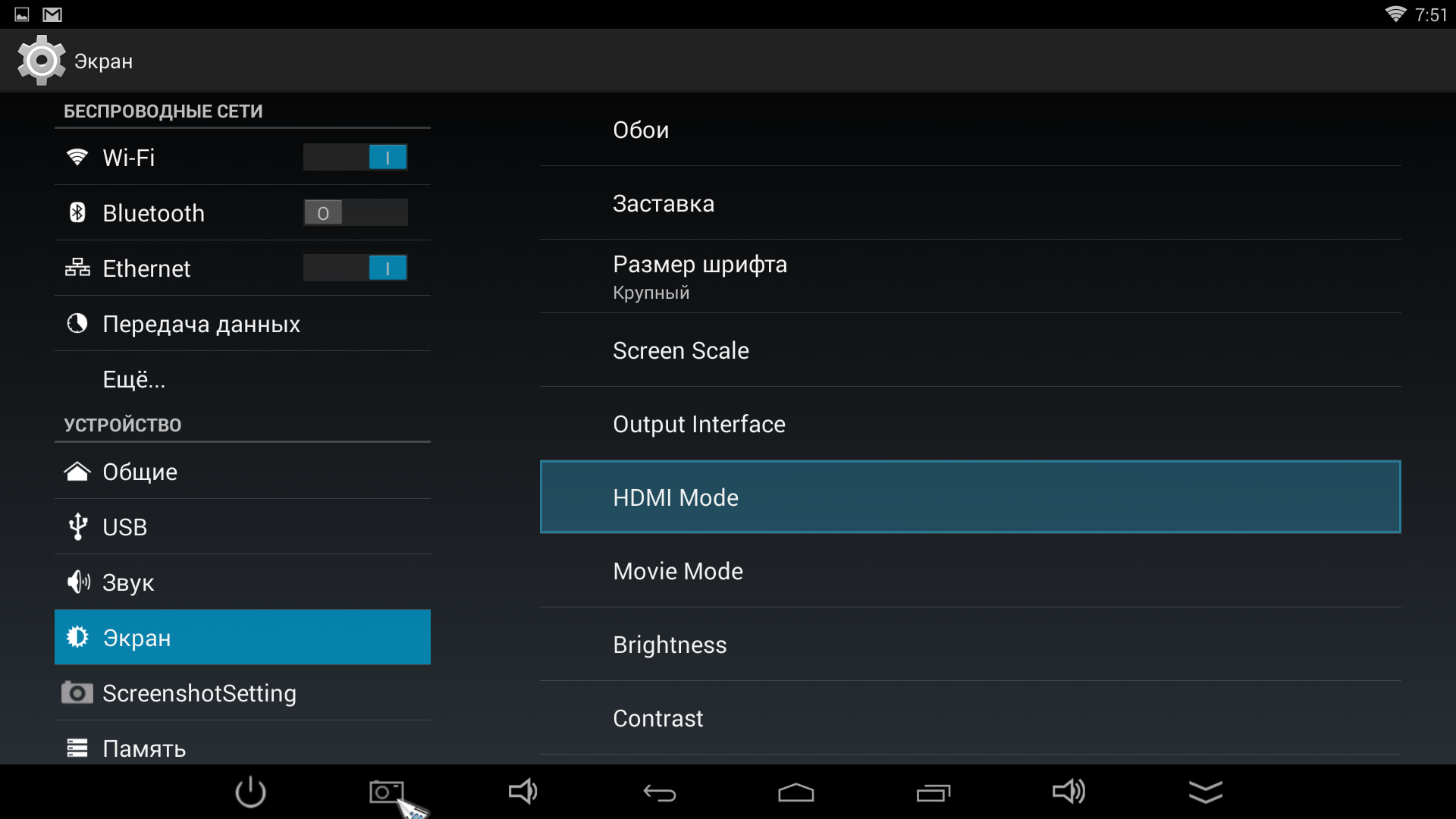
UPD: Screenshots of the Antutu "info" section and image output options:


Only registered users can participate in the survey. Please come in.
What devices do you use to enjoy multimedia content?
- 22.7% Smart TV 116
- 36.9% Notebook 189
- 45.7% Desktop Computer 234
- 18.5% TV box on Android 95
- 14.8% PC 76 based multimedia center
- 5.4% Xbox / PS Console 28
- 13.5% Other (in comments) 69