May 17, 2018 at 10:28
Google Analytics payload of Google Sheets via Google Tag Manager
Task: determine which events exceed the payload size of Google Analytics
Solution: logging Google Analytics hits (including payload size) in Google Sheets using Google Tag Manager, without the participation of developers
If you have ever implemented Enhanced Ecommerce for Google Analytics (GA) through Google Tag Manager (GTM) and then debugged this business using the Google Analytics debugger , then you probably encountered some events that somehow didn’t reach GA and error appears: Payload size is to large (9000). Max allowed is 8192
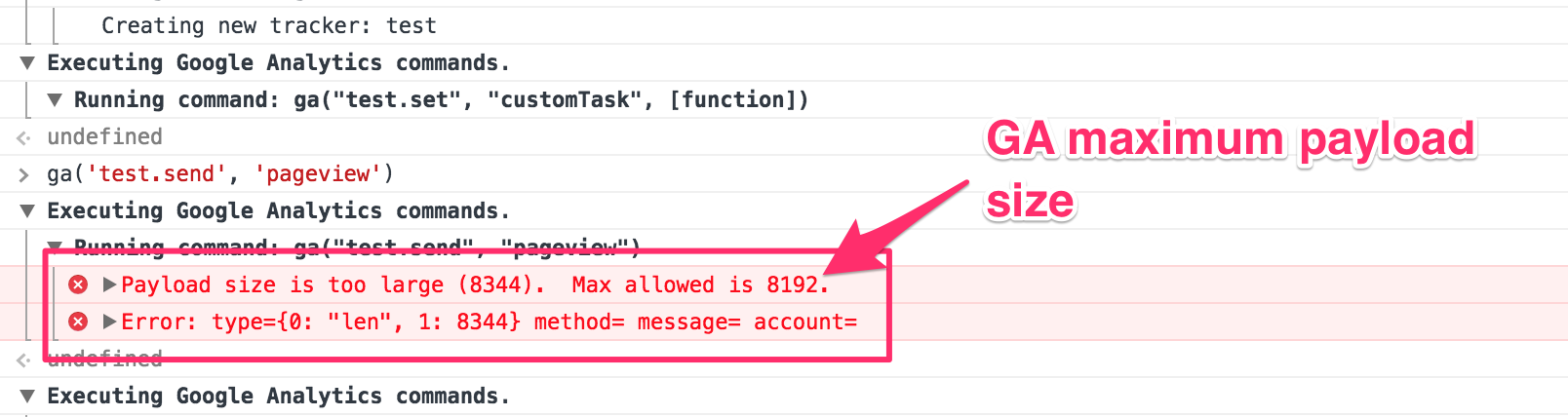
The fact is that the analytics.js library does not accept hits over 8192 bytes . If the hit size is larger, then it will not reach GA and will be empty in event reports.
An example of a situation:
A web analyst asks a developer to push (or cram himself) all product impressions into one hit. As a result, the hit does not reach. in a listing on one page more than 50 products. Or 50+ different products are added to the basket, as a result there are problems with the checkout step and transaction events.
Always try to optimize the structure of the hit data (i.e., send hits as the product appears in the user's field of view, do not push unnecessary variables (variant, category, brand) into the hit, do not use long product names, etc.) - this, firstly, will increase the speed of sending a hit; secondly, avoid problems with payload size.
If optimization is not possible, then there are several ways to get around these limitations:
Before we start cutting hits and optimizing content, we will determine which events exceed the payload size.
Create a new table.
In the header (1 line), write the names of the parameters that we want to extract from the hit (be careful, specify the names exactly the same that you will then use in the JS script in GTM). As an example, we extract the following data:
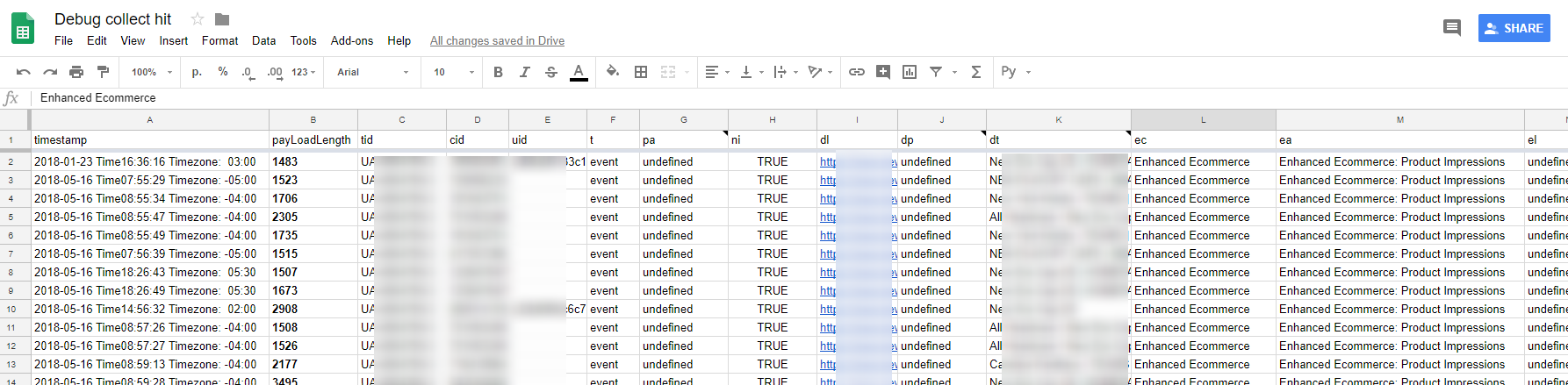
An example of column mapping for logging payload in Google Sheet
The order of parameters in columns is not important (except for timestamp - it should be the first). Format columns with cid and ti parameters as Plain text (Format> Number> Plain text), in order to avoid errors with autoformatting.
If you wish, you can add / remove the necessary parameters, (then remember to change the list of variables in the JS script in GTM). List of possible fields and parameters analytics.js
Next, open the script editor and add the code (the original script belongs to Martin Hawksey https://gist.github.com/mhawksey/1276293 ):
We deploy the script as a web application (Publish> Deploy as web app ...). Permissions - anyone, even anonymous. Publish.
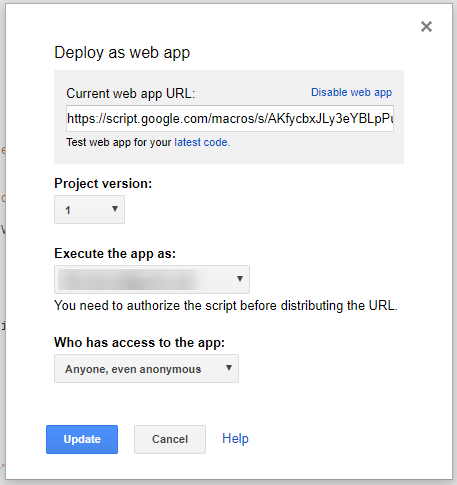
Google Script editor settings
In the future, we will need the URL of our web application (Current web app URL), so do not close the tab yet.
Create 2 custom JavaScript variables:
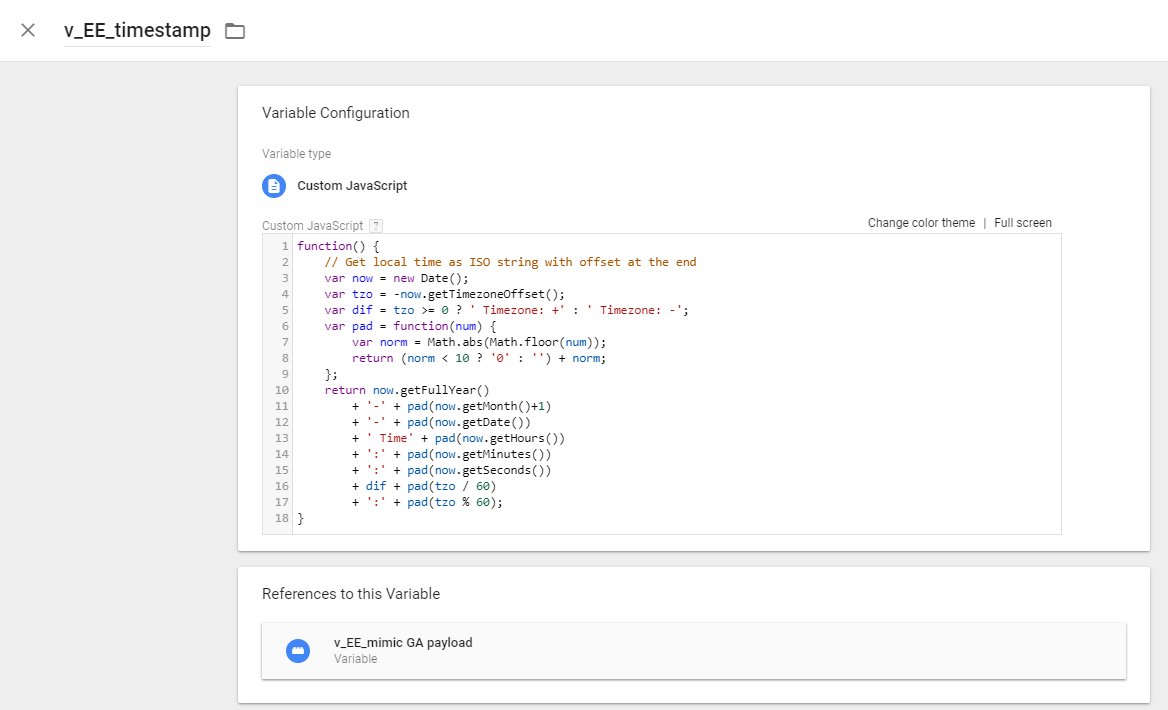
Example JavaScript variable in GTM
The first JS variable to determine the time the hit was sent (timestamp). This variable will be used in the second JS variable.
The second JS variable , to catch the necessary hits and transfer them to Google Sheet (the code from this material is taken as the basis ).
What you need to configure:
Now, we find in our container the tag (s) responsible for sending Enhanced Ecommerce events to GA and create a copy of them with reference to the corresponding triggers.
In the copy of the tags, change the GA ID to any (test / fake) and add the sendHitTask field and the name JS variable (v_EE_mimic GA payload) to the Fields to Set .
sendHitTask, in this case, is modified i.e. we send the hit data to the test GA (you can not send it, just delete the value 'https://www.google-analytics.com/collect', in the code ) and Google Sheet (if it exceeds the specified payload size).
A copy of the tags with the test GA ID is needed for security, so as not to touch the original Enhanced Ecommerce tag. You can modify sendHitTask in the original tag (without making copies), but then you cannot use customTask (you have to modify it by integrating sendHitTask) and there is a risk that the hit will not reach GA (I haven’t seen this, but just in case it’s better insure).
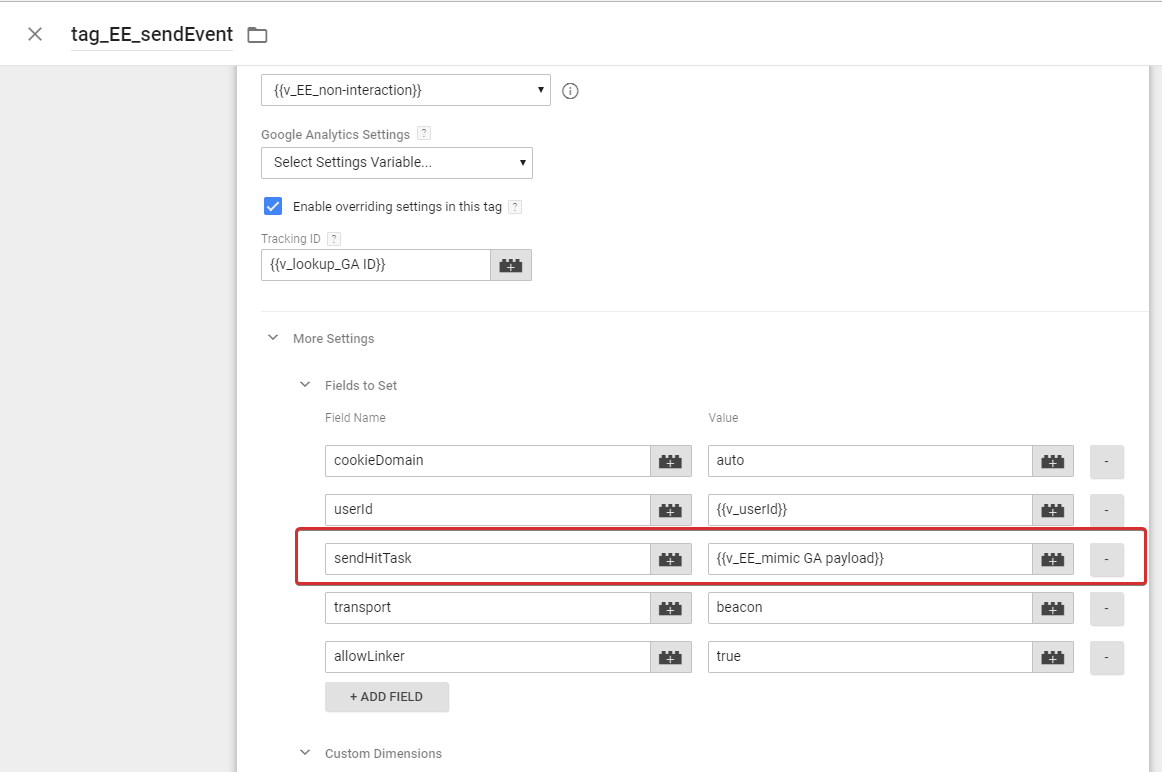
Enhanced Ecommerce tag settings in GTM
Save the tag, publish a new version of the GTM container.
Now, when the Enhance Ecommerce tag is triggered, the v_EE_mimic GA payload script will also work. If at the given settings payload exceeds its values, this hit will be recorded in Google Sheet.
By collecting logs by hits, you can determine which specific event did not reach GA, where it happened, in which browser, etc. (see the list of possible fields and parameters analytics.js ).
Thanks for attention!
I hope this material comes in handy and makes life easier with the Google Analytics debug.
PS Who knows how to automate the verification of GTM tags (auto-tests for tags), please respond! Once upon a time, Simo wrote an article about it www.simoahava.com/analytics/automated-tests-for-google-tag-managers-datalayerbut could not figure it out, maybe someone tried / knows other ways. I will be very grateful for advice and help in this matter.
Solution: logging Google Analytics hits (including payload size) in Google Sheets using Google Tag Manager, without the participation of developers
The essence of the problem
If you have ever implemented Enhanced Ecommerce for Google Analytics (GA) through Google Tag Manager (GTM) and then debugged this business using the Google Analytics debugger , then you probably encountered some events that somehow didn’t reach GA and error appears: Payload size is to large (9000). Max allowed is 8192
Why it happens?
The fact is that the analytics.js library does not accept hits over 8192 bytes . If the hit size is larger, then it will not reach GA and will be empty in event reports.
An example of a situation:
A web analyst asks a developer to push (or cram himself) all product impressions into one hit. As a result, the hit does not reach. in a listing on one page more than 50 products. Or 50+ different products are added to the basket, as a result there are problems with the checkout step and transaction events.
What do we have to do
Always try to optimize the structure of the hit data (i.e., send hits as the product appears in the user's field of view, do not push unnecessary variables (variant, category, brand) into the hit, do not use long product names, etc.) - this, firstly, will increase the speed of sending a hit; secondly, avoid problems with payload size.
If optimization is not possible, then there are several ways to get around these limitations:
- A beautiful solution to the problem with customTask. One by one, it removes unnecessary parameters from payload until it becomes less than 8192. What exactly can be thrown out - you can configure.
- Cut the hit into several parts and send it in pieces.
- GA data import (we push only the product id into the hit, the rest is loaded as a database via data import).
Preparing for action
Before we start cutting hits and optimizing content, we will determine which events exceed the payload size.
Step 1. Setting up Google Sheets
Create a new table.
In the header (1 line), write the names of the parameters that we want to extract from the hit (be careful, specify the names exactly the same that you will then use in the JS script in GTM). As an example, we extract the following data:
- timestamp
- payLoadLength
- tid (tracking id)
- cid (client id)
- uid (user id)
- t (type of hit)
- pa (product action)
- ni (non interaction)
- dl (document location)
- dp (document path)
- dt (document title)
- ec (event category)
- ea (event action)
- el (event label)
- ti (transaction id)
- tr (transaction revenue)
An example of column mapping for logging payload in Google Sheet
The order of parameters in columns is not important (except for timestamp - it should be the first). Format columns with cid and ti parameters as Plain text (Format> Number> Plain text), in order to avoid errors with autoformatting.
If you wish, you can add / remove the necessary parameters, (then remember to change the list of variables in the JS script in GTM). List of possible fields and parameters analytics.js
Next, open the script editor and add the code (the original script belongs to Martin Hawksey https://gist.github.com/mhawksey/1276293 ):
function doGet(e){
  return handleResponse(e);
}
function doPost(e){
  return handleResponse(e);
}
function handleResponse(e) {
  var lock = LockService.getPublicLock();
  lock.waitLock(30000);  // wait 30 seconds before conceding defeat.
  try {
    // next set where we write the data - you could write to multiple/alternate destinations
    var ss = SpreadsheetApp.getActiveSpreadsheet();
    var sheet = ss.getSheets()[0];
    // we'll assume header is in row 1 but you can override with header_row in GET/POST data
    var headRow = e.parameter.header_row || 1;
    var headers = sheet.getRange(1, 1, 1, sheet.getLastColumn()).getValues()[0];
    var nextRow = sheet.getLastRow()+1; // get next row
    var row = [];
    // loop through the header columns
    for (i in headers){
      if (headers[i] == "timestamp"){ // special case if you include a 'timestamp' column
        row.push(Utilities.formatDate(new Date(), Session.getScriptTimeZone(), "MMM d yyyy HH:mm:ss"));
      } else { // else use header name to get data
        row.push(e.parameter[headers[i]]);
      }
    }
    // more efficient to set values as [][] array than individually
    sheet.getRange(nextRow, 1, 1, row.length).setValues([row]);
    // return json success results
    return ContentService
          .createTextOutput(JSON.stringify({"result":"success", "row": nextRow}))
          .setMimeType(ContentService.MimeType.JSON);
  } catch(e){
    // if error return this
    return ContentService
          .createTextOutput(JSON.stringify({"result":"error", "error": e}))
          .setMimeType(ContentService.MimeType.JSON);
  } finally { //release lock
    lock.releaseLock();
  }
}
We deploy the script as a web application (Publish> Deploy as web app ...). Permissions - anyone, even anonymous. Publish.
Google Script editor settings
In the future, we will need the URL of our web application (Current web app URL), so do not close the tab yet.
Step 2. Configure GTM
Create 2 custom JavaScript variables:
- v_EE_timestamp
- v_EE_mimic GA payload
Example JavaScript variable in GTM
The first JS variable to determine the time the hit was sent (timestamp). This variable will be used in the second JS variable.
function() {
    // Get local time as ISO string with offset at the end
    var now = new Date();
    var tzo = -now.getTimezoneOffset();
    var dif = tzo >= 0 ? ' Timezone: +' : ' Timezone: -';
    var pad = function(num) {
        var norm = Math.abs(Math.floor(num));
        return (norm < 10 ? '0' : '') + norm;
    };
    return now.getFullYear()
        + '-' + pad(now.getMonth()+1)
        + '-' + pad(now.getDate())
        + ' Time' + pad(now.getHours())
        + ':' + pad(now.getMinutes())
        + ':' + pad(now.getSeconds())
        + dif + pad(tzo / 60)
        + ':' + pad(tzo % 60);
}
The second JS variable , to catch the necessary hits and transfer them to Google Sheet (the code from this material is taken as the basis ).
function sendHitTask(){
  return function(model) {
    var payLoad = model.get('hitPayload');
    var trackingBaseUrls = ['https://www.google-analytics.com/collect', 'https://script.google.com/macros/s/AKfycbxJLy3eYBLpPu_S_eNccxzn_GwHXkZWr-93feMuBaAZelk3fj01yB/exec'];
    for (i = 0; i < trackingBaseUrls.length; i++) { var baseUrl = trackingBaseUrls[i]; if (trackingBaseUrls[i].indexOf('collect') > -1) {
          var req = new XMLHttpRequest();
          req.open('POST', baseUrl, true);
          req.send(payLoad);
      } else if (payLoad.length > 7500){
        var payLoadExtract = payLoad.split('&');
        var payLoadArray = {};
        // Push values to array for later access
          for (i = 0; i < payLoadExtract.length; i++){
                  var splitArray = payLoadExtract[i].split('=');
                  payLoadArray[splitArray[0].trim()] = splitArray[1].trim();
          }
            // Specify values to be sent to Google Sheets from array
            var tid = 'tid=' + payLoadArray.tid,
            cid = '&cid=' + payLoadArray.cid,
            uid = '&uid=' + payLoadArray.uid,
            t = '&t=' + payLoadArray.t,
            pa = '&pa=' + payLoadArray.pa,
            ni = '&ni=' + payLoadArray.ni,
            dl = '&dl=' + payLoadArray.dl,
            dp = '&dp=' + payLoadArray.dp,
            dt = '&dt=' + payLoadArray.dt,
            ec = '&ec=' + payLoadArray.ec,
            ea = '&ea=' + payLoadArray.ea,
            el = '&el=' + payLoadArray.el,
            ti = '&ti=' + payLoadArray.ti,
            tr = '&tr=' + payLoadArray.tr,
            timestamp = '×tamp=' + {{v_EE_timestamp}},
            payLoadLength = '&payLoadLength=' + payLoad.length;
            var collectPayLoad = tid + cid + uid + t + pa + ni + dl + dp + dt + ec + ea + el + ti + tr + timestamp + payLoadLength;
        // Send Values to Google Sheets
        var collectUrl = baseUrl +'?'+ collectPayLoad;
        var myImage = new Image();
        myImage.src = collectUrl;
      }
    }
  }
}
What you need to configure:
- In the trackingBaseUrls variable, insert the url of your web application (created in step 1) and the google analytics url.
- In payLoad.length, determine the size of the hit that you want to catch. In the example set> 7500 i.e. we catch everything that could potentially exceed the threshold of 8192 bytes. You can bet less if the entire log is interesting.
- In req.open determined hit send method (can be POST or GET, depending on the size of the hit; the Google recommends using a POST because it allows you to send a larger payload). By default, events in GA are sent via GET. For Enhanced Ecommerce, I recommend changing the sending method to POST (done by adding to the Enhance Ecommerce tag in Fields to set: transport - beakon )
Now, we find in our container the tag (s) responsible for sending Enhanced Ecommerce events to GA and create a copy of them with reference to the corresponding triggers.
In the copy of the tags, change the GA ID to any (test / fake) and add the sendHitTask field and the name JS variable (v_EE_mimic GA payload) to the Fields to Set .
sendHitTask, in this case, is modified i.e. we send the hit data to the test GA (you can not send it, just delete the value 'https://www.google-analytics.com/collect', in the code ) and Google Sheet (if it exceeds the specified payload size).
A copy of the tags with the test GA ID is needed for security, so as not to touch the original Enhanced Ecommerce tag. You can modify sendHitTask in the original tag (without making copies), but then you cannot use customTask (you have to modify it by integrating sendHitTask) and there is a risk that the hit will not reach GA (I haven’t seen this, but just in case it’s better insure).
Enhanced Ecommerce tag settings in GTM
Save the tag, publish a new version of the GTM container.
Total
Now, when the Enhance Ecommerce tag is triggered, the v_EE_mimic GA payload script will also work. If at the given settings payload exceeds its values, this hit will be recorded in Google Sheet.
By collecting logs by hits, you can determine which specific event did not reach GA, where it happened, in which browser, etc. (see the list of possible fields and parameters analytics.js ).
Thanks for attention!
I hope this material comes in handy and makes life easier with the Google Analytics debug.
PS Who knows how to automate the verification of GTM tags (auto-tests for tags), please respond! Once upon a time, Simo wrote an article about it www.simoahava.com/analytics/automated-tests-for-google-tag-managers-datalayerbut could not figure it out, maybe someone tried / knows other ways. I will be very grateful for advice and help in this matter.