May 16, 2018 at 11:06
RDP Three letter game
As you know, the Remote Desktop Protocol ( Remote Desktop Protocol or RDP) allows you to remotely connect to computers running Windows and is available to any Windows user if he does not have a Home version , where there is only an RDP client, but not a host. This is a convenient, effective and practical tool for remote access for administrative purposes or daily work. Recently, it has attracted miners who use RDP for remote access to their farms. RDP Supportincluded in Windows, starting with NT 4.0 and XP, but not everyone knows how to use it. Meanwhile, you can open Microsoft Remote Desktop from computers running Windows, Mac OS X, as well as from mobile devices with Android OS or from iPhone and iPad.
If you properly understand the settings, then RDP will be a good means of remote access. It makes it possible not only to see the remote desktop, but also use the resources of the remote computer, connect local disks or peripheral devices to it. In this case, the computer must have an external IP (static or dynamic), or it should be possible to "forward" the port from a router with an external IP address.

RDP servers are often used for collaboration in the 1C system, or they deploy user workstations, allowing them to connect to their workstation remotely. The RDP client allows you to work with text and graphic applications, remotely receive some data from your home PC. To do this, you need to forward port 3389 on the router in order to gain access to the home network through NAT. The same applies to setting up an RDP server in an organization.
RDP is considered by many to be an unsafe way of remote access compared to the use of special programs , such as RAdmin, TeamViewer, VNC, etc. Another prejudice is the high RDP traffic. However, today RDP is no less secure than any other remote access solution (we’ll return to the issue of security), and with the help of settings you can achieve high reaction speed and low bandwidth requirements.
Basic setup completed. How to connect to remote desktop?
To connect via RDP, you need to have an account with a password on the remote computer, remote connections must be allowed in the system, and in order not to change the access data with a constantly changing dynamic IP address, you can assign a static IP address in the network settings . Remote access is only available on computers running Windows Pro, Enterprise, or Ultimate.
To connect remotely to a computer, you must enable the connection in the "System Properties" and set the password for the current user, or create a new user for RDP. Users of regular accounts do not have the right to independently provide a computer for remote management. The administrator can give them such a right. An obstacle to using the RDP protocol may be its blocking by antiviruses. In this case, RDP must be enabled in the antivirus settings.
It is worth noting a feature of some server OSs: if the same user tries to log into the server locally and remotely, then the local session will close and the remote one will open in the same place. Conversely, when you log in locally, the remote session will close. If you log in locally as one user and remotely as another, the system will end the local session.
Connection via the RDP protocol is carried out between computers on the same local network or via the Internet, but this will require additional steps - forwarding port 3389 on the router, or connecting to the remote computer via VPN.
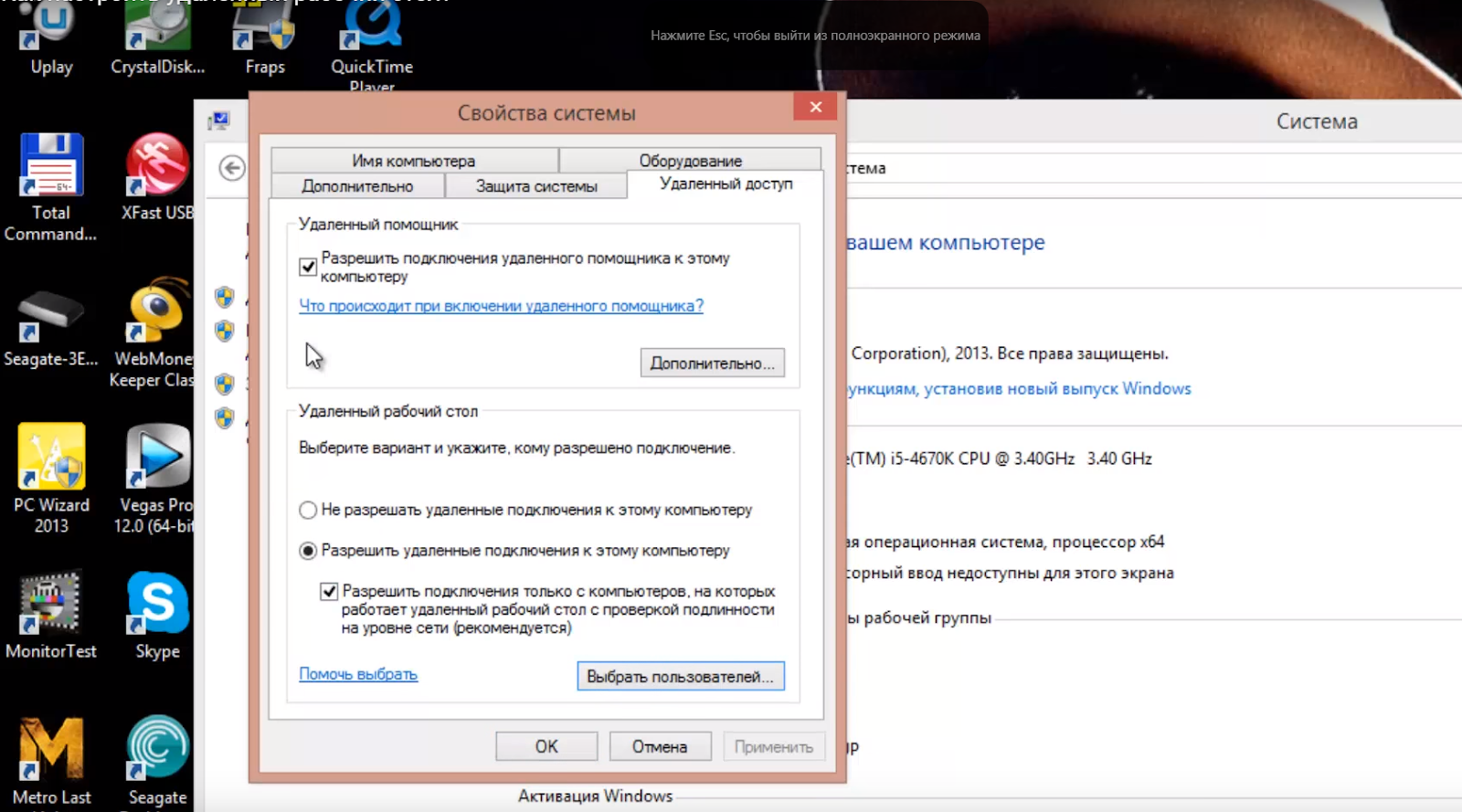
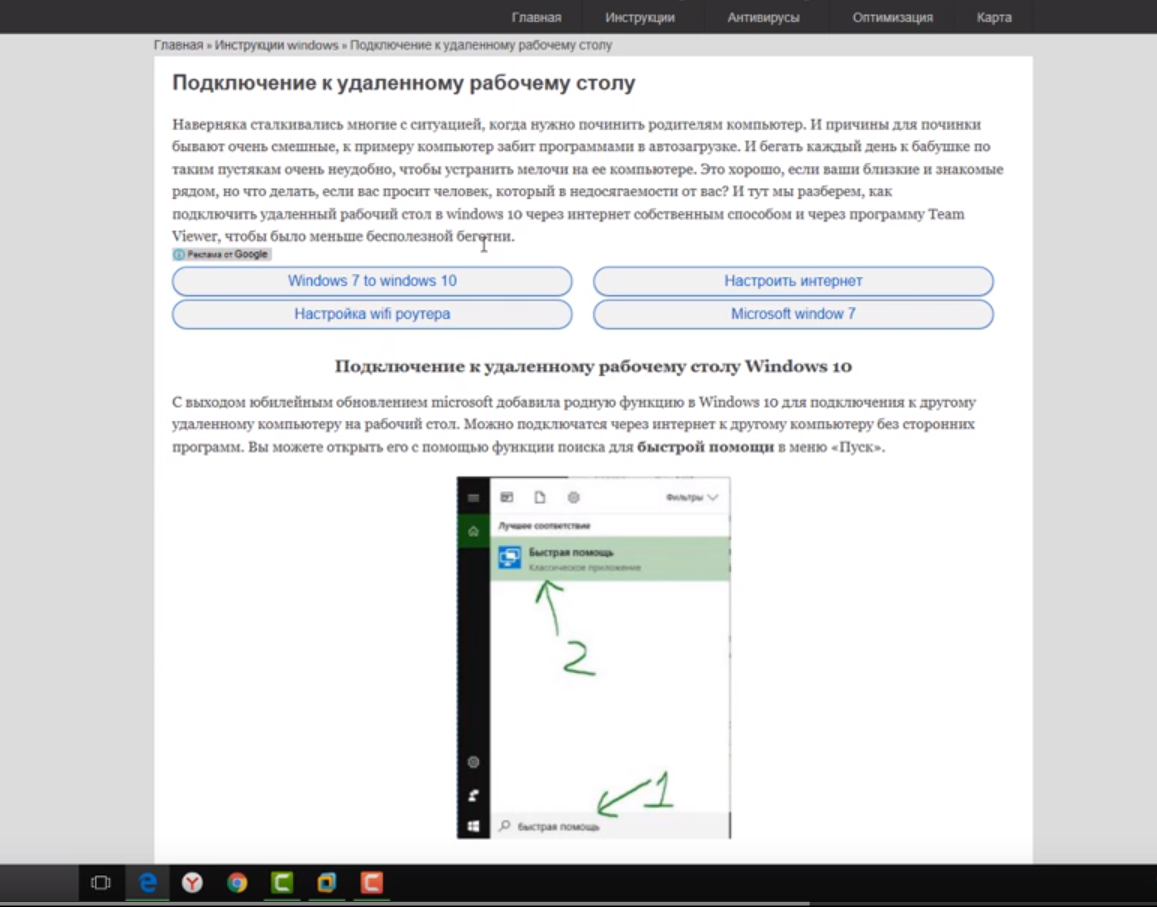
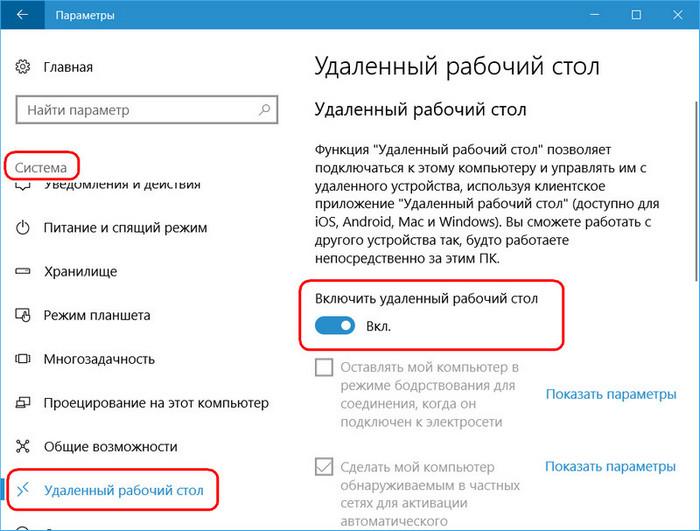
To connect to remote desktop in Windows 10, you can enable remote connection in "Settings - System - Remote Desktop" and specify the users who need to be granted access, or create a separate user for the connection. By default, the current user and administrator have access. On the remote system, run the utility to connect.
Press Win + R, type MSTSC and press Enter. In the window, enter the IP address or computer name, select "Connect", enter the username and password. The screen of the remote computer appears.
When connecting to Remote Desktop via the command line (MSTSC), you can specify additional RDP parameters:
For Mac OS, Microsoft has released an official RDP client that works stably when connected to any version of Windows. In Mac OS X, to connect to a Windows computer, you need to download the Microsoft Remote Desktop application from the App Store. In it, using the Plus button, you can add a remote computer: enter its IP address, username and password. Double-clicking on the name of the remote desktop in the list of connections will open the Windows desktop.
On smartphones and tablets running Android and iOS, you need to install the Microsoft Remote Desktop application (“Microsoft Remote Desktop”) and run it. Select "Add", enter the connection parameters - the IP address of the computer, username and password to log into Windows. Another way is to forward the port 3389 to the IP address of the computer on the router and connect to the public address of the router with this port. This is done using the Port Forwarding router option. Select Add and enter:
What about Linux? RDP is a closed Microsoft protocol; it does not release RDP clients for Linux, but you can use the Remmina client. Ubuntu users have special repositories with Remmina and RDP.
RDP is also used to connect to Hyper-V virtual machines. Unlike the hypervisor connection window, when connecting via RDP, the virtual machine sees various devices connected to the physical computer, supports sound, gives a better picture of the desktop of the guest OS, etc.
In virtual hosting providerWindows VPS servers by default are usually also available for connection using the standard RDP protocol. When using the standard Windows operating system, to connect to the server, just select: "Start - Programs - Accessories - Connect to Remote Desktop" or press Win + R and in the window that opens, type MSTSC. The IP address of the VPS server is entered in the window.
By clicking the “Connect” button, you will see a window with authorization fields.
In order for the USB devices and network printers connected to your PC to be accessible to the server, the first time you connect to the server, select "Show settings" in the lower left corner. In the window, click the "Local Resources" tab and select the required parameters.
Using the option to save authorization data on a remote computer, connection parameters (IP address, username and password) can be saved in a separate RDP file and used on another computer.
RDP can also be used to connect to Azure virtual machines .
The window for connecting to a remote computer has tabs with customizable parameters.
Details of setting up remote desktop in Windows 10 are in this video . Now back to RDP security.
Can I intercept RDS sessions? And how to protect yourself from this? It has been known about the possibility of hijacking an RDP session in Microsoft Windows since 2011, and a year ago, researcher Alexander Korznikov in his blog described in detail the hijacking techniques. It turns out that it is possible to connect to any running session in Windows (with any rights), being logged in under any other.
Some techniques allow you to intercept a session without a login password. All you need is access to the NT AUTHORITY / SYSTEM command line. If you run tscon.exe as a SYSTEM user, you can connect to any session without a password. RDP does not ask for a password, it just connects you to the user's desktop. You can, for example, dump the server memory and get user passwords. By simply running tscon.exe with the session number, you can get the desktop of the specified user - without external tools. Thus, with a single command, we have a hacked RDP session. You can also use the psexec.exe utility if it was previously installed:
Or you can create a service that will connect the attacked account and start it, after which your session will be replaced by the target. Here are some notes on how far this goes:
Many server operating systems are subject to this threat, and the number of servers using RDP is constantly increasing. It turned out to be vulnerable to Windows 2012 R2, Windows 2008, Windows 10 and Windows 7 . To prevent hijacking of RDP sessions, it is recommended to use two-factor authentication. The updated Sysmon Framework for ArcSight and the Sysmon Integration Framework for Splunk warn the administrator about running malicious commands to hijack an RDP session. You can also use the Windows Security Monitor utility to monitor security events.
Finally, consider how to remove a remote desktop connection. This is a useful measure if the need for remote access has disappeared, or if you want to prevent outsiders from connecting to the remote desktop. Open "Control Panel - System and Security - System". In the left column, click "Configure Remote Access." In the "Remote Desktop" section, select "Do not allow connections to this computer." Now no one can connect to you through the remote desktop.
In conclusion, a few more life hacks that can come in handy when working with the Windows 10 remote desktop, and simply with remote access.
As you can see, there are many solutions and opportunities that open up remote access to a computer. It is no coincidence that most enterprises, organizations, institutions and offices use it. This tool is useful not only to system administrators, but also to heads of organizations, and for ordinary users, remote access is also very useful. You can help repair or optimize the system for a person who does not understand this without getting up from a chair, transfer data or access the necessary files while on a business trip or on vacation anywhere in the world, work at an office computer from home, manage his virtual server and etc.
Good luck PS We are looking for authors for our blog on Habrahabr.

If you have technical knowledge of working with virtual servers, you can explain complex things in simple words, then the RUVDS team will be happy to work with you to publish your post on Habrahabr. Details on the link .

RDP servers are often used for collaboration in the 1C system, or they deploy user workstations, allowing them to connect to their workstation remotely. The RDP client allows you to work with text and graphic applications, remotely receive some data from your home PC. To do this, you need to forward port 3389 on the router in order to gain access to the home network through NAT. The same applies to setting up an RDP server in an organization.
RDP is considered by many to be an unsafe way of remote access compared to the use of special programs , such as RAdmin, TeamViewer, VNC, etc. Another prejudice is the high RDP traffic. However, today RDP is no less secure than any other remote access solution (we’ll return to the issue of security), and with the help of settings you can achieve high reaction speed and low bandwidth requirements.
How to protect RDP and tune its performance
| Encryption and Security | You need to open gpedit.msc, in "Computer Configuration - Administrative Templates - Windows Components - Remote Desktop Services - Security" set the parameter "Require the use of a special level of security for remote connections using the RDP method" and in the "Security Level" select "SSL TLS" . In "Set Encryption Level for Client Connections," select "High." To enable the use of FIPS 140-1, go to "Computer Configuration - Windows Configuration - Security Settings - Local Policies - Security Settings" and select "System Cryptography: use FIPS-compatible algorithms for encryption, hashing and signing." “Computer Configuration - Windows Settings - Security Settings - Local Policies - Security Settings” option; Accounts: allow the use of blank passwords only with console login ”should be enabled. Check the list of users who can connect via RDP. |
| Optimization | Open "Computer Configuration - Administrative Templates - Windows Components - Remote Desktop Services - Remote Session Environment". In the "Maximum color depth" select 16 bits, this is enough. Uncheck the "Force Cancellation of Remote Desktop Background" checkbox. In “Setting the RDP Compression Algorithm,” set “Optimizing Bandwidth Usage. In Optimize visual effects for Remote Desktop Services sessions, set the value to Text. Disable Font Smoothing. |
Basic setup completed. How to connect to remote desktop?
Remote Desktop Connection
To connect via RDP, you need to have an account with a password on the remote computer, remote connections must be allowed in the system, and in order not to change the access data with a constantly changing dynamic IP address, you can assign a static IP address in the network settings . Remote access is only available on computers running Windows Pro, Enterprise, or Ultimate.
To connect remotely to a computer, you must enable the connection in the "System Properties" and set the password for the current user, or create a new user for RDP. Users of regular accounts do not have the right to independently provide a computer for remote management. The administrator can give them such a right. An obstacle to using the RDP protocol may be its blocking by antiviruses. In this case, RDP must be enabled in the antivirus settings.
It is worth noting a feature of some server OSs: if the same user tries to log into the server locally and remotely, then the local session will close and the remote one will open in the same place. Conversely, when you log in locally, the remote session will close. If you log in locally as one user and remotely as another, the system will end the local session.
Connection via the RDP protocol is carried out between computers on the same local network or via the Internet, but this will require additional steps - forwarding port 3389 on the router, or connecting to the remote computer via VPN.
To connect to remote desktop in Windows 10, you can enable remote connection in "Settings - System - Remote Desktop" and specify the users who need to be granted access, or create a separate user for the connection. By default, the current user and administrator have access. On the remote system, run the utility to connect.
Press Win + R, type MSTSC and press Enter. In the window, enter the IP address or computer name, select "Connect", enter the username and password. The screen of the remote computer appears.
When connecting to Remote Desktop via the command line (MSTSC), you can specify additional RDP parameters:
| Parameter | Value |
| / v: <server [: port]> | The remote computer to which you are connecting. |
| / admin | Connect to a session to administer the server. |
| / edit | Editing an RDP file. |
| / f | Run Remote Desktop in full screen. |
| / w: <width> | The width of the remote desktop window. |
| / h: <height> | The height of the remote desktop window. |
| / public | Starting remote desktop in general mode. |
| / span | Match the width and height of the remote desktop to the local virtual desktop and deploy to multiple monitors. |
| / multimon | Configures the placement of RDP session monitors according to the current client-side configuration. |
| / migrate | Migrate legacy connection files to new .rdp files. |
For Mac OS, Microsoft has released an official RDP client that works stably when connected to any version of Windows. In Mac OS X, to connect to a Windows computer, you need to download the Microsoft Remote Desktop application from the App Store. In it, using the Plus button, you can add a remote computer: enter its IP address, username and password. Double-clicking on the name of the remote desktop in the list of connections will open the Windows desktop.
On smartphones and tablets running Android and iOS, you need to install the Microsoft Remote Desktop application (“Microsoft Remote Desktop”) and run it. Select "Add", enter the connection parameters - the IP address of the computer, username and password to log into Windows. Another way is to forward the port 3389 to the IP address of the computer on the router and connect to the public address of the router with this port. This is done using the Port Forwarding router option. Select Add and enter:
Name: RDP
Type: TCP & UDP
Start port: 3389
End port: 3389
Server IP: IP-адрес компьютера для подключения.
What about Linux? RDP is a closed Microsoft protocol; it does not release RDP clients for Linux, but you can use the Remmina client. Ubuntu users have special repositories with Remmina and RDP.
RDP is also used to connect to Hyper-V virtual machines. Unlike the hypervisor connection window, when connecting via RDP, the virtual machine sees various devices connected to the physical computer, supports sound, gives a better picture of the desktop of the guest OS, etc.
In virtual hosting providerWindows VPS servers by default are usually also available for connection using the standard RDP protocol. When using the standard Windows operating system, to connect to the server, just select: "Start - Programs - Accessories - Connect to Remote Desktop" or press Win + R and in the window that opens, type MSTSC. The IP address of the VPS server is entered in the window.
By clicking the “Connect” button, you will see a window with authorization fields.
In order for the USB devices and network printers connected to your PC to be accessible to the server, the first time you connect to the server, select "Show settings" in the lower left corner. In the window, click the "Local Resources" tab and select the required parameters.
Using the option to save authorization data on a remote computer, connection parameters (IP address, username and password) can be saved in a separate RDP file and used on another computer.
RDP can also be used to connect to Azure virtual machines .
Configure other remote access functionality
The window for connecting to a remote computer has tabs with customizable parameters.
| Tab | Appointment |
| "Screen" | Sets the screen resolution of the remote computer, that is, the utility window after connecting. You can set a low resolution and sacrifice color depth. |
| "Local resources" | To save system resources, you can turn off the sound on the remote computer. In the local devices section, you can select the printer and other devices of the main computer that will be available on the remote PC, for example, USB devices, memory cards, external drives. |
Details of setting up remote desktop in Windows 10 are in this video . Now back to RDP security.
How to “hijack” an RDP session?
Can I intercept RDS sessions? And how to protect yourself from this? It has been known about the possibility of hijacking an RDP session in Microsoft Windows since 2011, and a year ago, researcher Alexander Korznikov in his blog described in detail the hijacking techniques. It turns out that it is possible to connect to any running session in Windows (with any rights), being logged in under any other.
Some techniques allow you to intercept a session without a login password. All you need is access to the NT AUTHORITY / SYSTEM command line. If you run tscon.exe as a SYSTEM user, you can connect to any session without a password. RDP does not ask for a password, it just connects you to the user's desktop. You can, for example, dump the server memory and get user passwords. By simply running tscon.exe with the session number, you can get the desktop of the specified user - without external tools. Thus, with a single command, we have a hacked RDP session. You can also use the psexec.exe utility if it was previously installed:
psexec -s \\localhost cmdOr you can create a service that will connect the attacked account and start it, after which your session will be replaced by the target. Here are some notes on how far this goes:
- You can connect to disconnected sessions. Therefore, if someone logged out a couple of days ago, you can simply connect directly to his session and start using it.
- You can unlock locked sessions. Therefore, while the user is away from his workplace, you enter his session and he will be unlocked without any credentials. For example, an employee logs into his account, then leaves, blocking the account (but not logging out). The session is active and all applications will remain in the same state. If the system administrator logs into his account on the same computer, he gets access to the employee’s account, and therefore to all running applications.
- Having local administrator rights, you can attack an account with domain administrator rights, i.e. higher than the rights of the attacker.
- You can connect to any session. If, for example, this is Helpdesk, you can connect to it without any authentication. If this is a domain administrator, you will become an admin. With the ability to connect to disconnected sessions, you get an easy way to navigate the network. Thus, attackers can use these methods both for penetration and for further promotion within the company’s network.
- You can use win32k exploits to get SYSTEM permissions and then use this feature. If patches are not applied properly, this is accessible even to the average user.
- If you don’t know what to track, then you won’t know what’s going on.
- The method works remotely. You can perform sessions on remote computers, even if you are not logged on to the server.
Many server operating systems are subject to this threat, and the number of servers using RDP is constantly increasing. It turned out to be vulnerable to Windows 2012 R2, Windows 2008, Windows 10 and Windows 7 . To prevent hijacking of RDP sessions, it is recommended to use two-factor authentication. The updated Sysmon Framework for ArcSight and the Sysmon Integration Framework for Splunk warn the administrator about running malicious commands to hijack an RDP session. You can also use the Windows Security Monitor utility to monitor security events.
Finally, consider how to remove a remote desktop connection. This is a useful measure if the need for remote access has disappeared, or if you want to prevent outsiders from connecting to the remote desktop. Open "Control Panel - System and Security - System". In the left column, click "Configure Remote Access." In the "Remote Desktop" section, select "Do not allow connections to this computer." Now no one can connect to you through the remote desktop.
In conclusion, a few more life hacks that can come in handy when working with the Windows 10 remote desktop, and simply with remote access.
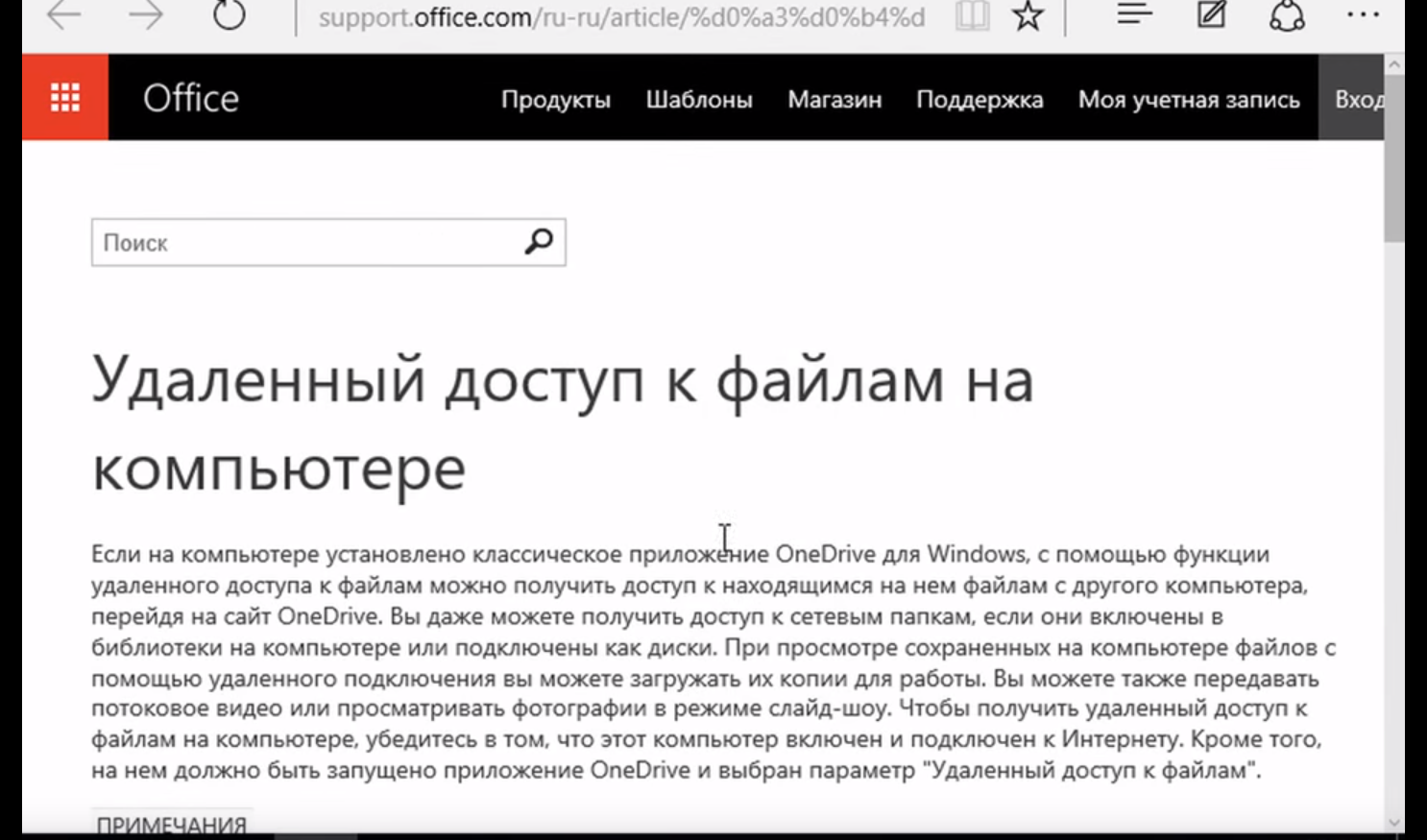
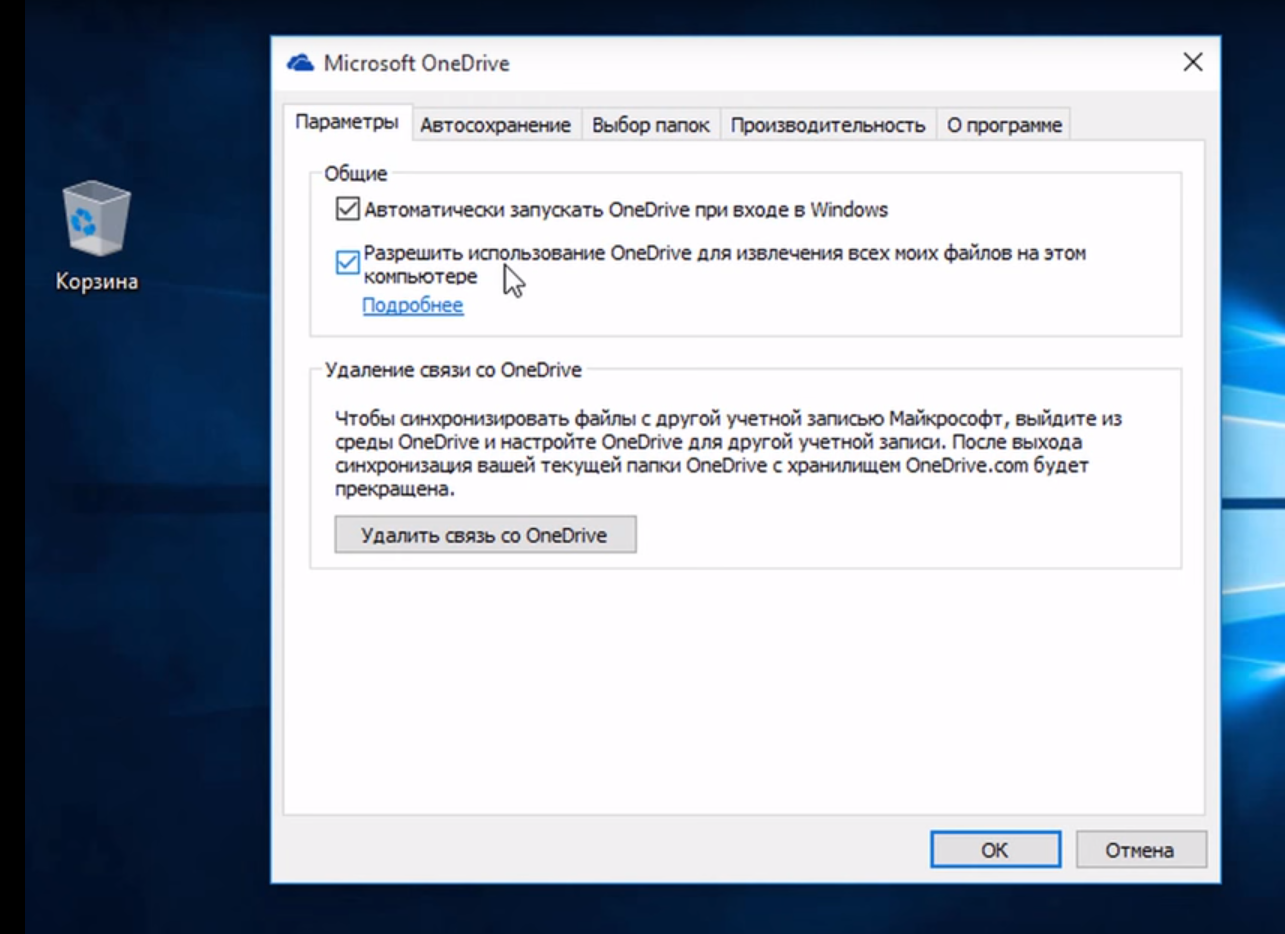
- You can use OneDrive to access files on a remote computer:
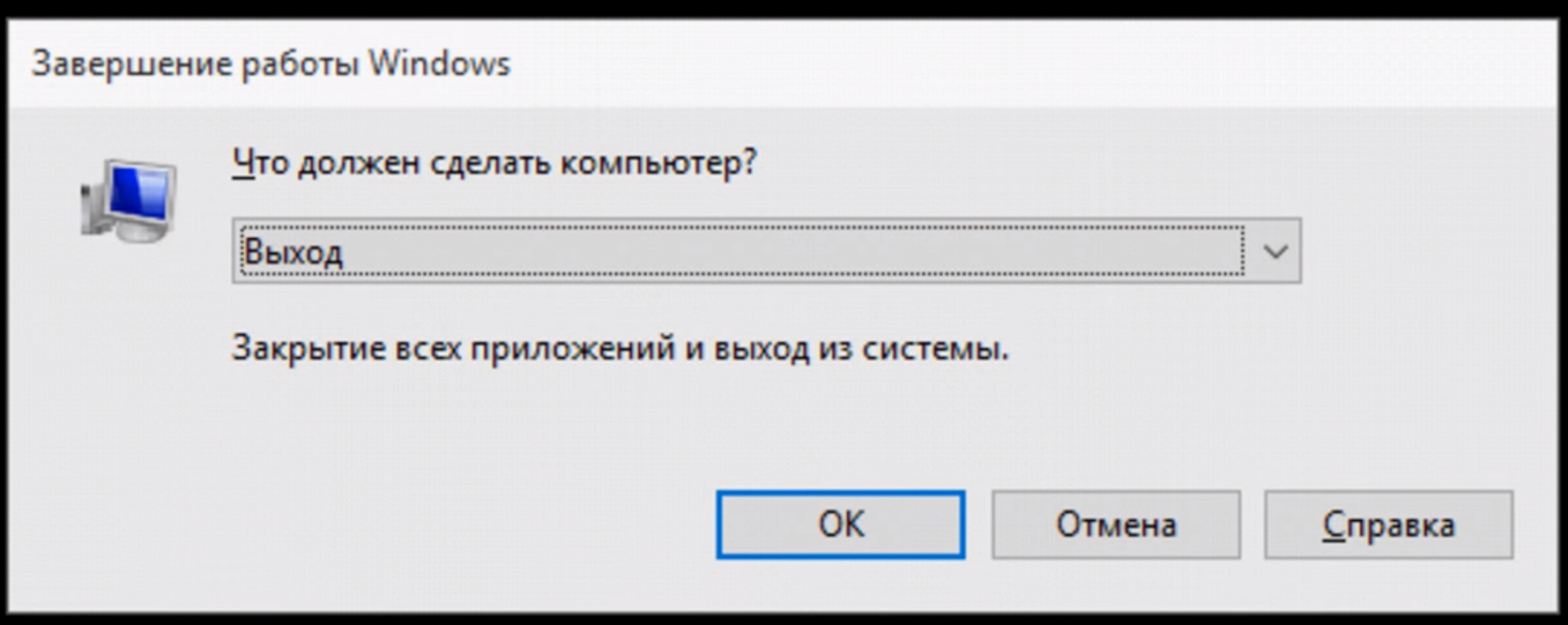
- How to reboot a remote PC in Win10? Press Alt + F4. A window will open:
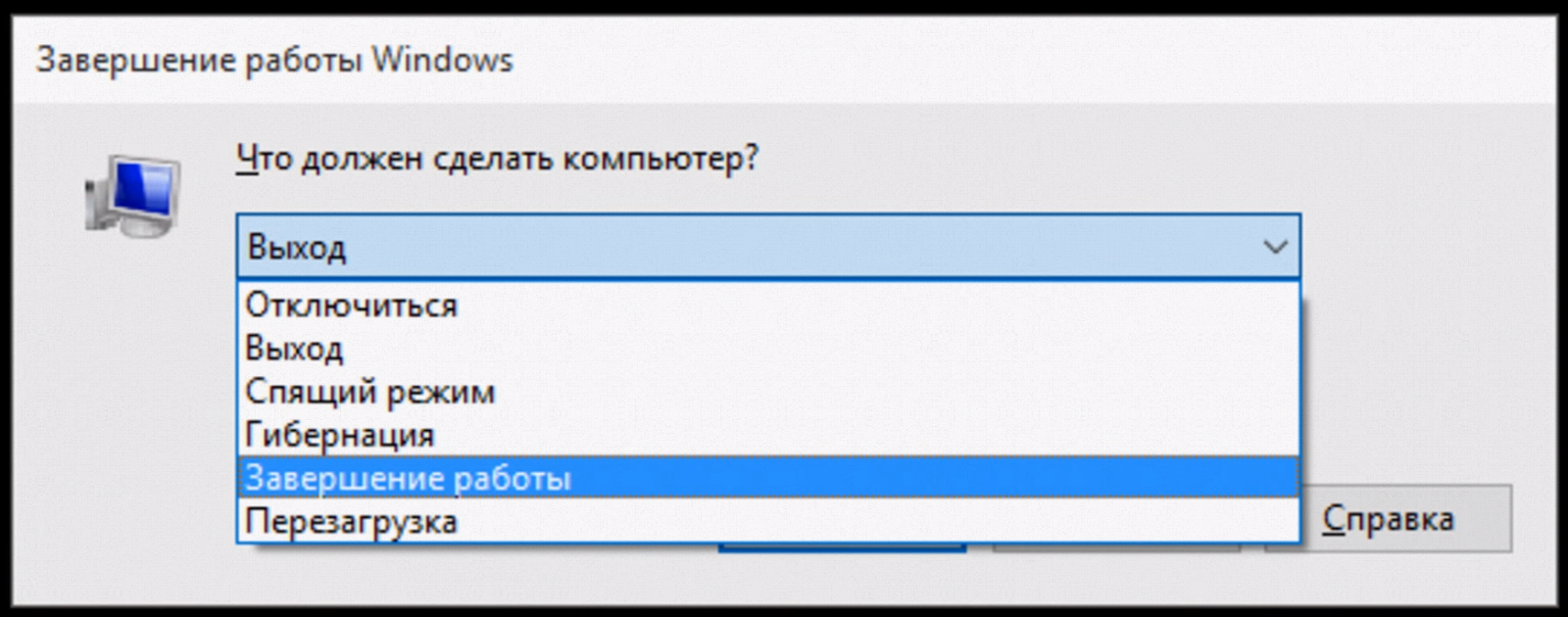
An alternative is the command line and the shutdown command.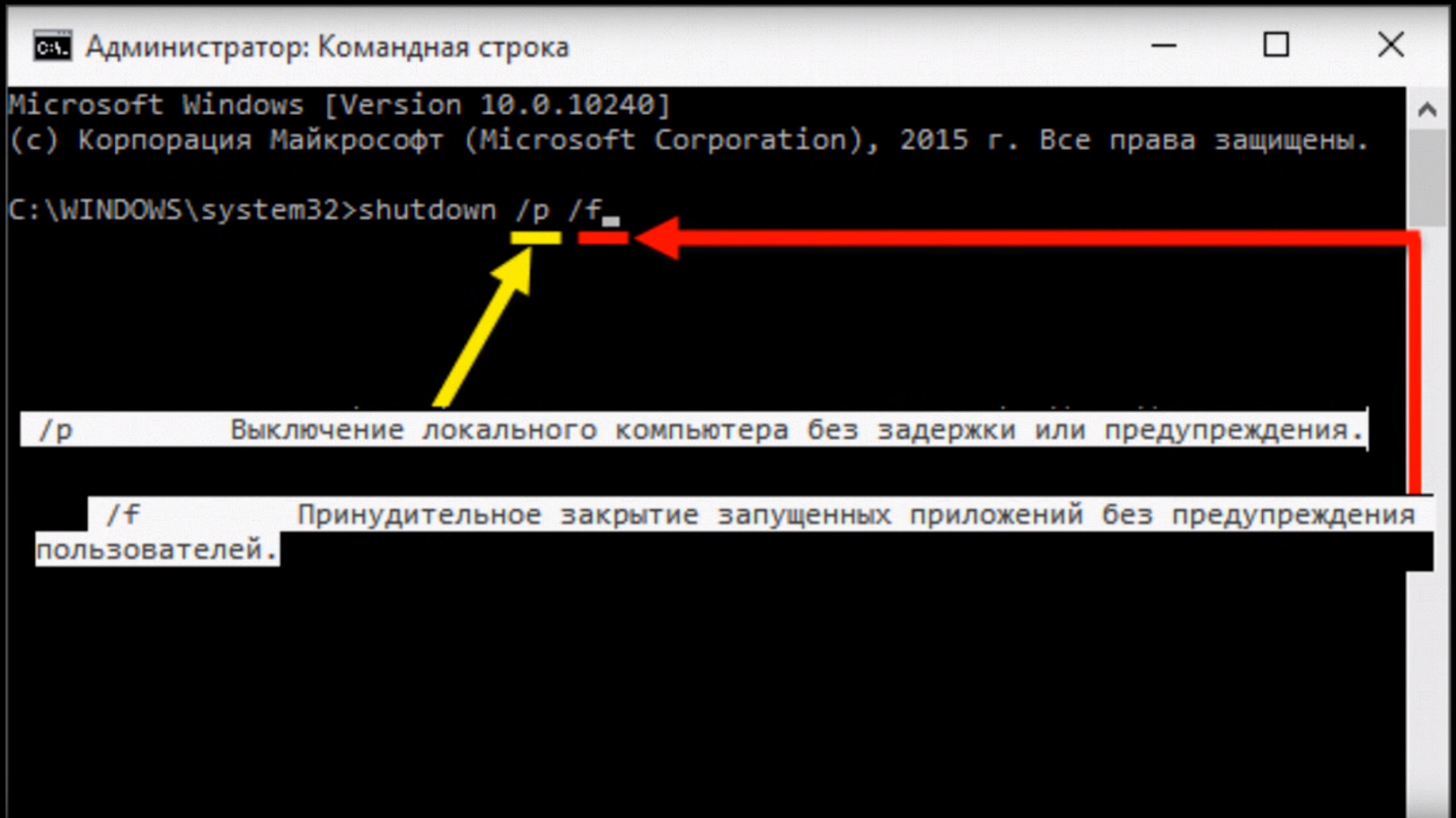
If you specify the / i option in the shutdown command, a window appears: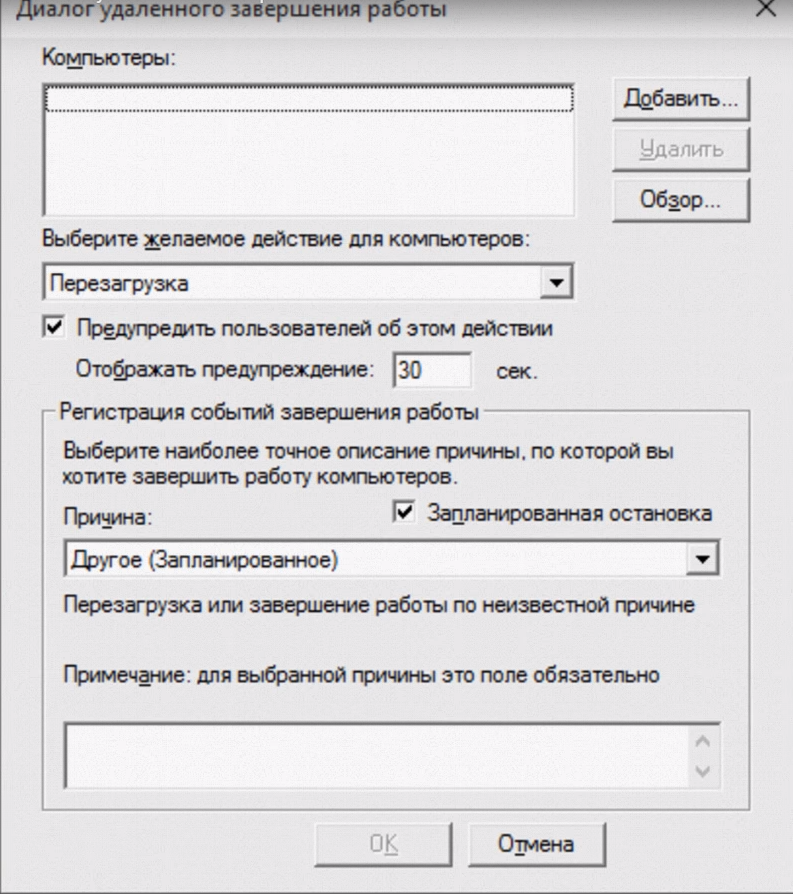
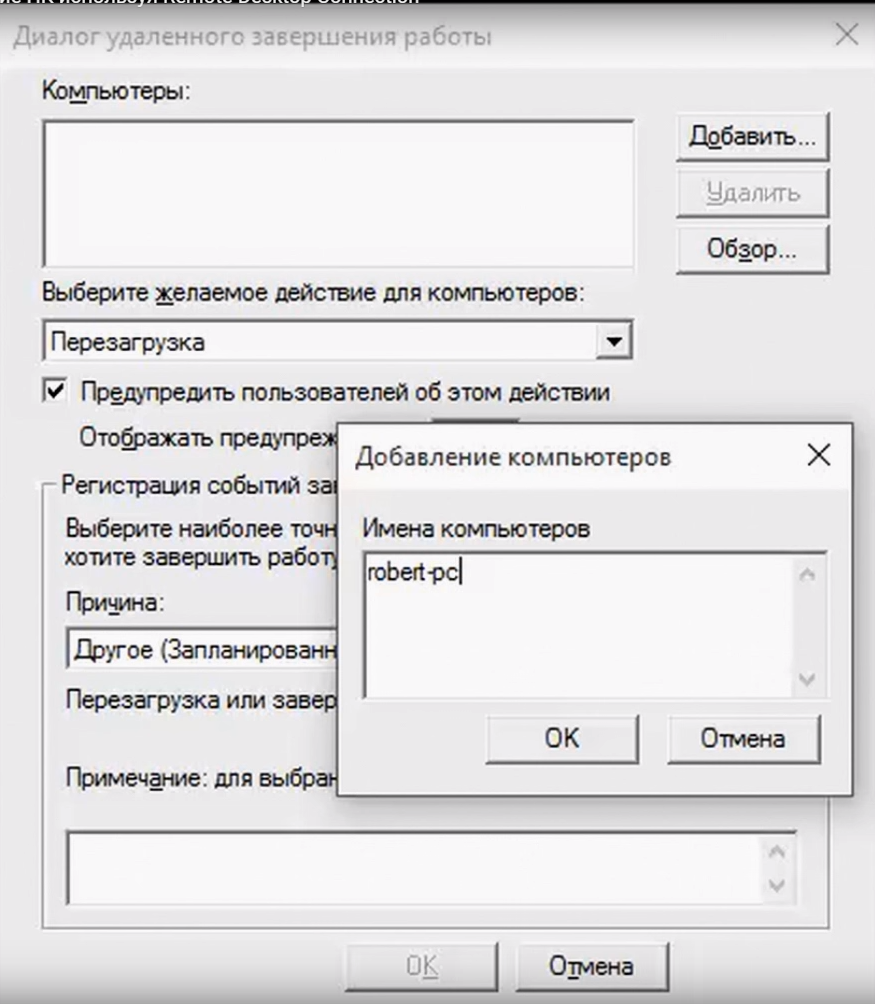
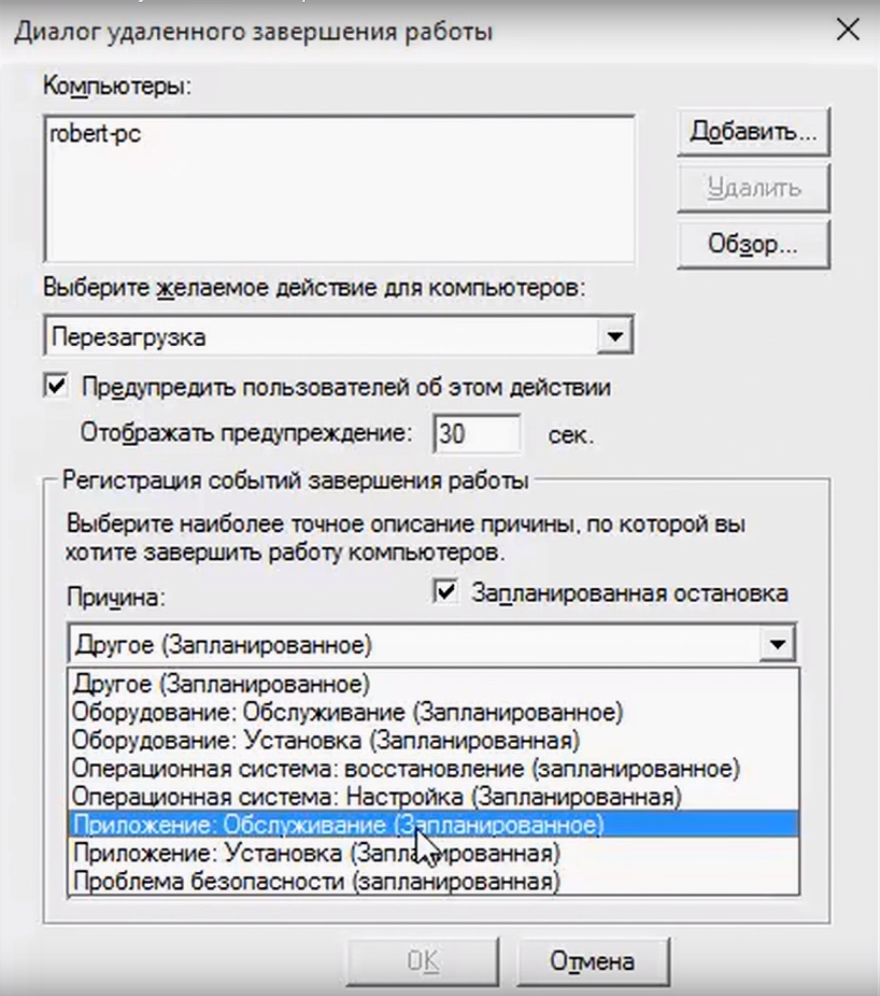
- In the Windows 10 Creators Update, the “System” section has become richer in yet another subsection, where it is possible to activate remote access to a computer from other OSs, in particular, from mobile ones using the Microsoft Remote Desktop application:
- For various reasons, the RDP connection to the Windows Azure virtual machine may not work . The problem may be with the remote desktop service on the virtual machine, the network connection, or the remote desktop client client on your computer. Some of the most common methods for solving the RDP connection problem are given here .
- It is quite possible to make a terminal server from the regular version of Windows 10, and then several users will be able to connect to the regular computer via RDP and simultaneously work with it. As noted above, the work of several users with the 1C file base is now popular. Turning Windows 10 into a terminal server will help a tool that has worked well in Windows 7 - RDP Wrapper Library by Stas'M .
- You can use Parallels Remote Application Server (RAS) as an “RDP with a human face,” but some of its features must be configured on the Windows Server side (or in the virtual machines that you use).
As you can see, there are many solutions and opportunities that open up remote access to a computer. It is no coincidence that most enterprises, organizations, institutions and offices use it. This tool is useful not only to system administrators, but also to heads of organizations, and for ordinary users, remote access is also very useful. You can help repair or optimize the system for a person who does not understand this without getting up from a chair, transfer data or access the necessary files while on a business trip or on vacation anywhere in the world, work at an office computer from home, manage his virtual server and etc.
Good luck PS We are looking for authors for our blog on Habrahabr.
If you have technical knowledge of working with virtual servers, you can explain complex things in simple words, then the RUVDS team will be happy to work with you to publish your post on Habrahabr. Details on the link .