WiFi speaker / player based on Orange Pi Zero or a story about lost time
Good day to dear Khabrovites!
My story began with the fact that at the request of one friend it was necessary to make a small programmable device with audio output and GPIO. For a long time I wanted to work with some single-player * Pi and therefore immediately decided to do something similar (result + experience). A friend almost immediately refused the proposed project, but I ended up with a purchased OrangePi Zero board. For some time, she lay idle until they gave me the old Canon MX320 MFP without network support. I really didn’t want to have an extra wire from the laptop to the printer, and as a result, the orange was removed, configured, and has since been working as a CUPS server via USB (the result, by the way, is good, but that's another story).
Once, I was tired of always connecting my phone to the speakers through minijack. They stand well, comfortable, and reluctant to bear them. And the phone, always hanging on the line, is no longer a mobile phone, but something similar to old wired devices. My laptop also costs so that it would be inconvenient to connect a cable to the speakers to it. And the machine itself is old (10 years already), an extra audio player is an extra load.
You can, of course, buy bluetooth speakers. Or a bluetooth adapter. But this means a small range and music playback only on the device with which the phone is connected via bluetooth. We need something more serious. “It would be great to hang such a server on an orange that could receive the audio stream from the smartphone via WiFi, I thought, because it is constantly connected via ethernet to the router, it is lightly loaded (since it is on Ubuntu Server 16.04), it’s convenient to place consumes little electricity. ” No sooner said than done.
First you need to connect the jack jack with an orange. I took a bare board, so everything had to be soldered myself. There is nothing complicated, and I’ll say right away: there isn’t much point in doing this - it’s easier to buy a ready-made expansion card. I advise this method, because on my homemade board, interference affects the sound of the speakers (in particular, when a large print job is sent to the printer, or when installing large packages). The reasons, most likely, are two - my bad work + power is installed right on the board, and not through microUSB.
Therefore, there will be no photo of the board, soldering and manuals, if needed - they are easily online.
If you choose to buy a board, save time and effort, while there will immediately be a mini-jack, two more USB-connectors, an infrared sensor and a microphone. I bought a second orange already in a set with a case and an expansion board, I regretted that I had not done so from the very beginning.
We are connected via SSH (if you did not change the standard login password, then this is root orangepi).
Do not forget to do
(You’ll need to use it later)
By default, the sound is turned off, so to enable it, do the following:
Run alsamixer.
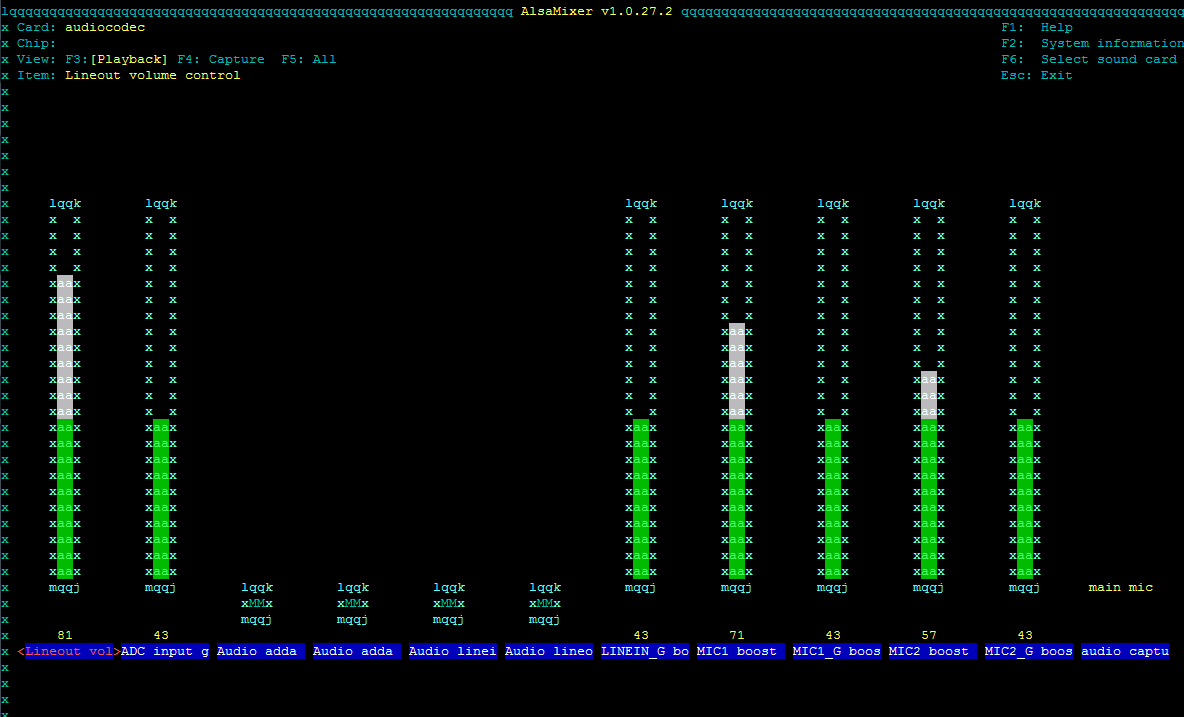
Turn on the audio line out (the desired switch is in the center), for this, use the arrows to move to five positions to the right and press m.
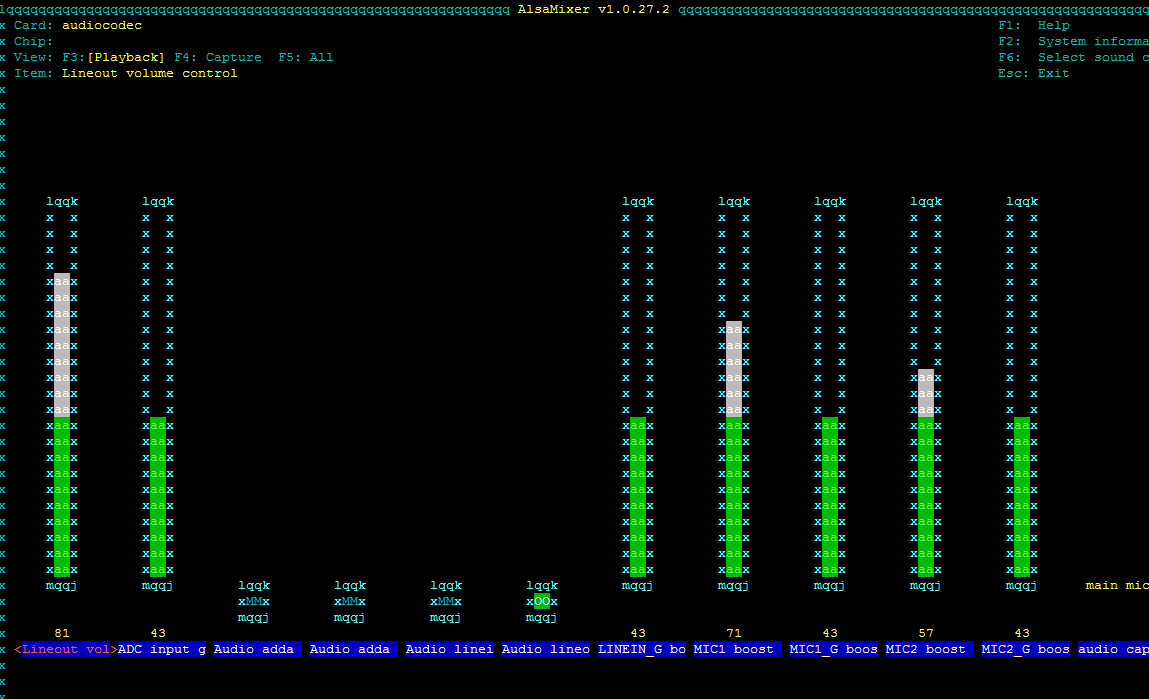
Exit by pressing Esc.
Save current state
The current state will still be reset after a reboot, so we add the lines
in rc.local so that the parameters are restored automatically:
I advise you to check after that - we first reboot
Install mplayer
and check performance
If the radio began to play, then everything is in order.
You can, however, just start after rebooting
but I like the rest of the tuning to be done under the radio.
After the sound output is configured, you can begin to install something useful. And in my case, it was just mpd and mpc (client for mpc - works in the terminal). What is mpd? This is a network daemon player that works perfectly without a graphical interface and therefore does not load the system. Possibilities of settings - a lot, for every taste. Quietly plays music from the network and from the local collection. There is even an article on the interaction of mpd with Yandex.Music and with Google Music.
It can be controlled from any OS - clients are under Windows, Linux, Android, ios, mac os, Symbian, therefore it is very convenient.
Install
All settings are in the file /etc/mpd.conf
Be sure to change the following directive
on the
because it is it that provides the ability to control mpd over the network.
And go to the Audio Output section.
Configure the output through alsa
If you do not add the normalize “yes” directive, the sound will be very quiet. Unfortunately, I can’t write anything more about this directive, there was no time to look for information.
Directive
I added recently, without it, mpd works fine (if it works alone), and it was needed only because I installed additional components, which are described below.
Restart mpd
Everything, we can connect.
We go to any client, enter the IP of our server, connect. First, of course, in playlists, and in files, and in streams is empty. For mpd to see your local files, you must either change the settings in /etc/mpd.conf, indicating in the
Files and directories section the
path to your
music_directory "/ home / orangepi / Music
But I still don’t have local files, but I use the laptop’s hard drive mounted by Samba directly to the / var / lib / mpd / music folder. Plans to buy an external hard and connect it to an orange, but so far finances do not allow.
In any case, after the path to the music folder is added (or the folder itself is mounted), you need to update the collection. This can be done from any client, the simplest
We are waiting for some time (more collection - more time is needed to scan it).
Everything, we can enjoy the music!
Mpd wakes me in the morning instead of an alarm clock. It is very good and pleasant to wake up to different music / stations at different times and days.
So, mpd is, of course, good, but it does not perform the desired task - there is no broadcast of sound from the phone when playing music on it. A few sleepless nights - and an article was found on turning * Pi into an audio stream receiver.
In short:
what I need is very similar to Google’s Chromecast, because it supports Wi-Fi audio and this transfer is available in many applications.
But I still do not have Chromecast, but an orange. If I understand correctly, the Chromecast protocol is still closed. But this is a modified DLNA protocol, which just serves to transmit media content over the network.
Yeah!
The minidlna package is immediately located in the repositories.
We put
So, now there is a dlna server on an orange. We put the dlna player on our phone.
Bummer.
The server is, it seems, there is access to the collection and playback of content, but on the phone. But broadcasting the audio stream is not yet possible.
We deal with the protocol: it turns out there is a DLNA server, a DLNA controller (for controlling playback) and (!) A DLNA renderer.
The latter is just what we need.
It is not in the repositories, so we put it like this
For the author, gmediarenderer starts when the system starts via init, this method doesn’t work for me yet, because the line is added to /etc/rc.local
In order to now be able to listen to the audio stream from a smartphone to OrangePi, put BubbleUPnP, or HiFi Cast, a Google Play search returns a lot of results for DLNA. Not all can be rendered. Neither VK nor Yandex.Music / Radio are rendered. But this is still more than nothing. Currently playing any local music from your phone + SoundCloud.
Unfortunately, after installing gmediarender mpd stopped working normally - there is playback, but there is no sound. The search did not give anything, the solution was found by chance - you need to uncomment the line in the Audio Output section in the /etc/mpd.conf file in the block that describes the output via alsa:
After uncommenting this line, the sound returned, mpd worked normally.
In general, the task can be considered completed.
At the moment, you can listen to any music from your tablet / phone via WiFi on the speakers, you can turn on the network player, play music from oranges on your phone / tablet.
The plans are to finish the dlna-renderer, configure the parser for mpd (so that I myself can search for music on the network), add a hard drive (Samba speed is still low).
It turned out quite conveniently, functionally and simply, and cheaply (for all together 1900 rubles, OrangePi itself and a microSD card). If you take the kit (OrangePi, case, board and microSD), you can meet the same amount if you try.
That's all, I will be glad to reviews and comments.
Background
My story began with the fact that at the request of one friend it was necessary to make a small programmable device with audio output and GPIO. For a long time I wanted to work with some single-player * Pi and therefore immediately decided to do something similar (result + experience). A friend almost immediately refused the proposed project, but I ended up with a purchased OrangePi Zero board. For some time, she lay idle until they gave me the old Canon MX320 MFP without network support. I really didn’t want to have an extra wire from the laptop to the printer, and as a result, the orange was removed, configured, and has since been working as a CUPS server via USB (the result, by the way, is good, but that's another story).
Tie
Once, I was tired of always connecting my phone to the speakers through minijack. They stand well, comfortable, and reluctant to bear them. And the phone, always hanging on the line, is no longer a mobile phone, but something similar to old wired devices. My laptop also costs so that it would be inconvenient to connect a cable to the speakers to it. And the machine itself is old (10 years already), an extra audio player is an extra load.
You can, of course, buy bluetooth speakers. Or a bluetooth adapter. But this means a small range and music playback only on the device with which the phone is connected via bluetooth. We need something more serious. “It would be great to hang such a server on an orange that could receive the audio stream from the smartphone via WiFi, I thought, because it is constantly connected via ethernet to the router, it is lightly loaded (since it is on Ubuntu Server 16.04), it’s convenient to place consumes little electricity. ” No sooner said than done.
Part 0, hardware
First you need to connect the jack jack with an orange. I took a bare board, so everything had to be soldered myself. There is nothing complicated, and I’ll say right away: there isn’t much point in doing this - it’s easier to buy a ready-made expansion card. I advise this method, because on my homemade board, interference affects the sound of the speakers (in particular, when a large print job is sent to the printer, or when installing large packages). The reasons, most likely, are two - my bad work + power is installed right on the board, and not through microUSB.
Therefore, there will be no photo of the board, soldering and manuals, if needed - they are easily online.
If you choose to buy a board, save time and effort, while there will immediately be a mini-jack, two more USB-connectors, an infrared sensor and a microphone. I bought a second orange already in a set with a case and an expansion board, I regretted that I had not done so from the very beginning.
Part 1, software
We are connected via SSH (if you did not change the standard login password, then this is root orangepi).
Do not forget to do
apt update(You’ll need to use it later)
By default, the sound is turned off, so to enable it, do the following:
Run alsamixer.
alsamixerTurn on the audio line out (the desired switch is in the center), for this, use the arrows to move to five positions to the right and press m.
Exit by pressing Esc.
Save current state
alsactl storeThe current state will still be reset after a reboot, so we add the lines
alsactl restorein rc.local so that the parameters are restored automatically:
cd /etcnano rc.local#!/bin/sh -e
#
# rc.local
#
# This script is executed at the end of each multiuser runlevel.
# Make sure that the script will "exit 0" on success or any other
# value on error.
#
# In order to enable or disable this script just change the execution
# bits.
#
# By default this script does nothing.
# ** Overclock to 1.728 GHz
#echo 1728000 > /sys/devices/system/cpu/cpu0/cpufreq/scaling_max_freq
echo 0 > /proc/sys/kernel/hung_task_timeout_secs
dmesg -n 1
alsactl restore
exit 0
I advise you to check after that - we first reboot
rebootInstall mplayer
apt install mplayerand check performance
mplayer http://nashe1.hostingradio.ru/nashe-128.mp3If the radio began to play, then everything is in order.
You can, however, just start after rebooting
speaker-testbut I like the rest of the tuning to be done under the radio.
Part 2. mpd
After the sound output is configured, you can begin to install something useful. And in my case, it was just mpd and mpc (client for mpc - works in the terminal). What is mpd? This is a network daemon player that works perfectly without a graphical interface and therefore does not load the system. Possibilities of settings - a lot, for every taste. Quietly plays music from the network and from the local collection. There is even an article on the interaction of mpd with Yandex.Music and with Google Music.
It can be controlled from any OS - clients are under Windows, Linux, Android, ios, mac os, Symbian, therefore it is very convenient.
Install
apt install mpd mpcAll settings are in the file /etc/mpd.conf
nano /etc/mpd.confBe sure to change the following directive
bind_to_address "localhost"on the
bind_to_address "any"because it is it that provides the ability to control mpd over the network.
And go to the Audio Output section.
Configure the output through alsa
audio_output {
        type            "alsa"
        name            "My ALSA Device"
        normalize "yes"
        device          "hw:0,0"        # optional
        mixer_type      "software"      # optional
#       mixer_device    "default"       # optional
#       mixer_control   "PCM"           # optional
#       mixer_index     "0"             # optional
}
If you do not add the normalize “yes” directive, the sound will be very quiet. Unfortunately, I can’t write anything more about this directive, there was no time to look for information.
Directive
device "hw:0,0" # optionalI added recently, without it, mpd works fine (if it works alone), and it was needed only because I installed additional components, which are described below.
Restart mpd
service mpd restartEverything, we can connect.
We go to any client, enter the IP of our server, connect. First, of course, in playlists, and in files, and in streams is empty. For mpd to see your local files, you must either change the settings in /etc/mpd.conf, indicating in the
Files and directories section the
path to your
music_directory "/ home / orangepi / Music
# Files and directories #######################################################
#
# This setting controls the top directory which MPD will search to discover the
# available audio files and add them to the daemon's online database. This
# setting defaults to the XDG directory, otherwise the music directory will be
# be disabled and audio files will only be accepted over ipc socket (using
# file:// protocol) or streaming files over an accepted protocol.
#
music_directory         "/var/lib/mpd/music"
music_directory        "/home/orangepi/Music"
But I still don’t have local files, but I use the laptop’s hard drive mounted by Samba directly to the / var / lib / mpd / music folder. Plans to buy an external hard and connect it to an orange, but so far finances do not allow.
In any case, after the path to the music folder is added (or the folder itself is mounted), you need to update the collection. This can be done from any client, the simplest
mpc updateWe are waiting for some time (more collection - more time is needed to scan it).
Everything, we can enjoy the music!
Mpd wakes me in the morning instead of an alarm clock. It is very good and pleasant to wake up to different music / stations at different times and days.
Part 3. Actually, the WiFi column
So, mpd is, of course, good, but it does not perform the desired task - there is no broadcast of sound from the phone when playing music on it. A few sleepless nights - and an article was found on turning * Pi into an audio stream receiver.
In short:
what I need is very similar to Google’s Chromecast, because it supports Wi-Fi audio and this transfer is available in many applications.
But I still do not have Chromecast, but an orange. If I understand correctly, the Chromecast protocol is still closed. But this is a modified DLNA protocol, which just serves to transmit media content over the network.
Yeah!
The minidlna package is immediately located in the repositories.
We put
apt install minidlnaSo, now there is a dlna server on an orange. We put the dlna player on our phone.
Bummer.
The server is, it seems, there is access to the collection and playback of content, but on the phone. But broadcasting the audio stream is not yet possible.
We deal with the protocol: it turns out there is a DLNA server, a DLNA controller (for controlling playback) and (!) A DLNA renderer.
The latter is just what we need.
It is not in the repositories, so we put it like this
 wget -O - http://www.chiark.greenend.org.uk/~christi/debian/[email protected] \
| sudo apt-key add -
echo deb http://www.chiark.greenend.org.uk/~christi/debian/ wheezy main
  > /etc/apt/sources.list.d/upnprender.list
apt-get update
apt-get install libupnp-dev libgstreamer1.0-dev \
gstreamer1.0-plugins-base gstreamer1.0-plugins-good \
gstreamer1.0-plugins-bad gstreamer1.0-plugins-ugly \
gstreamer1.0-alsa
apt install git
cd
git clone https://github.com/hzeller/gmrender-resurrect.git
cd gmrender-resurrect
apt-get install autoconf
 ./autogen.sh
 ./configure
make install
cp scripts/init.d/gmediarenderer /etc/init.d
update-rc.d
update-rc.d gmediarenderer defaults
For the author, gmediarenderer starts when the system starts via init, this method doesn’t work for me yet, because the line is added to /etc/rc.local
/usr/local/bin/gmediarender -f Garden -d -u bd1dcf3e746aa69812943cb1d00f7ebc --gstout-audiosink=alsasink --gstout-audiodevice=sysdefault --gstout-i$#!/bin/sh -e
#
# rc.local
#
# This script is executed at the end of each multiuser runlevel.
# Make sure that the script will "exit 0" on success or any other
# value on error.
#
# In order to enable or disable this script just change the execution
# bits.
#
# By default this script does nothing.
# ** Overclock to 1.728 GHz
#echo 1728000 > /sys/devices/system/cpu/cpu0/cpufreq/scaling_max_freq
echo 0 > /proc/sys/kernel/hung_task_timeout_secs
dmesg -n 1
bash /root/sh/script0.sh
/usr/local/bin/gmediarender -f Garden -d -u bd1dcf3e746aa69812943cb1d00f7ebc --gstout-audiosink=alsasink --gstout-audiodevice=sysdefault --gstout-i$
exit 0
In order to now be able to listen to the audio stream from a smartphone to OrangePi, put BubbleUPnP, or HiFi Cast, a Google Play search returns a lot of results for DLNA. Not all can be rendered. Neither VK nor Yandex.Music / Radio are rendered. But this is still more than nothing. Currently playing any local music from your phone + SoundCloud.
Unfortunately, after installing gmediarender mpd stopped working normally - there is playback, but there is no sound. The search did not give anything, the solution was found by chance - you need to uncomment the line in the Audio Output section in the /etc/mpd.conf file in the block that describes the output via alsa:
device "hw:0,0" # optionalAfter uncommenting this line, the sound returned, mpd worked normally.
Summary
In general, the task can be considered completed.
At the moment, you can listen to any music from your tablet / phone via WiFi on the speakers, you can turn on the network player, play music from oranges on your phone / tablet.
The plans are to finish the dlna-renderer, configure the parser for mpd (so that I myself can search for music on the network), add a hard drive (Samba speed is still low).
It turned out quite conveniently, functionally and simply, and cheaply (for all together 1900 rubles, OrangePi itself and a microSD card). If you take the kit (OrangePi, case, board and microSD), you can meet the same amount if you try.
That's all, I will be glad to reviews and comments.