
 April 7, 2017 at 14:17
Convenient localization of iOS applications in Interface Builder

Not so long ago, I published detailed instructions for using LocoLaser - a utility for localizing Android and iOS applications in Google Sheets. I would like to continue the topic of localization and pay more attention to iOS applications. Unlike Android, in iOS development there are a number of small but unpleasant moments, which, in total, can lead to completely small problems.
Today I want to pay special attention to Interface Builder. We all know it is not perfect. But this is the only thing we have and we have to put up with it. In this article, I will talk about the main problem that you may encounter when localizing applications in Interface Builder, and also how to deal with it.
The essence of the problem
When you translate a Storyboard or XIB file, in addition to the main markup file, additional files with resource strings are created. It is customary to upload these resource files to special tables and give them to translators. The trouble is that the keys for the strings in this file are built on the basis of the Object ID, which are generated automatically and there is no way to influence them. If you decide to copy or cut and then paste any View, Interface Builder will generate new identifiers and the translation will be lost.
It turns out that you can not fix the translation for any specific View. If you move it, the translation will not move. For example, you have a ViewController on the storyboard that you decide to keep separate. You create a new XIB file, move the ViewController there, but the translations do not move. Not only that, a new identifier will be created for each View and you will have to adjust the row identifiers manually. Just copy translations will not work.
In addition, the lack of the ability to affect row identifiers does not allow you to have a common row database on several platforms at once. Which, in turn, will lead to the inability to use utilities that generate resource files for different platforms.
Everyone solves this problem as best he can. I remember, 2 years ago, at a mobile conference, I asked one of the leading iOS developers of one of the leading companies about how they solve the problem of interface localization. At that time I was just starting to learn iOS, but I already had a fairly rich experience in the Android field and I had something to compare with. Honestly, I was dumbfounded by the answer. In ViewController, through IBOutlet, they received links to Label and other View and translated them programmatically. In code, it looks something like this:
class MainViewController: UIViewController {
    @IBOutlet var labelToTranslate: UILabel!
    override func viewDidLoad() {
        super.viewDidLoad()
        self.labelToTranslate.text = NSLocalizedString("scr_main_txt_example", comment: "Some Example text")
        ...
    }
    ...
}
In this case, all lines are in the same Localizable.strings file. A similar method is currently the most common and is used almost universally. Admit it, it turns out not too elegant. Not only do you clog the ViewController with redundant code that doesn’t belong here, but you still don’t solve the problem of copying or moving the View. It's time to find something better.
Decision
And here I have something that I can offer you. The fact is that in Interface Builder, in the View properties, you can register the so-called “User Defined Runtime Attributes”. We will use them. But first you need to create an Extension for UILabel.
extension UILabel {
    public var lzText : String? {
        set {
            if newValue != nil {
                self.text = NSLocalizedString(newValue, comment: “”)
            }
            else {
                self.text = nil
            }
        }
        get {
            return self.text
        }
    }
}
Now all UILabel have the lzText property, when changed, a localized string is written to the text property. We use this property in Interface Builder.
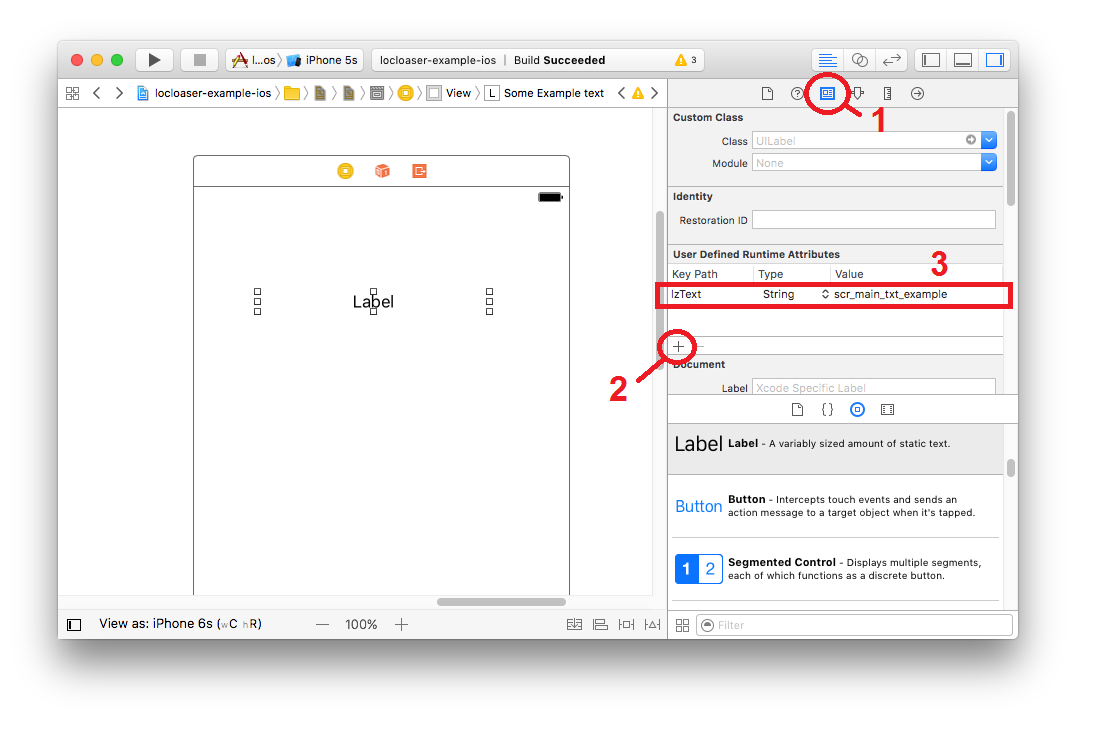
- Select UILabel and go to the tab "Identity Inspector";
- Click the button to add an attribute in the "User Defined Runtime Attributes";
- Specify the attribute key "lzText", type: "String", value: "scr_main_txt_example"
And it's all. No more cluttering your code with anything else. You can not be afraid that the translation or link to the View will be lost when copying or moving to another container. Attributes are copied along with the View. The only thing that remains unmeasured is storing all the lines in one Localized.strings file.
UPD:
But that is not all. DjPhoeniX suggested doing even better. And we do not need to change almost anything. You just need to add
@IBInspectableproperties before declaring.Modified Extensions.swift
extension UILabel {
    @IBInspectable public var lzText : String? {
        set {
            if newValue != nil {
                self.text = NSLocalizedString(newValue, comment: “”)
            }
            else {
                self.text = nil
            }
        }
        get {
            return self.text
        }
    }
}
This property is now also available on the Attributes Inspector tab.

For even greater convenience, I prepared a file that contains a fairly large number of extensions for frequently used View, where each text property has a double with the prefix “lz” (short for the word “localized”). You can find this file in the example using LocoLaser: LocalizationExtensions.swift . The whole project is published under the Apache 2.0 license, you can safely copy this file to yourself and start using it.
In addition to extensions for View, an extension has been added to the String class in LocalizationExtensions.swift. It adds a computed localized property that returns a localized string. If the translation cannot be found, an alert is sent via NotificationCenter. You can subscribe to these alerts and process them as you wish. In the Debug build, you can write to the log or show notifications, in the Release build you can send a report to the analytics system.
As a result, after applying the above method, all work with strings remains in Interface Builder. Plus, you get an additional mechanism for catching “broken” lines.
On this I will end. Thanks for attention. Use for health!