September 2, 2016 at 21:52
Creating and managing the FQDN of a 3CX server name
- Tutorial
Introduction
In this article, we explain the principles for creating and managing the FQDN of a 3CX server name. This will help you better plan your system installation and avoid many problems in the future.
As you may already know, during the initial installation of 3CX v15, your license key will be attached to the FQDN of the name chosen by the administrator in the initial configuration wizard. Therefore, consider a convenient FQDN name before starting the installation!
3QX FQDN
Starting with 3CX v15, provided that you have an active subscription to updates , you can use the 3CX DNS server. DNS 3CX (in fact, this is Google’s DNS infrastructure) provides the following features:
- Supports the public FQDN of your server name in one of the 3CX top-level domains.
- It implements the Dynamic DNS function, that is, when changing the public IP address of the server, the DNS record is changed automatically.
In addition to the DNS service, 3CX provides free trusted SSL security certificates from the Let's Encrypt organization , which are used to connect clients to the server, video conferencing, and other important functions.
As mentioned, the selected server name is tied to the license key. If you received a free PBX Edition Key and just want to test 3CX, do not select your primary name (for example, your company name), but use a test one. For example, test-company.3cx.ru , not company.3cx.ru .
On the other hand, a top-level domain can be changed. Those. you can “move” from the FQDN of company.3cx.eu to company.3cx.ru . The host name must be unique in the selected domain. Therefore, if the name company.3cx.ru is already taken, you will have to choose another. Names are reserved on the basis of the first application, so hurry up with the transition to 3CX v15 in order to manage to get a beautiful name.
Attention: 3CX reserves the right to unregister any FQDN name if it violates patent rights or contains offensive words. Also, 3CX cannot reassign a name for you if it is already registered with another company.
Your own FQDN name
If you plan to use your own server name, for example, a host in your corporate domain, prepare a trusted SSL certificate for this name in advance. You will specify it in the initial system setup wizard. In this case, 3CX does not issue or support Let's Encrypt certificate for you.
Then your license key will be bound to your own FQDN name. However, there is one feature related to the operation of the 3CX Webmeeting service: if your FQDN name is pbx.company.com , the Webmeeting portal automatically generates the pbxcompany.3cx. * URL for you . Make sure that the name has not yet been taken by another user!
Change FQDN Name
To change the FQDN of the server name, you must first make sure that the newly selected name is free, and then untie the old name from your license key. This is done through the user portal.https://erp.3cx.com .
For commercial and free licenses - go to the portal with your credentials and click Release. The key will be untied from the FQDN.
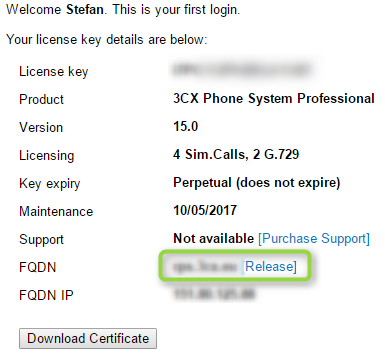
For NFR licenses - open the application in 3CX technical supporthttps://erp.3cx.com and specify in it your NFR key and the current FQDN server name.
Conclusion
Let's repeat the basic principles of using the FQDN name in 3CX installations:
- Initial system setup binds the server FQDN to the license key
- If it turns out that the selected name is already taken by someone:
- An error will appear Error creating FQDN: FQDN already in use. Please choose another one.
- Choose another free FQDN name
- Subsequent system installations (reinstallations) with this license key require the same FQDN
- If the FQDN does not match the key:
- An error will appear Error creating FQDN: License key already bound to another FQDN.
- Go to the erp.3cx.com portal and check which FQDN matches your key, or untie the FQDN from the key, as shown above.