Meet Jack and Jill on x86
- Transfer
Jack (Java Android Compiler Kit) is a compiler that converts Java source code to Android DEX files. Jack is a set of tools, among its features - repackaging, compression, obfuscation and support for multiple DEX files.
Jack uses intermediate libraries in .jack format. The conversion of existing .aar / .jar files to this format is done by Jill (Jack Intermediate Library Linker).

If Jack is used for assembly, then first Jill converts the external libraries used in the project into .jack files. This prepares libraries for quick merging with other .jack files in the next step, when Jack and the Android Gradle plugin, using previously prepared .jack files and Java source code, compile the DEX file (or files). During this process, Jack can minify the code (compression, obfuscation, or both). The output is the APK file of the Android application.

Application build process using Jack and Jill
Jack and Jill are available in Build Tools for Android Studio since version 21.1.1. The Android Gradle plugin supports these tools since version 1.0.0. In order to use the capabilities of Jack, just add the useJack = true command to the build.gradle file.
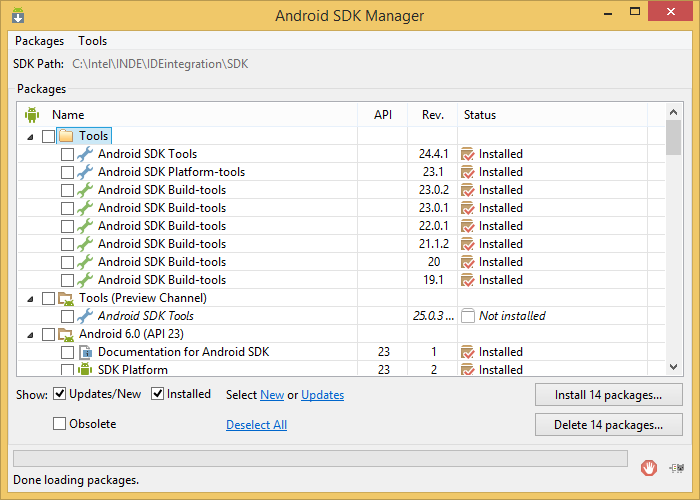
Android SDK Manager
You can learn more about working with Jack and Jill using the commands below. Here we use the standard Windows command line interface, Jack and Jill libraries included with Android Build Tools version 23.0.2.
Some features of these tools may be available from the command line before their support is included in the Android Gradle plugin.
So here is the command for getting help on Jack:
Its implementation gives us the following:
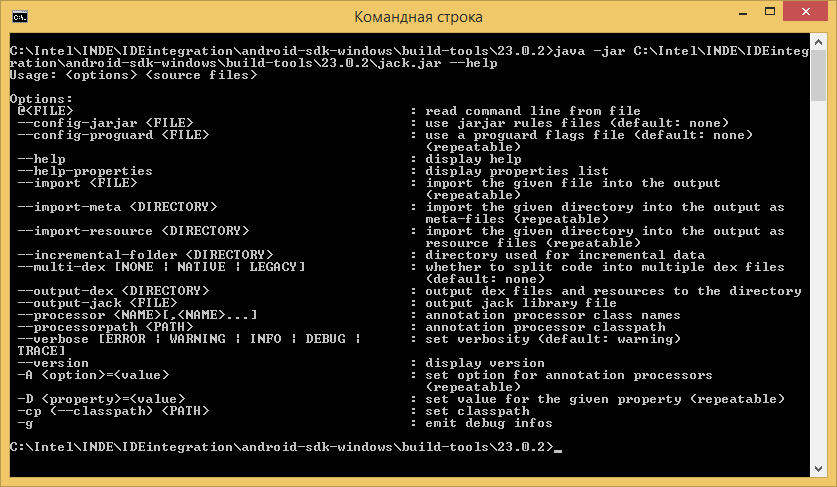
Jack Help
Here's a closer look at Jill:
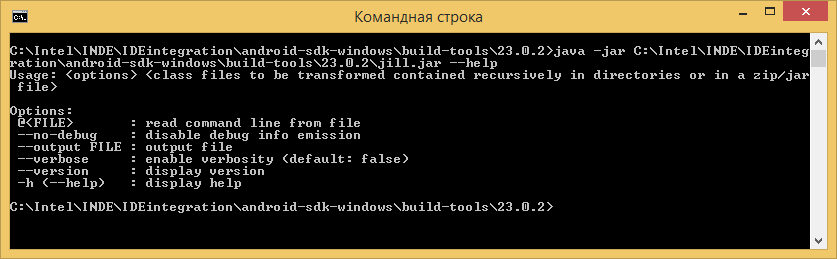
Jill Help
Before you start working with Jack, it is worth considering that it supports the Java 1.7 programming language. and does not support annotation processing.
When using Jack, you can transfer Proguard configuration files to it using the –config-proguard command-line option. If we talk about repackaging, Jack is compatible with rules like “rule”, but not with rules like “zap” or “keep”. Rule files can be specified on the command line using the –– config-jarjar parameter.
Jack support by the Android Gradle plugin is still under development, so you should consider the following features and limitations:
Let's try Jack in business.
First, we need some kind of experiment application project. For example, we import the Hello JNI project from the sample directory. To do this, execute the command File> New> Import Sample in Android Studio. In the window that appears, find the Hello JNI project, and, having selected its name, click on the Next button.
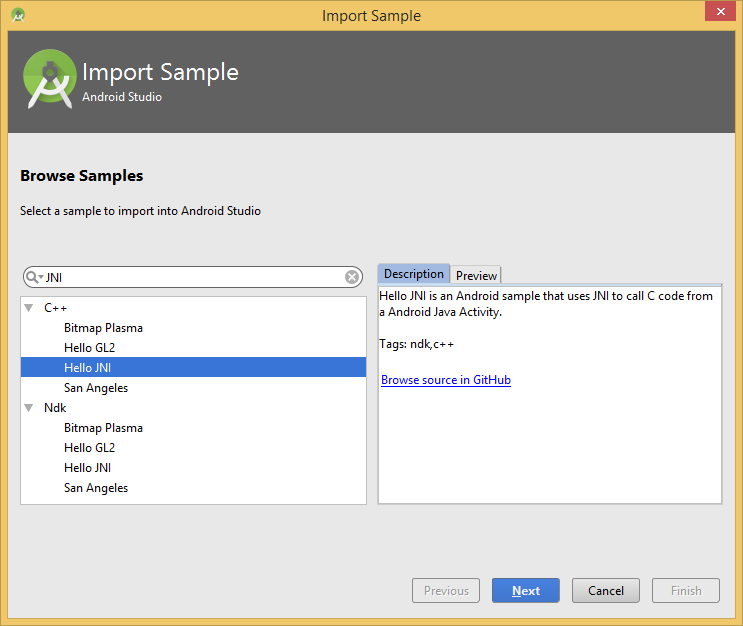
Hello JNI project for import
In the next window, we will not change the application name (Application name field) and the path to the new project (Project location), and, to complete the import, click the Finish button.
If during the import a message appears stating that the system cannot find the NDK (Android NDK Location is not specified), correct this by clicking on the Select NDK link and indicating the path to the NDK in the window that opens. This path will be written to the local.properties file as ndk.dir = <path_to_ndk>.
After successfully importing the project, we will find in the Project view mode, in the app folder, the build.gradle file and add the jack enable command (useJack = true) in defaultConfig.with:
Now we will test the operation of the system on the Asus Fonepad 8 tablet (Intel Atom Z3530 CPU, Android 5.0).

Test application on x86 device
Everyone who has been developing applications knows that every second counts in this matter. One of the important features of Jack is the reduction in compilation time , which means increased productivity. In addition, Jack is used by default in Android M. Perhaps, only these two facts are enough to make Jack and Jill welcome guests in the home of any programmer.
Jack uses intermediate libraries in .jack format. The conversion of existing .aar / .jar files to this format is done by Jill (Jack Intermediate Library Linker).
If Jack is used for assembly, then first Jill converts the external libraries used in the project into .jack files. This prepares libraries for quick merging with other .jack files in the next step, when Jack and the Android Gradle plugin, using previously prepared .jack files and Java source code, compile the DEX file (or files). During this process, Jack can minify the code (compression, obfuscation, or both). The output is the APK file of the Android application.
Application build process using Jack and Jill
Jack and Jill are available in Build Tools for Android Studio since version 21.1.1. The Android Gradle plugin supports these tools since version 1.0.0. In order to use the capabilities of Jack, just add the useJack = true command to the build.gradle file.
Android SDK Manager
Command line usage
You can learn more about working with Jack and Jill using the commands below. Here we use the standard Windows command line interface, Jack and Jill libraries included with Android Build Tools version 23.0.2.
Some features of these tools may be available from the command line before their support is included in the Android Gradle plugin.
So here is the command for getting help on Jack:
java –jar <AndroidSDK>/build-tools/< BuildToolsversion>/jack.jar ––helpIts implementation gives us the following:
Jack Help
Here's a closer look at Jill:
java –jar <AndroidSDK>/build-tools/< BuildToolsversion>/jill.jar ––helpJill Help
Some features of Jack
Before you start working with Jack, it is worth considering that it supports the Java 1.7 programming language. and does not support annotation processing.
When using Jack, you can transfer Proguard configuration files to it using the –config-proguard command-line option. If we talk about repackaging, Jack is compatible with rules like “rule”, but not with rules like “zap” or “keep”. Rule files can be specified on the command line using the –– config-jarjar parameter.
Jack support by the Android Gradle plugin is still under development, so you should consider the following features and limitations:
- The obfuscation directive –applymapping is not yet supported.
- The repacking capability (like the jarjar tool) is not yet integrated.
- Jacoco is not supported.
- Bytecode manipulation is not supported.
- In some cases, when building very large applications, you may encounter an Out Of Memory exception. You can cope with the problem if you configure the build system to use at least 2 GB of RAM:
dexOptions { javaMaxHeapSize"2048M" }Let's try Jack in business.
Work with Jack
First, we need some kind of experiment application project. For example, we import the Hello JNI project from the sample directory. To do this, execute the command File> New> Import Sample in Android Studio. In the window that appears, find the Hello JNI project, and, having selected its name, click on the Next button.
Hello JNI project for import
In the next window, we will not change the application name (Application name field) and the path to the new project (Project location), and, to complete the import, click the Finish button.
If during the import a message appears stating that the system cannot find the NDK (Android NDK Location is not specified), correct this by clicking on the Select NDK link and indicating the path to the NDK in the window that opens. This path will be written to the local.properties file as ndk.dir = <path_to_ndk>.
After successfully importing the project, we will find in the Project view mode, in the app folder, the build.gradle file and add the jack enable command (useJack = true) in defaultConfig.with:
android {
        compileSdkVersion = 23
        buildToolsVersion = "23.0.2"
        defaultConfig.with {
            applicationId = "com.example.hellojni"
            minSdkVersion.apiLevel = 4
            targetSdkVersion.apiLevel = 23
            useJack = true
        }
    }
Now we will test the operation of the system on the Asus Fonepad 8 tablet (Intel Atom Z3530 CPU, Android 5.0).
Test application on x86 device
Summary
Everyone who has been developing applications knows that every second counts in this matter. One of the important features of Jack is the reduction in compilation time , which means increased productivity. In addition, Jack is used by default in Android M. Perhaps, only these two facts are enough to make Jack and Jill welcome guests in the home of any programmer.