
 February 2, 2016 at 15:06
New version of Veeam Backup FREE Edition released: a brief overview and useful information about NFR keys to the full version
I will support the tradition of reviewing new versions of Veeam solutions and briefly talk about the recently released version 9.0 of the free Veeam Backup FREE Edition . (In the last release, a separate post on Habré was dedicated to the news of commercial and free editions , this time several articles are planned, including a review of Veeam ONE, also included in Veeam Availability Suite 9.0).
So, what did our developers in the new version please users with?

Let's start with the change in backup. In addition to the fact that the paging files ( pagefile.sys ) are not included in the backup , now the hibernation file ( hiberfil.sys ), as well as the files and blocks that were deleted, will not be included in it by default either .
When this happens the following:
On the left side of the picture we see what happened after step 1 (the “null” blocks are marked in orange), and on the right - the result of step 2 (that is, what goes to the backup):
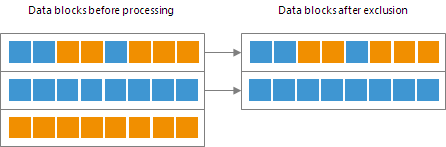
Veeam does the same with dirty "blocks, ie with those that were marked as deleted: first (before the start of data transfer), it identifies such blocks using the MFT and fills them with zeros, and then analyzes the VM image and transfers only meaningful, useful blocks to the storage location; “Null” blocks are not backed up. So a new feature called Veeam BitLooker helps reduce traffic and improve backup performance.
Important Note: The default block exclusion settings will only apply to machines where the guest file system is Microsoft NTFS.
For machines whose files are stored on NFS storage, a new method of data transfer is proposed - bypassing the hypervisor, working with the specially designed Veeam NFS Client. This method uses the Veeam Backup Proxy component (by default it runs on the Veeam backup server), for which two conditions must be met:
The method works like this:
The new method is activated automatically (when the above conditions are met) and allows you to minimize the load on the hypervisor, as well as increase the speed of backup, recovery and migration of virtual machines. It is described in more detail here (though, so far only in English).
Important! For this method to work correctly during backup, you need to make sure that VMware Tools quiescence will not be used - you need to open the VeeamZIP settings and in the Guest processing section check that Disable guest quiescence (performs crash consistent backup) is checked .

Firstly, it supports parallel recording. If your device, which archives files on a tape, has several writing heads, then you can use parallel processing of archiving tasks - in this case, several heads will write to the tape at the same time. This is useful, for example, if you need to record a large amount of data for a very limited backup window time.
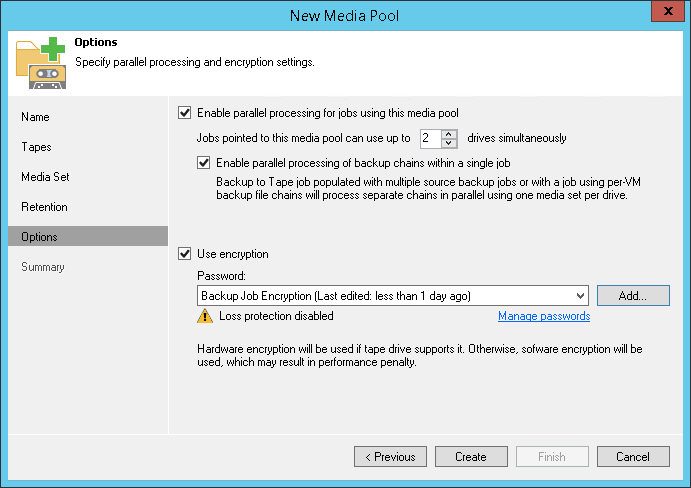
This option will work for custom media pools; for each such pool you can set the maximum number of writing heads that can be used for parallel recording. To do this, open the properties of the pool, go to the step of the wizard called Options and there we select the option Enable parallel processing for jobs using this media pool .
Then we indicate how many heads the maximum can be used (default 2).
Secondly, since we are talking about storage pools, I inform you that in v9 all pools become global. This means that the pools are no longer tied to a library (writing device), as it was before - in the new version, the default storage pool can include cassettes from different libraries, so now, for example, there is no need to do cataloging every time you are moving the cassette from one device to another. As you can see, in the Tapes step, in the list of libraries that provide cartridges for the pool, Multiple Libraries is specified by default :

Important note:If you use built-in encryption at the device level (hardware encryption) during archiving, keep in mind that to read an encrypted tape, you will need a device similar to the one that was written (that is, with built-in encryption enabled according to the same standard).
Thirdly, support for "unknown" libraries is implemented, that is, those for whom the Windows driver was not found. Keep in mind that to work with such devices, you need to connect via SCSI, and in the device management console of Microsoft Device Manager, such devices should appear as Unknown Medium Changer . Well, of course, it is recommended to work with devices for which there are "native" drivers from the manufacturer (OEM).
I recommend reading more about supported devices insystem requirements .
Now you can install the console separately from the server and no longer be nervous because of RDP sessions or because other people who want to change the backup with their connections do not allow to work quietly. By default, the console is installed with the backup server, but in the setup you can choose to install the console separately: You
can see the system requirements for the console here (Microsoft .NET Framework 4.5.2 is included in the setup). Of course, you should ensure a decent connection to the Veeam backup server (at least 1 Mbit / s), because otherwise the joy of users of the standalone console will quickly go out.
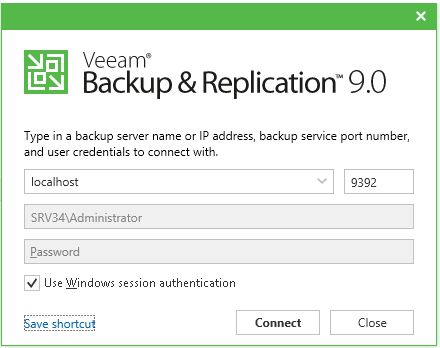
When installing, specify the path to the folder where we want to install the console. After installation and launch, you will need to inform which server you want to connect to; if it is not a local server, then specify the server, port ( 9392 by default ), username and password. You can use the account under which you work in this Windows session - then check the Use Windows session authentication checkbox . In any case, the account must be a member of either the local Users group on the Veeam server or the domain group that has access rights to it.
Useful: In order not to start the Veeam Backup session every time by entering the connection parameters, save them by creating a shortcut for the desktop (that is, by clicking onSave shortcut ):
It is also convenient that during the setup the Veeam PowerShell snap-in is installed along with the console, and then you can connect to the Veeam server using the Connect -VBRServer cmdlet .
Further work takes place as usual. Among the useful features of the standalone console is the ability to serve as a mount server during local recovery (i.e., to a local site). For example, if you start the recovery of guest OS files of a virtual machine from the console, then the as is backup will be mounted on this mount server - a “mount point” will be created in the folder C: \ veeamflr \ VM_name, but not on the Veeam backup server, but on the local machine where the console is running. Then everything is as always: in Veeam Backup Browser we select the necessary files and indicate where to save them.

In this way, the Veeam backup server is freed from the additional role of the “assembler” that it performed in previous versions. And if you are restoring application objects, then keep in mind that Veeam Explorers tools can also be launched from a standalone console (local recovery will save you traffic). Details about the restoration can be found here .
Note: To put a full-fledged Veeam backup server on the machine with the console, you must first demolish the console.
This season, holders of industry-recognized IT certificates are offered a new trial license for the comprehensive Veeam Availability Suite 9.0 solution (combining Veeam Backup & Replication and Veeam ONE) with a free NFR (Not-For-Resale, "not for sale") key. This is a license with a validity period of 1 year (instead of the usual 30 days), designed for 2 sockets and intended for use in a test environment or in a home laboratory, as a rule, for the purpose of familiarization and training in working with the product. It can be used for the hypervisor of one of the platforms (VMware vSphere and / or Microsoft Hyper-V) or a combination thereof.
Question: Who can get such a license?
Answer:If you have at least one of the certificates listed below, or if you are one of the leaders in the local VMware Users Group (VMUG) community, then this is definitely your key. Veeam ProPartners program participants and those who blog on IT-related topics will also be able to apply for it.
Here is a list of certifications (the latest version available to me):
If you are in the ranks of applicants, then simply fill out the form on the right side of the page and receive a treasured letter with a license. If you did not find your title in the list, but would really like to receive a free one-year license to explore the full range of Veeam Availability Suite v9 features, or if you have questions about obtaining a key, you can write to Veeam_team@veeam.com and you will try to help.
So, what did our developers in the new version please users with?
Veeam BitLooker
Let's start with the change in backup. In addition to the fact that the paging files ( pagefile.sys ) are not included in the backup , now the hibernation file ( hiberfil.sys ), as well as the files and blocks that were deleted, will not be included in it by default either .
When this happens the following:
- Before starting to copy the virtual machine data, Veeam analyzes the Master File Table on the guesthouse for the presence of the pagefile.sys and hibernate.sys blocks and clogs the detected blocks with zeroes out.
- Then, when copying the VM image to the target location (that is, with the actual backup), the check is performed: if the data block of the VM image includes only such "null" blocks, then this block does not go to the backup, and if it contains others - useful - that’s coming.
On the left side of the picture we see what happened after step 1 (the “null” blocks are marked in orange), and on the right - the result of step 2 (that is, what goes to the backup):
Veeam does the same with dirty "blocks, ie with those that were marked as deleted: first (before the start of data transfer), it identifies such blocks using the MFT and fills them with zeros, and then analyzes the VM image and transfers only meaningful, useful blocks to the storage location; “Null” blocks are not backed up. So a new feature called Veeam BitLooker helps reduce traffic and improve backup performance.
Important Note: The default block exclusion settings will only apply to machines where the guest file system is Microsoft NTFS.
Direct NFS Access data transfer method (for VMware platform)
For machines whose files are stored on NFS storage, a new method of data transfer is proposed - bypassing the hypervisor, working with the specially designed Veeam NFS Client. This method uses the Veeam Backup Proxy component (by default it runs on the Veeam backup server), for which two conditions must be met:
- Access to NFS Storage
- Minimum ReadOnly / Write permissions and access to the root folder on NFS storage.
The method works like this:
- The Veeam Backup Proxy component sends a request to ESX (i) in order to find out the location of the VM on the storage.
- The hypervisor finds the desired VM.
- It receives metadata (physical addresses of VM data blocks) about the location of VM disks on the storage system.
- Then it sends this metadata to the Veeam Backup Proxy component ...
- ... which uses them to copy VM data blocks directly from storage using the local network.
- Then Veeam Backup Proxy processes these blocks and sends them to the target storage.
The new method is activated automatically (when the above conditions are met) and allows you to minimize the load on the hypervisor, as well as increase the speed of backup, recovery and migration of virtual machines. It is described in more detail here (though, so far only in English).
Important! For this method to work correctly during backup, you need to make sure that VMware Tools quiescence will not be used - you need to open the VeeamZIP settings and in the Guest processing section check that Disable guest quiescence (performs crash consistent backup) is checked .
New Archiving Tape
Firstly, it supports parallel recording. If your device, which archives files on a tape, has several writing heads, then you can use parallel processing of archiving tasks - in this case, several heads will write to the tape at the same time. This is useful, for example, if you need to record a large amount of data for a very limited backup window time.
This option will work for custom media pools; for each such pool you can set the maximum number of writing heads that can be used for parallel recording. To do this, open the properties of the pool, go to the step of the wizard called Options and there we select the option Enable parallel processing for jobs using this media pool .
Then we indicate how many heads the maximum can be used (default 2).
Secondly, since we are talking about storage pools, I inform you that in v9 all pools become global. This means that the pools are no longer tied to a library (writing device), as it was before - in the new version, the default storage pool can include cassettes from different libraries, so now, for example, there is no need to do cataloging every time you are moving the cassette from one device to another. As you can see, in the Tapes step, in the list of libraries that provide cartridges for the pool, Multiple Libraries is specified by default :
Important note:If you use built-in encryption at the device level (hardware encryption) during archiving, keep in mind that to read an encrypted tape, you will need a device similar to the one that was written (that is, with built-in encryption enabled according to the same standard).
Thirdly, support for "unknown" libraries is implemented, that is, those for whom the Windows driver was not found. Keep in mind that to work with such devices, you need to connect via SCSI, and in the device management console of Microsoft Device Manager, such devices should appear as Unknown Medium Changer . Well, of course, it is recommended to work with devices for which there are "native" drivers from the manufacturer (OEM).
I recommend reading more about supported devices insystem requirements .
Standalone console
Now you can install the console separately from the server and no longer be nervous because of RDP sessions or because other people who want to change the backup with their connections do not allow to work quietly. By default, the console is installed with the backup server, but in the setup you can choose to install the console separately: You
can see the system requirements for the console here (Microsoft .NET Framework 4.5.2 is included in the setup). Of course, you should ensure a decent connection to the Veeam backup server (at least 1 Mbit / s), because otherwise the joy of users of the standalone console will quickly go out.
When installing, specify the path to the folder where we want to install the console. After installation and launch, you will need to inform which server you want to connect to; if it is not a local server, then specify the server, port ( 9392 by default ), username and password. You can use the account under which you work in this Windows session - then check the Use Windows session authentication checkbox . In any case, the account must be a member of either the local Users group on the Veeam server or the domain group that has access rights to it.
Useful: In order not to start the Veeam Backup session every time by entering the connection parameters, save them by creating a shortcut for the desktop (that is, by clicking onSave shortcut ):
It is also convenient that during the setup the Veeam PowerShell snap-in is installed along with the console, and then you can connect to the Veeam server using the Connect -VBRServer cmdlet .
Further work takes place as usual. Among the useful features of the standalone console is the ability to serve as a mount server during local recovery (i.e., to a local site). For example, if you start the recovery of guest OS files of a virtual machine from the console, then the as is backup will be mounted on this mount server - a “mount point” will be created in the folder C: \ veeamflr \ VM_name, but not on the Veeam backup server, but on the local machine where the console is running. Then everything is as always: in Veeam Backup Browser we select the necessary files and indicate where to save them.
In this way, the Veeam backup server is freed from the additional role of the “assembler” that it performed in previous versions. And if you are restoring application objects, then keep in mind that Veeam Explorers tools can also be launched from a standalone console (local recovery will save you traffic). Details about the restoration can be found here .
Note: To put a full-fledged Veeam backup server on the machine with the console, you must first demolish the console.
"... and consider that the key is in your pocket!"
This season, holders of industry-recognized IT certificates are offered a new trial license for the comprehensive Veeam Availability Suite 9.0 solution (combining Veeam Backup & Replication and Veeam ONE) with a free NFR (Not-For-Resale, "not for sale") key. This is a license with a validity period of 1 year (instead of the usual 30 days), designed for 2 sockets and intended for use in a test environment or in a home laboratory, as a rule, for the purpose of familiarization and training in working with the product. It can be used for the hypervisor of one of the platforms (VMware vSphere and / or Microsoft Hyper-V) or a combination thereof.
Question: Who can get such a license?
Answer:If you have at least one of the certificates listed below, or if you are one of the leaders in the local VMware Users Group (VMUG) community, then this is definitely your key. Veeam ProPartners program participants and those who blog on IT-related topics will also be able to apply for it.
Here is a list of certifications (the latest version available to me):
- VMware vExperts
- VMware Certified Professionals (VCPs)
- VMware Certified Advanced Professionals (VCAPs)
- VMware Certified Instructors (VCIs)
- VMware Certified Design Experts (VCDXs)
- Microsoft Most Valuable Professionals (MVPs)
- Microsoft Certified Solutions Experts (MCSEs)
- Microsoft Certified Trainers (MCTs)
- Microsoft Certified Professionals (MCP)
- Microsoft Certified Technology Specialists (MCTS)
- Microsoft Certified Solutions Associates (MCSA)
- VTEC Members
- Cisco champions
- PernixPro Members
- Local VMware User Group (VMUG) Leaders
- Bloggers
If you are in the ranks of applicants, then simply fill out the form on the right side of the page and receive a treasured letter with a license. If you did not find your title in the list, but would really like to receive a free one-year license to explore the full range of Veeam Availability Suite v9 features, or if you have questions about obtaining a key, you can write to Veeam_team@veeam.com and you will try to help.
Useful resources
- Download link Veeam Backup FREE Edition 9.0: https://www.veeam.com/en/virtual-machine-backup-solution-free-download.html
- Solution page (in Russian): https://www.veeam.com/en/virtual-machine-backup-solution-free.html
- Comparison of free and commercial versions: https://www.veeam.com/veeam_backup_9_0_free_vs_paid_comparison_ru_ds.pdf
- Article on Habré about new opportunities of tools of Veeam Explorers: https://habrahabr.ru/company/veeam/blog/270955/
- Veeam Backup FREE Edition User Guide: http://helpcenter.veeam.com/backup/free/
- Frequently Asked Questions: https://www.veeam.com/en/system-requirements.html