How to configure directory synchronization in IP PBX - ODBC search
- Tutorial
- Recovery mode
The ODBC extension allows you to connect the 3CX Phone System to a data source that supports the ODBC driver. Thus, any database that supports ERP or CRM can import contact information from a common database when an incoming call is received.
Creating an ODBC Data Source (DSN)
Install the ODBC driver for the database that stores the contact information. In our example, we will use MySQL http://dev.mysql.com/downloads/connector/odbc/
1. Launch ODBC by typing “odbc” into the Windows Start menu. Be sure to use the x64-bit version.
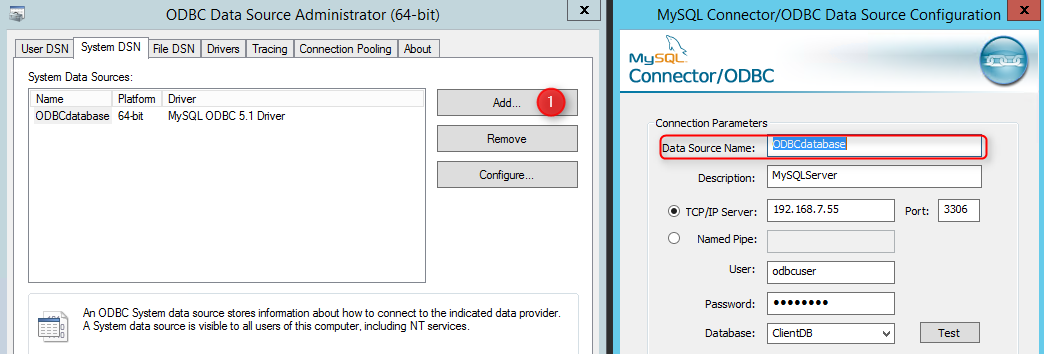
2. Switch to the System DSN tab and click the Add ... button
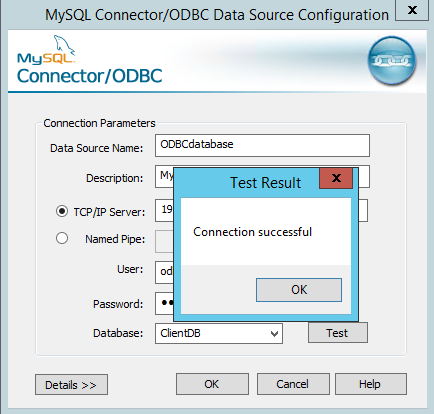
3. Create a connection to the database. Note: The DATA Source Name field is very important for proper operation. Use the “Test” button to test the connection to the database.
Sample
As an example, we created a table named “client” in our database “ClientDB”
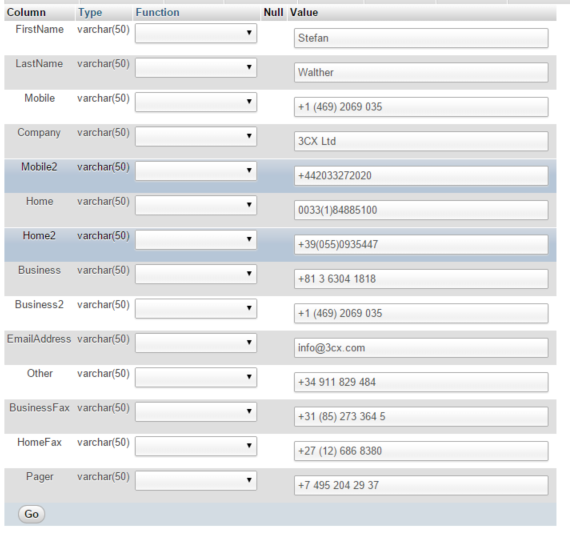
Note: the values for the “FirstName” column were set to “0”, for “LastName” was set to “1”, for “Pager” was set to “13” .

To configure ODBC parameters in 3CX Phone System, go to "Settings"> "Advanced"> "Company Directory Sync"> "ODBC Search". If the columns in your database do not match, then leave them blank in 3CX Phone System.
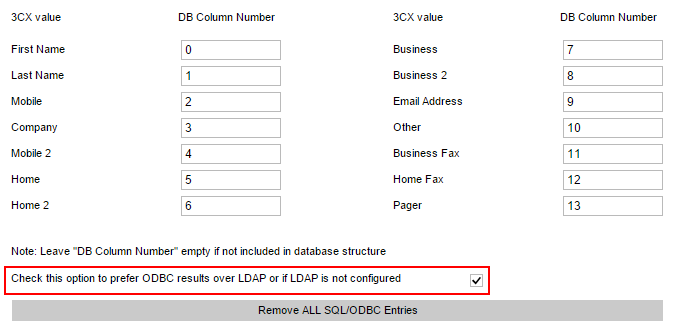
If you do not have LDAP Directory Search configured, you must select the check box to enable ODBC queries.
Work with the database
Now configure the query string using the ODBC driver. You need to enter a DSN. In our example, this is “ODBCdatabase”.

Any valid SQL statement can be entered in the Query String.
For our example client database, we could use:
Search only in the column “mobile”: Search in the columns “mobile” and “mobile2”: Search in all columns: ' Inside the database there may be copies of contacts. You must analyze the data in the phone numbers and create a function that will delete all non-numeric values of the field to which the request is made. Most CRMs have this feature natively. For our example, below is a function called “ExtractInteger”. ****** DROP FUNCTION `ExtractInteger` //
CREATE DEFINER = `root` @` localhost` FUNCTION `ExtractInteger` (String VARCHAR (2000)) RETURNS varchar (1000) CHARSET latin1
BEGIN
DECLARE Count INT;
DECLARE IntNumbers VARCHAR (1000);
SET Count = 0;
SET IntNumbers = '';
WHILE Count <= LENGTH (String) DO
IF (SUBSTRING (String, Count, 1)> = '0') AND (SUBSTRING (String, Count, 1) <= '9') THEN
ers = CONCAT (IntNumbers, SUBSTRING ( String, Count, 1));
END IF;
SET Count = Count + 1;
END WHILE;
RETURN IntNumbers;
END
******
Verification
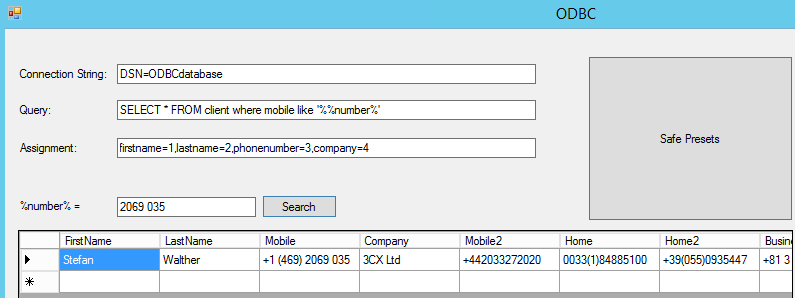
3CX provides a test tool that can simulate a database query and show the result. The configuration syntax is the same as for the 3CX Phone System. You can download the test tool here .
Creating an ODBC Data Source (DSN)
Install the ODBC driver for the database that stores the contact information. In our example, we will use MySQL http://dev.mysql.com/downloads/connector/odbc/
1. Launch ODBC by typing “odbc” into the Windows Start menu. Be sure to use the x64-bit version.
2. Switch to the System DSN tab and click the Add ... button
3. Create a connection to the database. Note: The DATA Source Name field is very important for proper operation. Use the “Test” button to test the connection to the database.
Sample
As an example, we created a table named “client” in our database “ClientDB”
Note: the values for the “FirstName” column were set to “0”, for “LastName” was set to “1”, for “Pager” was set to “13” .
To configure ODBC parameters in 3CX Phone System, go to "Settings"> "Advanced"> "Company Directory Sync"> "ODBC Search". If the columns in your database do not match, then leave them blank in 3CX Phone System.
If you do not have LDAP Directory Search configured, you must select the check box to enable ODBC queries.
Work with the database
Now configure the query string using the ODBC driver. You need to enter a DSN. In our example, this is “ODBCdatabase”.
Any valid SQL statement can be entered in the Query String.
For our example client database, we could use:
Search only in the column “mobile”: Search in the columns “mobile” and “mobile2”: Search in all columns: ' Inside the database there may be copies of contacts. You must analyze the data in the phone numbers and create a function that will delete all non-numeric values of the field to which the request is made. Most CRMs have this feature natively. For our example, below is a function called “ExtractInteger”. ****** DROP FUNCTION `ExtractInteger` //
SELECT *

FROM client

where mobile like '%%number%'
SELECT *

FROM client

where mobile like '%%number%' or mobile2 like '%%number%'
SELECT *

FROM client

where mobile like '%%number%' or mobile2 like '%%number%' or home like '%%number%' or home2 like '%%number%' or business like '%%number%' or business2 like '%%number%' or other like '%%number%' or businessfax like '%%number%' or homefax like '%%number%' or pager like '%%number%
CREATE DEFINER = `root` @` localhost` FUNCTION `ExtractInteger` (String VARCHAR (2000)) RETURNS varchar (1000) CHARSET latin1
BEGIN
DECLARE Count INT;
DECLARE IntNumbers VARCHAR (1000);
SET Count = 0;
SET IntNumbers = '';
WHILE Count <= LENGTH (String) DO
IF (SUBSTRING (String, Count, 1)> = '0') AND (SUBSTRING (String, Count, 1) <= '9') THEN
ers = CONCAT (IntNumbers, SUBSTRING ( String, Count, 1));
END IF;
SET Count = Count + 1;
END WHILE;
RETURN IntNumbers;
END
******
Verification
3CX provides a test tool that can simulate a database query and show the result. The configuration syntax is the same as for the 3CX Phone System. You can download the test tool here .