Configuring QoS on VMWare and Cisco USC
We have Asterisk in a virtual machine under vmware, which in turn runs on the Cisco UCS blade. And the task was to prioritize voice traffic inside vmware and inside Cisco UCS.
Let's start the setup with Cisco UCS. Cisco UCS only supports QoS at the second level. Accordingly, traffic should be painted under it with CoS bits.
Configuring QoS in UCS Manager is on the LAN tab, LAN Cloud -> QoS System Class item
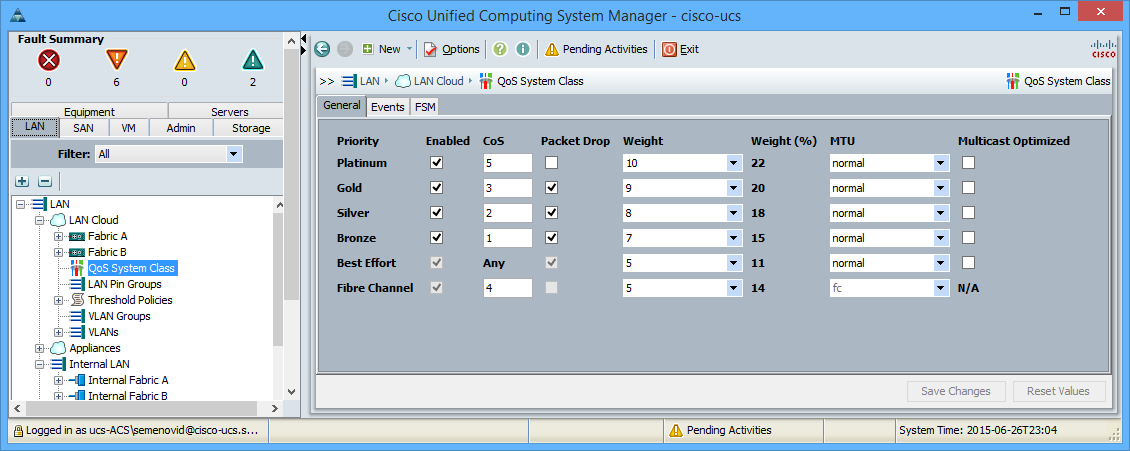
Here you need to enable the markings that we are going to use, and change their settings if desired. For Gold traffic you need to install CoS 3, and for FC - 4. You can read more here .
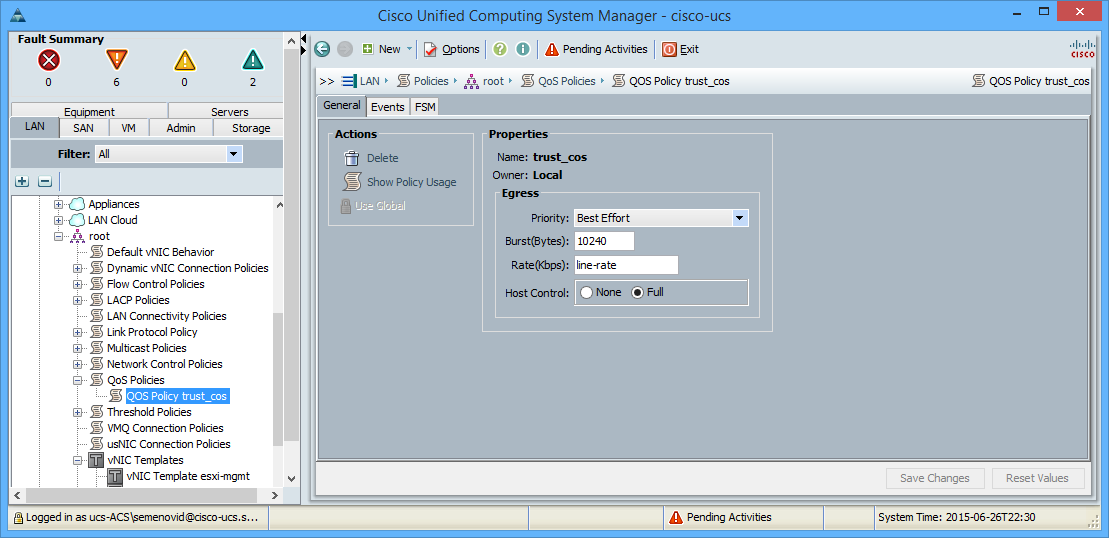
By default, UCS does not skip labeling by hosts. For UCS to start trusting labeling, you need to create a QoS Policy in the Polices -> root -> QoS Polises section.
In politics, we ask how to mark traffic, and, if desired, we can kill the lane. An important parameter for us here is Host Control, if it is set to None, then all traffic from the interface will be marked with the specified CoS, in case of Full - UCS will trust the marking on the interface, and it will only mark unmarked traffic.
We set Priority: Best Effort (CoS 0) and Host Control: Full in our policy, so we will trust the marking from the hosts, and for unmarked frames we will leave CoS 0.
Next, we need to apply this QoS Policy to interfaces (or interface policies) ) towards the hosts. This operation will require a reboot of the hosts.
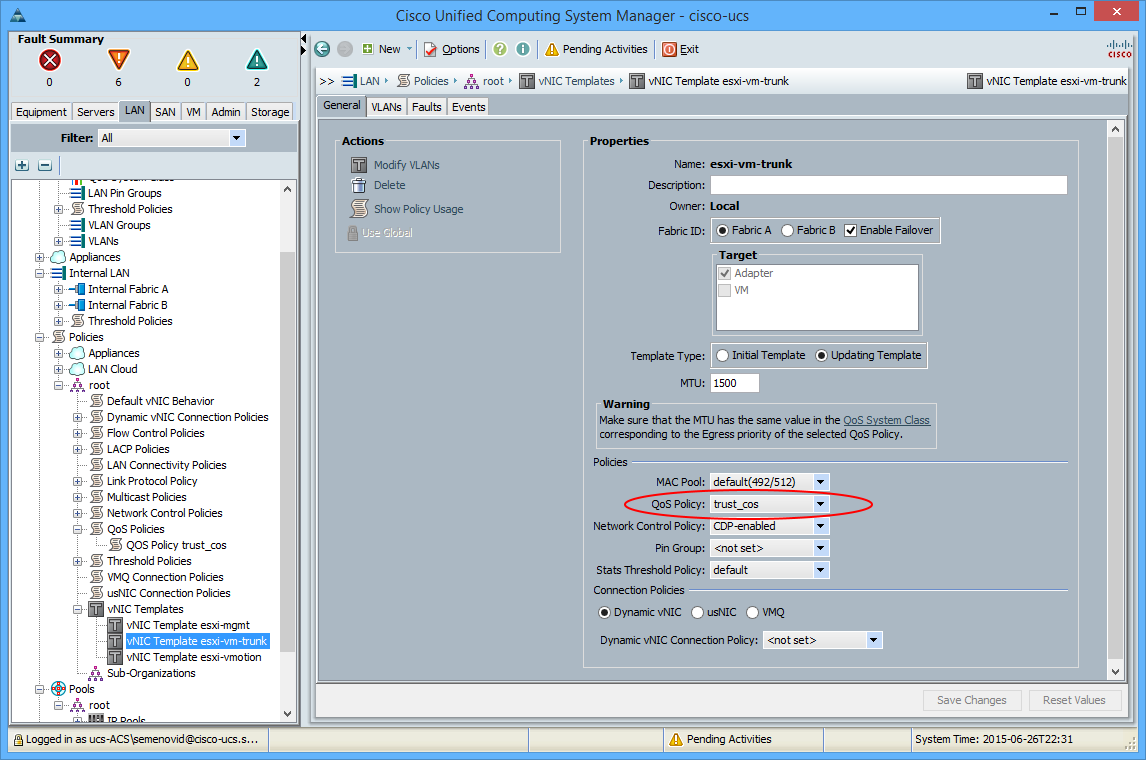
This completes the setup of Cisco UCS.
Now configure vmware. I will consider the case with the standard Distributed Virtual Switch and vSphere 6.0.
The first thing to do is create a dedicated Port Group for our host with Asterisk.
Next, go to the group port settings (necessarily through the Web Client) in the Traffic filtering and marking section and add a new rule, let's call it RTP. Specify Action: Tag, CoS Value: 5, Traffic direction: Ingress.
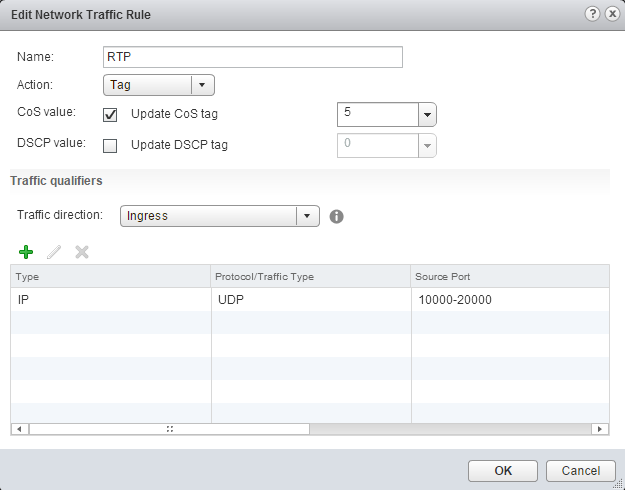
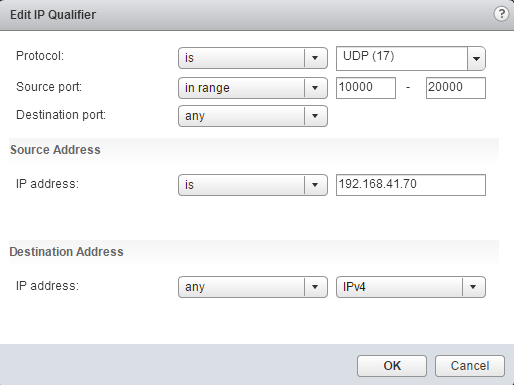
Next, add the New IP Qualifier rule. Protocol: UDP, Source port: range 10000-20000 (see the rtp settings of your asterisk ports), Source address is the address of your asterisk. We make a similar rule for sip traffic by choosing CoS 3 and Source port: 5060.

That's it, our traffic from the asterisk is marked. Now we’ll give the asterisk a guaranteed band on the uplinks of the virtual switch.
We select our DVS in the web client and go to the Resource Allocation tab and select System Traffic.
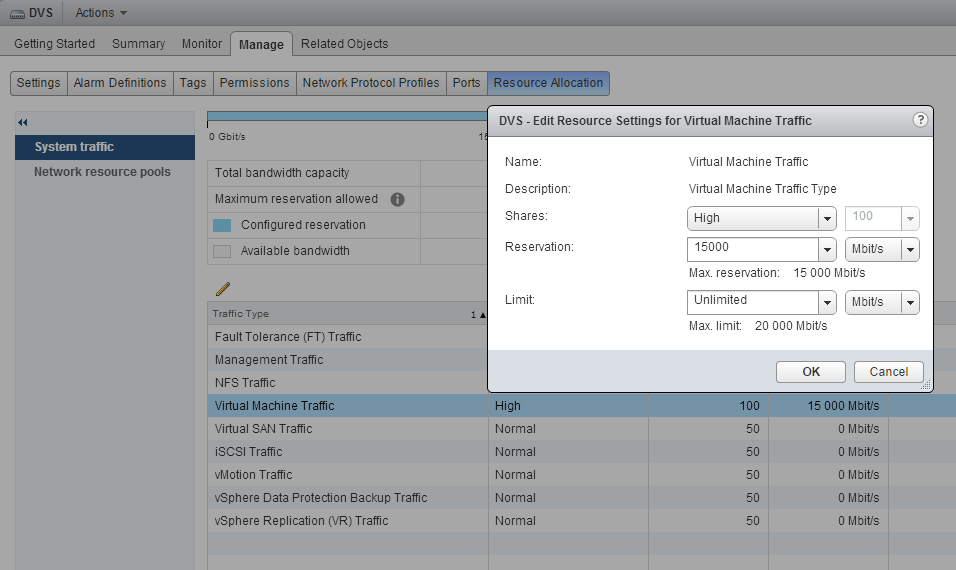
First, we need to reserve a band for traffic such as Virtual Machine Type, we make it 75% of the width of the physical interface, in this case it is 15000Mbit / s.
Now you can set the lane for an individual group port. We go to Network resource pools and create a new pool, call it Voice, and give it a guaranteed band, for example, at 20Mbit / s

Go back to the group port settings and in the General section apply the created Network resource pool to the port group.

That's it, the setup is done. Now voice traffic will take precedence inside the virtual switch and inside Cisco UCS.
1. Cisco UCS
Let's start the setup with Cisco UCS. Cisco UCS only supports QoS at the second level. Accordingly, traffic should be painted under it with CoS bits.
Configuring QoS in UCS Manager is on the LAN tab, LAN Cloud -> QoS System Class item
Here you need to enable the markings that we are going to use, and change their settings if desired. For Gold traffic you need to install CoS 3, and for FC - 4. You can read more here .
By default, UCS does not skip labeling by hosts. For UCS to start trusting labeling, you need to create a QoS Policy in the Polices -> root -> QoS Polises section.
In politics, we ask how to mark traffic, and, if desired, we can kill the lane. An important parameter for us here is Host Control, if it is set to None, then all traffic from the interface will be marked with the specified CoS, in case of Full - UCS will trust the marking on the interface, and it will only mark unmarked traffic.
We set Priority: Best Effort (CoS 0) and Host Control: Full in our policy, so we will trust the marking from the hosts, and for unmarked frames we will leave CoS 0.
Next, we need to apply this QoS Policy to interfaces (or interface policies) ) towards the hosts. This operation will require a reboot of the hosts.
This completes the setup of Cisco UCS.
2. Configure VMWare
Now configure vmware. I will consider the case with the standard Distributed Virtual Switch and vSphere 6.0.
The first thing to do is create a dedicated Port Group for our host with Asterisk.
Next, go to the group port settings (necessarily through the Web Client) in the Traffic filtering and marking section and add a new rule, let's call it RTP. Specify Action: Tag, CoS Value: 5, Traffic direction: Ingress.
Next, add the New IP Qualifier rule. Protocol: UDP, Source port: range 10000-20000 (see the rtp settings of your asterisk ports), Source address is the address of your asterisk. We make a similar rule for sip traffic by choosing CoS 3 and Source port: 5060.
That's it, our traffic from the asterisk is marked. Now we’ll give the asterisk a guaranteed band on the uplinks of the virtual switch.
We select our DVS in the web client and go to the Resource Allocation tab and select System Traffic.
First, we need to reserve a band for traffic such as Virtual Machine Type, we make it 75% of the width of the physical interface, in this case it is 15000Mbit / s.
Now you can set the lane for an individual group port. We go to Network resource pools and create a new pool, call it Voice, and give it a guaranteed band, for example, at 20Mbit / s
Go back to the group port settings and in the General section apply the created Network resource pool to the port group.
That's it, the setup is done. Now voice traffic will take precedence inside the virtual switch and inside Cisco UCS.