Oberon is dead, long live Oberon! Work Environment ETH Oberon
Before starting the story about the A2 operating system, it is necessary to mention its predecessor ETH Oberon, which is a further development of the original Oberon System.
In the context of articles ( Part 1 , Part 2 ) devoted to the Active Oberon programming language and the A2 operating system, ETH Oberon is interesting from the point of view of developing the user interface in Oberon systems and its impact on the IT industry. Unlike the original Oberon System, the ETH Oberon user interface is a set of graphical visual objects (gadgets). When porting to a new graphics system, it was once again confirmed that the Oberon OS was designed very well and that porting required minimal changes.
The classic desktop in Oberon OS is a browser environment controlled by a tile window manager, and is based on the concept of “Text As Interface” (TCI) - everything is text (or rather hypertext), any text can be a command, for which you need to either click on with the middle mouse button, or select the desired section of text (anywhere) that will be interpreted as the command parameters and also click on the command. Commands and indeed the entire interface can be written in panels, inserted gadgets, saved and opened at the right time.
OS settings are stored and processed as ordinary documents, and not different from them (hello, wiki).
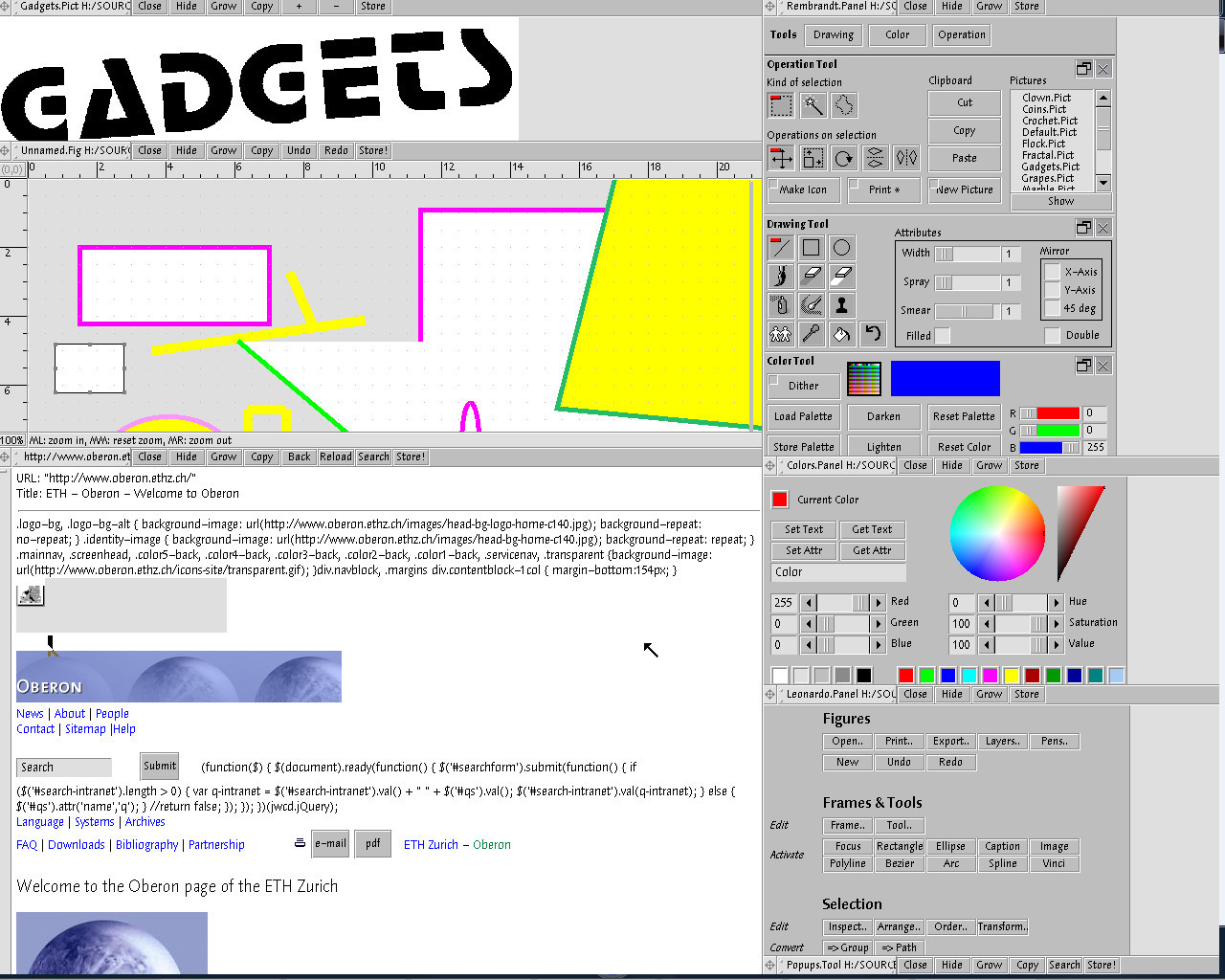
In the screenshot of the ETH Oberon desktop, we see a hidden panel below, on the right are the toolbars of the graphic editors Rembrandt and Leonardo, on the left are two documents with graphic content and the html page of the ETHZ site.
The desktop space is divided into two areas. The left one, which occupies the bulk of the space, is intended for displaying documents, the right one, the smaller one, is mainly for command panels and tools, although documents can be opened here to display which is enough for this area.
Each panel has a control area that contains a drag handle, title, and control buttons.
When you click the Grow button, the panel expands to the size of the area in which it is located, pressing the button again expands the panel to the entire desktop.
The Close button returns the panel to its previous state, that is, if the panel is open to the entire desktop, it will be minimized to the size of the area, a second press will minimize the panel to its normal size, a third press will close the panel.
The Hide button allows you to hide the panel, minimizing it to the size of the title and placing it at the bottom of the workspace. In the screenshot, the hidden panel is in the lower right corner.
For various types of documents, the panel displays its own context-sensitive buttons, for example, Store, Back ...
To create a working environment, the Gadgets subsystem provides visual development tools for hypertext documents, which, in fact, are all panels. The contents of the panels can be edited "in real time" - add the necessary commands, gadgets, delete unused and save for later use. All changes immediately become available to the user. The configuration document allows you to customize the composition of the panels loaded at startup, the size of the work areas, color schemes, etc. A scripting language can also be used to form the interface.
Linking gadgets with program code is done through the concept of commands (Commands). Teams in Oberon are special signature procedures exported outside the module. The compiler recognizes such commands and, when generating the object module, places pointers to them in a special table of commands. Access to such commands takes the form ModuleName. Team Name . The command can be followed by parameters, or the parameters are the previously selected text. The command processor parses the command, generates requests, parameters, loads the module and transfers control to the command procedure. Thus, the gadget attribute (for example, a button) that is responsible for storing the command is assigned the corresponding value. Further, everything happens automatically.
From my own experience, I can say that an interface built on the concept of TCI (text as an interface) combined with a browser environment provides a powerful mechanism for creating a working environment for a specific user, subject area, project, although it takes some time to master it, the power of its unusualness. Looking ahead, I’ll say that in OS A2 there are only small traces of the TCI concept and its desktop shell is more like a classic desktop.

Screenshot of the Oberon V4 desktop. Unlike Oberon System 3 (ETH Oberon), as in the original Oberon System, the working environment is formed on a textual rather than graphical basis.
Rob Pike, creator of the Acme environment for Plan 9, drew ideas from Oberon technologies, and the Acme user interface is tailored in the image and likeness of the Oberon OS user interface.
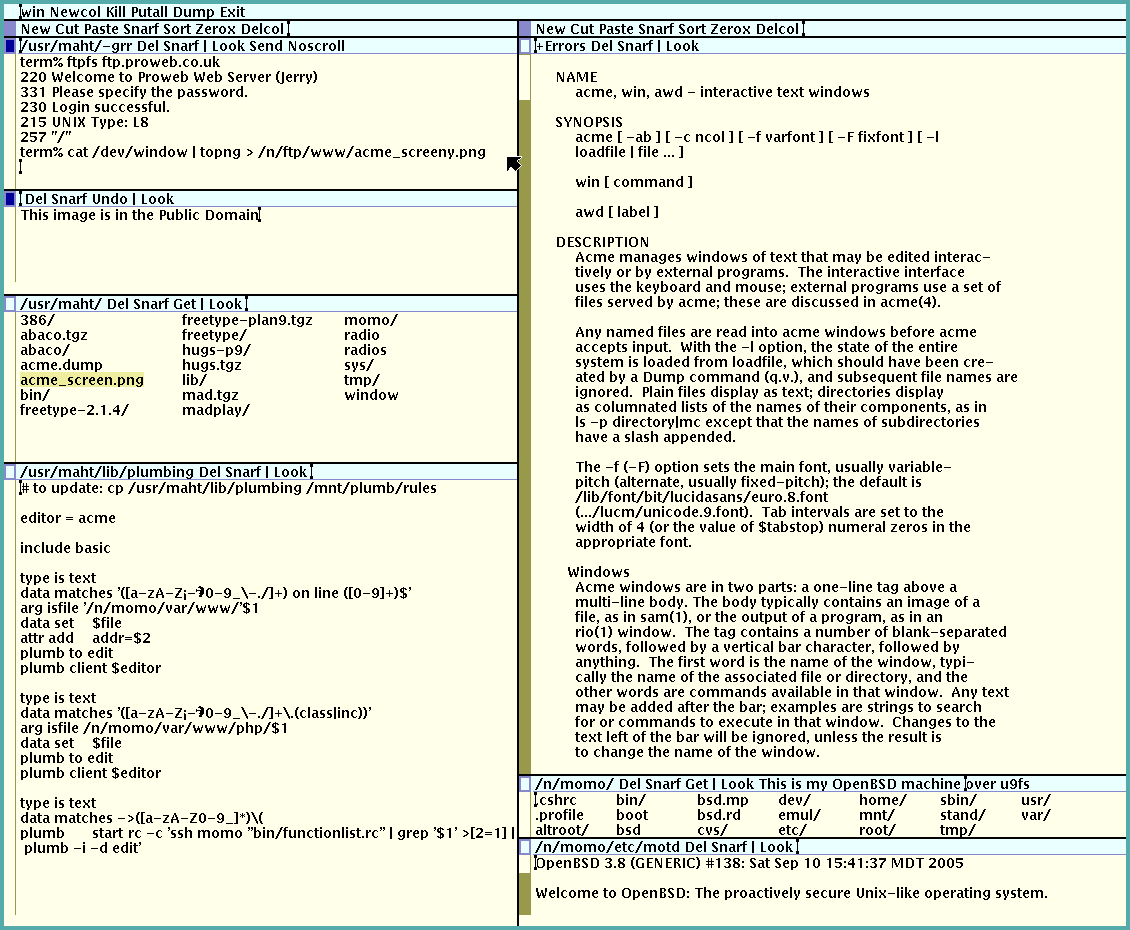
Acme Screenshot
In the context of articles ( Part 1 , Part 2 ) devoted to the Active Oberon programming language and the A2 operating system, ETH Oberon is interesting from the point of view of developing the user interface in Oberon systems and its impact on the IT industry. Unlike the original Oberon System, the ETH Oberon user interface is a set of graphical visual objects (gadgets). When porting to a new graphics system, it was once again confirmed that the Oberon OS was designed very well and that porting required minimal changes.
The classic desktop in Oberon OS is a browser environment controlled by a tile window manager, and is based on the concept of “Text As Interface” (TCI) - everything is text (or rather hypertext), any text can be a command, for which you need to either click on with the middle mouse button, or select the desired section of text (anywhere) that will be interpreted as the command parameters and also click on the command. Commands and indeed the entire interface can be written in panels, inserted gadgets, saved and opened at the right time.
OS settings are stored and processed as ordinary documents, and not different from them (hello, wiki).
In the screenshot of the ETH Oberon desktop, we see a hidden panel below, on the right are the toolbars of the graphic editors Rembrandt and Leonardo, on the left are two documents with graphic content and the html page of the ETHZ site.
The desktop space is divided into two areas. The left one, which occupies the bulk of the space, is intended for displaying documents, the right one, the smaller one, is mainly for command panels and tools, although documents can be opened here to display which is enough for this area.
Each panel has a control area that contains a drag handle, title, and control buttons.
When you click the Grow button, the panel expands to the size of the area in which it is located, pressing the button again expands the panel to the entire desktop.
The Close button returns the panel to its previous state, that is, if the panel is open to the entire desktop, it will be minimized to the size of the area, a second press will minimize the panel to its normal size, a third press will close the panel.
The Hide button allows you to hide the panel, minimizing it to the size of the title and placing it at the bottom of the workspace. In the screenshot, the hidden panel is in the lower right corner.
For various types of documents, the panel displays its own context-sensitive buttons, for example, Store, Back ...
To create a working environment, the Gadgets subsystem provides visual development tools for hypertext documents, which, in fact, are all panels. The contents of the panels can be edited "in real time" - add the necessary commands, gadgets, delete unused and save for later use. All changes immediately become available to the user. The configuration document allows you to customize the composition of the panels loaded at startup, the size of the work areas, color schemes, etc. A scripting language can also be used to form the interface.
Linking gadgets with program code is done through the concept of commands (Commands). Teams in Oberon are special signature procedures exported outside the module. The compiler recognizes such commands and, when generating the object module, places pointers to them in a special table of commands. Access to such commands takes the form ModuleName. Team Name . The command can be followed by parameters, or the parameters are the previously selected text. The command processor parses the command, generates requests, parameters, loads the module and transfers control to the command procedure. Thus, the gadget attribute (for example, a button) that is responsible for storing the command is assigned the corresponding value. Further, everything happens automatically.
From my own experience, I can say that an interface built on the concept of TCI (text as an interface) combined with a browser environment provides a powerful mechanism for creating a working environment for a specific user, subject area, project, although it takes some time to master it, the power of its unusualness. Looking ahead, I’ll say that in OS A2 there are only small traces of the TCI concept and its desktop shell is more like a classic desktop.
Screenshot of the Oberon V4 desktop. Unlike Oberon System 3 (ETH Oberon), as in the original Oberon System, the working environment is formed on a textual rather than graphical basis.
Rob Pike, creator of the Acme environment for Plan 9, drew ideas from Oberon technologies, and the Acme user interface is tailored in the image and likeness of the Oberon OS user interface.
Acme Screenshot
References
- Jürg Gunknecht. Oberon: Prospects for Evolution
- Plugin Oberon distribution - a variant of ETH Oberon, launched as an MS Windows application
Series Content
- Some love more active
- Modules
- Work Environment ETH Oberon