Manipulation of numbers through LDAP
When integrating various exchanges with each other or when connecting to a telecom operator, the question often arises of how to convert a large number of numbers. Moreover, in most cases there is no relationship between the numbers. Alternatively, you can use the number conversion table for this, but it does not look very nice, and management will not be the easiest in this case. The simplest, especially in the enterprise market, is the use of LDAP for this purpose.
Why LDAP, and not some other mechanism, such as an external file. Everything is quite simple - AD is used in most companies as a corporate standard, where all the necessary information about employees is stored, namely, their data in this case requires manipulation. So why create some kind of parallel database if it already exists in your infrastructure? Where and how to use such manipulations - there are a lot of options, I will only list the most popular ones that I meet.
Now about how it is configured.
In order to make it clearer, we present the problem. It is necessary to replace the internal number of the employee 1234 in the outgoing number with his mobile phone 89997776655. The internal number of the employee is in the telephoneNumber attribute, and the mobile number is in the Mobile attribute.
In order to start working with LDAP, you need to enable the LDAP service on Mediant. To do this, open VoIP-> Services-> LDAP
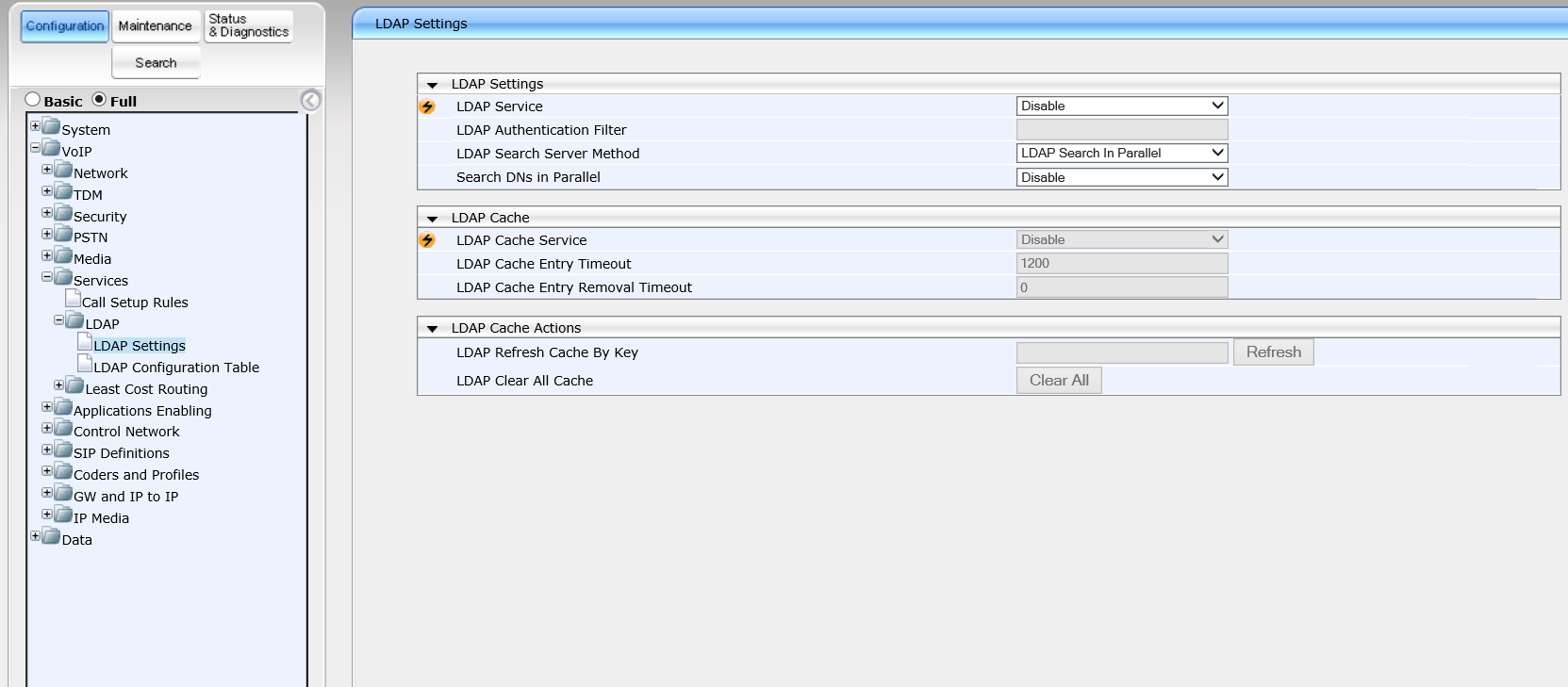
LDAP Service - Enable, after which the gateway / SBC must be rebooted.
A very important point that you must immediately determine is LDAP Cache. That is, whether the gateway / SBC will remember the information that it received from LDAP or not. And if so, how often will he update it. This is done so that with a large number of requests Mediant does not load the LDAP server too much and process queries as quickly as possible.
After that, we need to configure the connection to the LDAP server. We go: Configuration tab> VoIP menu> Services> LDAP> LDAP Configuration Table:

Here the IP address of the server and its destination are configured. I will describe only a number of parameters on this page, since most parameters are understandable by name:
By default, Mediant does not use encryption, and authorization on the LDAP server occurs using the Simple method.
After successfully connecting to the LDAP server, it should have the “Connected” status.
After connecting to the LDAP server, you need to configure the DN where the search will be performed. This is done in: Configuration tab> VoIP menu> Services> LDAP> LDAP Configuration Table.

At this stage, we configured the interface to the LDAP server and determined the area where we will search for objects. In order to do the conversion to SIP, you need to set up Call Setup Rules, where we determine how we search for an object in LDAP and what attribute we get from LDAP.
LDAP rules are configured: Configuration tab> VoIP menu> Services> Call Setup Rules.

Here we describe each parameter individually:
List of parameters that can be used:
After we have configured the manipulation rule, we must apply it to those calls where it is required. This is done in the call routing settings in the Call Setup Rules Set ID parameter. After that, the rule we created will be applied to those calls that will be routed according to this rule, thereby we can flexibly configure those cases when LDAP manipulation is required.
Integration with LDAP can also be used for the following tasks:
Why LDAP, and not some other mechanism, such as an external file. Everything is quite simple - AD is used in most companies as a corporate standard, where all the necessary information about employees is stored, namely, their data in this case requires manipulation. So why create some kind of parallel database if it already exists in your infrastructure? Where and how to use such manipulations - there are a lot of options, I will only list the most popular ones that I meet.
- FMC service, when your mobile operator is ready to give you your extension numbers to your PBX, but at the same time the mobile phone remains in the caller’s number. There may be a problem in converting the employee’s mobile number to the employee’s internal number for correct display. Accordingly, we need to find an entry in AD with the corresponding mobile number, and substitute the extension number of this AD record as the caller’s number.
- The process of migration from one PBX to another. You have two automatic telephone exchanges and your task is to smoothly migrate from one automatic telephone exchange to another, while you cannot migrate to selected areas of numbers, but you need to migrate several numbers from different ranges. In this case, several fields are applied where one field corresponds to one exchange and the second field corresponds to the second exchange. Depending on which field the number is in, the call should be routed there.
- If we talk about the new functionality of Skype For Business - Call via Work, then this functionality may just be necessary, since with this functionality a lot of tasks can arise, how the number should be displayed when calling from Skype For Business to the PBX and under which number it should go this number is out.
- Well, those cases that may arise. And as my practice shows, requests where it is convenient to use this functionality in the end arise quite often.
Now about how it is configured.
In order to make it clearer, we present the problem. It is necessary to replace the internal number of the employee 1234 in the outgoing number with his mobile phone 89997776655. The internal number of the employee is in the telephoneNumber attribute, and the mobile number is in the Mobile attribute.
In order to start working with LDAP, you need to enable the LDAP service on Mediant. To do this, open VoIP-> Services-> LDAP
LDAP Service - Enable, after which the gateway / SBC must be rebooted.
A very important point that you must immediately determine is LDAP Cache. That is, whether the gateway / SBC will remember the information that it received from LDAP or not. And if so, how often will he update it. This is done so that with a large number of requests Mediant does not load the LDAP server too much and process queries as quickly as possible.
After that, we need to configure the connection to the LDAP server. We go: Configuration tab> VoIP menu> Services> LDAP> LDAP Configuration Table:
Here the IP address of the server and its destination are configured. I will describe only a number of parameters on this page, since most parameters are understandable by name:
- LDAP Bind DN is the name of the account that logs into the LDAP server. It can be written in one of the following formats:
- CN = Administrator, CN = Users, DC = domain, DC = com
- [email protected]
- domain \ administrator
- It is also important to choose what you use LDAP for (type parameter)
- Control (default) - means that this server will be used to signal voice traffic. Actually, the option that we are considering in this example.
- Management - when this option is selected, the LDAP server is used to check access authorization for voice gateway management.
By default, Mediant does not use encryption, and authorization on the LDAP server occurs using the Simple method.
After successfully connecting to the LDAP server, it should have the “Connected” status.
After connecting to the LDAP server, you need to configure the DN where the search will be performed. This is done in: Configuration tab> VoIP menu> Services> LDAP> LDAP Configuration Table.
At this stage, we configured the interface to the LDAP server and determined the area where we will search for objects. In order to do the conversion to SIP, you need to set up Call Setup Rules, where we determine how we search for an object in LDAP and what attribute we get from LDAP.
LDAP rules are configured: Configuration tab> VoIP menu> Services> Call Setup Rules.
Here we describe each parameter individually:
- Rules Set ID: The rule set number. Sometimes it is required to use several rules, in this case several rules with one Rule Set ID are configured.
- Attribute To Query: Defines a query string to an LDAP server. The syntax is quite simple. All static data is entered in single quotation marks, all variables are entered without quotation marks. Between them there should be a “+” sign. Example: 'telephoneNumber =' + param.call.src.user. A list of possible variable parameters is presented below.
- Attribute to Get: The attribute that we are trying to get from LDAP for further work with it. In our example, this is the mobile phone number: mobile. This parameter is entered without quotation marks. If you need to get more than one attribute, then in this case they are written with a comma.
- Condition: This parameter defines the condition under which this rule works. In our case, it will be: ldap.attr.mobile exists. (The mobile attribute exists). Examples of other conditions:
- param.call.dst.user == '1234'
- ldap.found! exists (LDAP entry not found)
- ldap.err exists (error finding LDAP)
- Regular expressions can also be used.
- Action Subject: Determines which call parameter we will modify. In our case, it will be: param.call.src.user
- Action Type: What we will do with this call parameter (Add / Remove / Modify / Add Prefix / Add Suffix / Remove prefix / Remove suffix / Exit (stop the Rule Set ID and not apply the following rules) / Run Rules Set (switch to another rule). In our case - Modify
- Action Value: A parameter that determines what we will do. In our example, we need to substitute the source number - the mobile phone number: ldap.attr.mobile. The syntax for this parameter is identical to Attribute to Query. (If Exit is configured in the action type, then the value of this parameter must be false or true. That is, if it matches, exit or not from the Rule Set ID).
List of parameters that can be used:
- param.call.dst.user (destination number)
- param.call.src.user (caller number)
- param.call.src.name (caller name)
- param.call.redirect (call forwarding number)
- param.call.src.host (the source domain of the call is in the from field)
- param.call.dst.host (the destination domain of the call is in the to field)
After we have configured the manipulation rule, we must apply it to those calls where it is required. This is done in the call routing settings in the Call Setup Rules Set ID parameter. After that, the rule we created will be applied to those calls that will be routed according to this rule, thereby we can flexibly configure those cases when LDAP manipulation is required.
Integration with LDAP can also be used for the following tasks:
- Access authorization on Mediant is only for those users who are members of a particular group.
- Call routing
- Route a call based on which attribute the required call parameter is in.
- A parallel call in several directions for each attribute of the LDAP server.
- Sequential calls to several numbers that are in the attributes of the LDAP server.