Search Articles — Sudonull
Search Results
Trending Now

How to Use Terraform with AWS: Complete Guide
Learn how to use Terraform with AWS step by step. Master provider setup, state management, security, and production-grade deployments. Start building today.
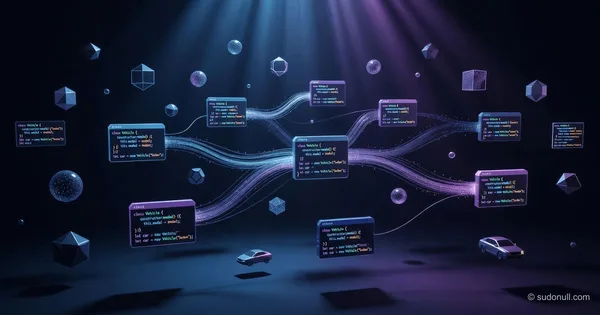
What Is Object Oriented Programming? Core Concepts Explained
Learn what is object oriented programming, its four pillars, real-world examples, and why it matters for building scalable, maintainable software. Start mastering OOP today.

What Are Data Structures and Why They Matter | Basics
Learn what are data structures and why they are important for efficient software. Discover types, real-world impact, and how they shape modern computing.
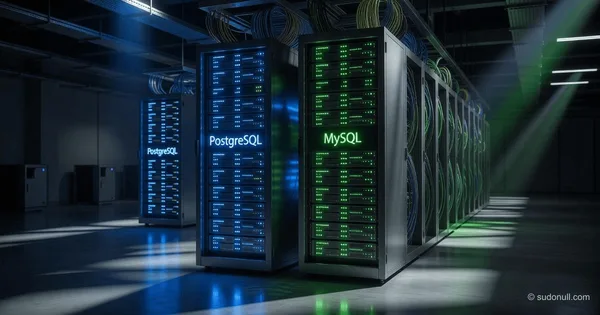
PostgreSQL vs MySQL: Which One to Choose?
PostgreSQL vs MySQL which one to choose? Compare features, performance, scalability, and use cases. Make an informed decision for your project with this data-driven guide.
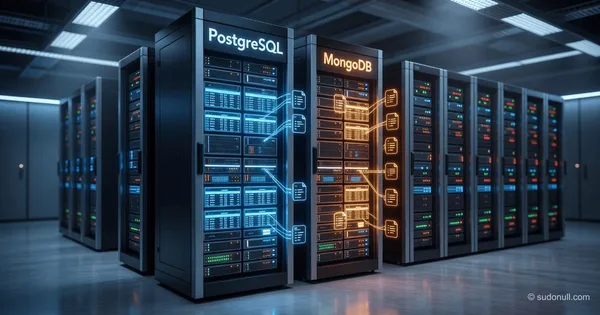
MongoDB vs PostgreSQL When to Use Each: Key Differences
MongoDB vs PostgreSQL when to use each: compare ACID compliance, scalability, schema flexibility, and query power. Choose the right database for your project.

DeepWay Robotaxi 1000 km: Solid-State Batteries and AI Revolution
Chinese startup DeepWay announced a robotaxi with a range of 1000 km on solid-state batteries. Learn how this changes the electric vehicle market and why it matters.

Figure 02: new humanoid robot with AI interface from Figure AI
Figure AI introduced the humanoid robot Figure 02 with physical AI and OpenAI language model. The robot passed tests at BMW factories. Learn how humanoid robots are changing manufacturing.

Top 10 Breakthrough Technologies 2026 from WEF: Full Analysis
Analysis of trends, hidden risks, and geopolitical implications of Top 10 Emerging Technologies 2026. Who benefits from new developments and who loses. Read the analytics.

Starlink Launch in Japan: Direct Smartphone Communication via Satellite
SpaceX and KDDI launched satellite communication for smartphones in Japan. Learn how Starlink Direct-to-Cell works, who can access it, and what hidden geopolitical goals this project pursues.

How to Choose a Database for Your System: Expert Guide
Learn how to choose a database for your system with this evidence-based framework. Compare SQL, NoSQL, graph, and time-series databases to make the right decision.