September 11, 2012 at 22:49
Unix as an IDE: Working with Text
- Transfer
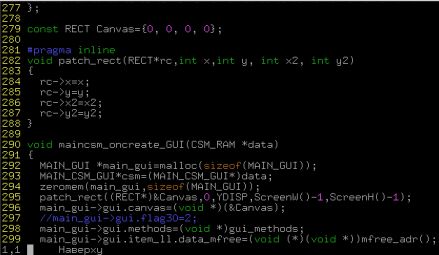 A text editor is the main tool for any programmer, which is why the question of his choice becomes the cause of furious debate. Unix is traditionally closely associated with its two long-standing favorites, Emacs and Vi , and their modern versions of GNU Emacs and Vim . These editors have a very different approach to editing text, but at the same time they are comparable in power.
 Since I belong to the Vim sect , we will discuss further the inexhaustible features of this editor, as well as command line tools called directly from Vim to extend the built-in functionality. Some of the principles discussed below may apply to Emacs.but not for simple editors like Nano .
This will be a very superficial overview, since Vim 's programming capabilities are truly innumerable, and yet it will turn out to be quite long. The Vim : help team is known among beginners as a quality and useful source of information, so do not neglect it.
File Type Definition
Vim has many settings that affect its behavior. For example, it’s easy to customize code highlighting depending on the type of file you are downloading. Thus, in particular, you can set the indentation style that matches the norms of the programming language used. This setting is best placed one of the first in your .vimrc file.
if has("autocmd")
    filetype on
    filetype indent on
    filetype plugin on
endif
Syntax highlighting
Even if you work with a 16-color terminal, feel free to turn on the backlight in your .vimrc file:
syntax on
The color schemes of the standard 16-color terminal are not externally very good, but they solve the tasks assigned to them if you pick up the correct syntax files. There are a lot of color schemes, so it’s easy to customize them, and a 256-color terminal or gVim will give you even more options. Good syntax files highlight errors with a bright red background color.
Line numbering
If you are used to line numbering in traditional IDEs, you can enable it by typing:
set number
You can try this trick if your Vim is not older than 7.3, and you want to number lines not absolutely, but with respect to the current one:
set relativenumber
Tag files
Vim works very well with the data generated by the ctags utility . This allows you to quickly find all occurrences of the desired identifier within the project, or go directly to the variable declaration from where it was used in the code, even if it is in another file. For large C projects containing many files, you can save a huge amount of wasted time, and this is perhaps the closest thing that brings Vim to the mainstream IDEs.
You can run :! Ctags -R in the root directory of the project in one of the supported languages, and as a result you will get a tag file with definitions and links to the location of identifiers in your project. When the tag file is ready, you can search for the use of the tag in the project like this:
:tag someClass
The : tn and : tp commands allow you to move between the occurrences of the tag throughout the project. The built-in tag mechanism covers most of the most used features, but if you want more sophisticated features, like a window with a list of tags, you can install the very popular Taglist plugin . Tim Pope's Unimpaired plugin also contains several important team remaps.
Calling external programs
There are 2 main methods for invoking external commands from a Vim session :
- :!
! - used when it is necessary to save the program output to the buffer - : shell - Run shell as a child of Vim . Suitable for interactive command execution.
The third method, which is not discussed in detail here, involves using plugins like Conque to emulate the shell directly in the Vim buffer . I myself tried it in action, but the plugin seemed to me unusable. Perhaps it’s just the wrong author’s intention (see : help design-not ).
Vim is not a console or an operating system. You are unlikely to manage to run the console inside Vim or use it to control the debugger. It has a different usage model: use it as a command line component or as part of an IDE.
Lint-like programs and syntax checking
Syntax checking and compilation by calling an external program (eg
perl -c, gcc) can be run from the editor using :! Commands The . If the Perl file is being edited, then the following command can be executed::!perl -c %
/home/tom/project/test.pl syntax OK
Press Enter or type command to continue
The character "%" is the wildcard character of the file loaded into the current buffer. The result is the text output of the command, if any, under the command line entered. If you need to invoke an external program constantly, it is better to map it as a command, or even as a key combination in a .vimrc file . Below we define the command : PerlLint , called from normal mode with \ l :
command PerlLint !perl -c %
nnoremap l :PerlLint
For many languages, there is another way to do the same by resorting to the quicklist built-in window in Vim . Set the makeprg setting for the file type by including a call to the module that forms the output readable for Vim :
:set makeprg=perl\ -c\ -MVi::QuickFix\ %
:set errorformat+=%m\ at\ %f\ line\ %l\.
:set errorformat+=%m\ at\ %f\ line\ %l
First you need to install the desired module through CPAN. Upon completion, you can enter the : make command and check the file syntax. If errors are found, you can open the quicklist ( : copen ) window , check their description and navigate between them using : cn and : cp .

Similar tricks work similarly with gcc output, and indeed with any syntax checking program that operates on the results of its work with file names, line numbers and error messages. In the same way, you can work with web-oriented languages like PHP, and with JSLint for Javascript. There is also an excellent Syntastic plugin designed for the same purpose.
Reading the output of other commands
To call a command and direct its output directly to the current buffer, use : r! . For example, to get a quick list of directory contents, you can type:
:r!ls
Commands, of course, are not limited to; using : r, you can read, read any files, for example, public keys or template texts:
:r ~/.ssh/id_rsa.pub
:r ~/dev/perl/boilerplate/copyright.pl
Filtering output through other commands
If you look at the header more broadly, then we will talk generally about filtering text in the buffer through external commands. Because Vim's visual mode is great for working with column-split data, it often makes sense to use the column , cut , sort, or awk commands .
For example, you can sort the entire file by the second column with the following command:
:%!sort -k2 -r
Only the third column of the selected text can be displayed, where the line matches the pattern "/ vim /":
:'<,'>!awk '/vim/ {print $3}'
You can arrange keywords in rows 1 to 10 in columns:
:1,10!column -t
Any text filter or command can be applied in this way in Vim , and this increases the scope of the text editor by an order of magnitude. Moreover, the Vim buffer is considered as a text stream, and all the classic utilities easily communicate in this language.
Built-in Alternatives
It is worth noting that for the most common operations, such as sorting and searching, Vim has built-in methods : sort and : grep . They are useful if Vim is used under Windows, but they are not even close to the adaptability of console calls.
File comparison
Vim has a vimdiff comparison tool that allows you to not only look at the differences in different versions of a file, but also resolve conflicts through three-way merging, replace the difference between pieces of text with the commands : diffput and : diffget . Vimdiff is called from the command line for at least two files like this:
$ vimdiff file-v1.c file-v2.c

Version control
You can run version control methods directly from Vim , and this is often enough. It should be remembered that "%" is always the place to substitute the file from the current buffer:
:!svn status
:!svn add %
:!git commit -a
The current champion in Git functionality is the Fugitive plugin by Tim Pope, which I highly recommend to anyone who uses Git with Vim . For more detailed coverage of the history and basics of version control systems on Unix, see Part 7 of this series.
A big difference
Programmers accustomed to graphic IDEs often consider Vim a toy or a relic. Part of the reason is the fact that Vim is used to seeing as a means of editing configuration files on the server, and not at all as a convenient command-line text editor. Its built-in tools combine so well with external Unix commands that it can often surprise even experienced users.
To be continued ...
Unix as IDE: Introduction of
Unix as IDE:
Unix Files as IDE: Working with Unix Text
as IDE: Compilation