Workflow optimization in Adobe Fireworks with extensions
- Transfer
A free translation of an article published in Smaching Magazine by graphic designer from Hyderabad, India, Ashish Bojavat.
I have been using Adobe Fireworks for more than ten years and recommend it to everyone who is looking for the best solution for screen (web and more) design. Much has been said about the designation of Fireworks as an application for the designer, but today I want to focus on its other advantage - extensibility.
Fireworks gives its users even more freedom when it comes to expanding its capabilities. It has a thriving ecosystem of extensions that add a lot of valuable features.
In this article I will try to list some of my selected extensions. These are the extensions that have helped me become more productive when working with Fireworks over the years. In addition, they are all free.
My article is quite detailed, and to help you navigate it, you can use the following shortcuts:
- Grids panel
- Guides Panel
- Auto Resize Smart
- Tables panel
- Auto Placeholder
- Orange Commands Set
- QuickFire Extension
Work with extensions in Fireworks
Fireworks is easily complemented by extensions - they are installed using the Adobe Extension Manager.
Before I take a closer look at the extensions that I recommend, I will share some recommendations for working with extensions in Fireworks. These tips mostly concern Fireworks CS5 and CS5.1, but in reality there are only a few minor differences between them and CS6.
Questions related to Windows Vista and Windows 7
Если вы используете Fireworks на Windows Vista или Windows 7 вы можете получить странные ошибки от менеджера расширений при попытке установить расширение. Запуск менеджера с правами администратора обычно решает эту проблему (щёлкните правой кнопкой мыши на ярлыке Extension Manage и выберите «Запуск от имени администратора»). Причина этой проблемы проста — некоторые старые расширения устанавливаются в Program Files, и операционная система, по соображениям безопасности, требует от администратора одобрения этих действий.
Where are the installed extensions?
Если вы устанавливаете расширения для Fireworks в первый раз, имейте в виду, что:
Команды, как правило, появляются в меню Commands.
Если расширение устанавливается в виде панели, вы найдете его в меню Window.
Если расширение устанавливается как автофигура, он может быть найден в панели Auto Shapes.
Команды, как правило, появляются в меню Commands.
Если расширение устанавливается в виде панели, вы найдете его в меню Window.
Если расширение устанавливается как автофигура, он может быть найден в панели Auto Shapes.
Description of extensions
Лучший способ узнать, как расширение должно работать, или в каком меню и подменю вы сможете найти его, это посмотреть на описание расширения в менеджере расширений. Однако, пожалуйста, обратите внимание, что Extension Manager позволяет разработчикам расширений обходиться только ссылкой на страницу с описанием.
Using keyboard shortcuts
Для команд которые вы используете чаще других, стоит назначить клавиатурные сокращения. Чтобы сделать это, перейдите в меню Edit → Keyboard Shortcuts для Windows или Fireworks → Keyboard Shortcuts для Mac, сделайте копию набора сокращений стоящего по умолчанию, затем выберите необходимую команду из списка и добавьте желаемую комбинацию. Fireworks даст вам знать, если комбинация которую вы хотите назначить уже используется. Вы можете переназначить комбинацию или выбрать другую.
Extension Updates
Обновлять расширения в Fireworks довольно просто — нужно лишь открыть Extension Manager и если есть доступные обновления, вы увидите уведомление в списке расширений. Просто выделите расширение и нажмите кнопку «Update». Обратите внимание, что не во все расширения встроена автоматическая проверка обновлений.

Процесс обновления расширений.
1. Grids panel
John Dunning is a legend in the Fireworks community, with its ever-growing list of extensions ranked first in value and usefulness. Its Grids extension is undoubtedly the first extension that I refer to every time I start a new project.
The Grids extension allows you to customize the grid for your design. You set the parameters (column width, gutter width, number of columns, etc.), and get the given grid by the height of the canvas. A few settings that I usually use to create a responsive design, I saved as presets. And now I just apply the appropriate presets before inserting the contents of the contents of the page to rebuild it to the grid.
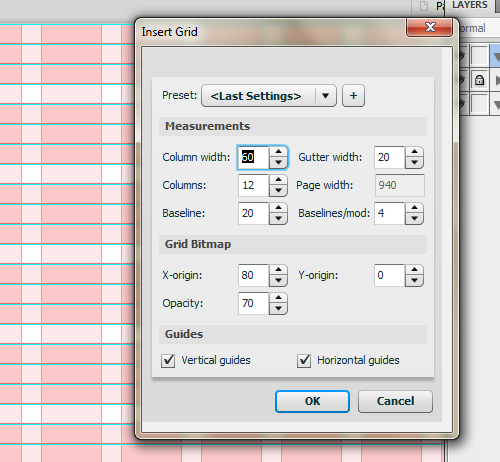
Grid Panel: Typical settings for a 12-column grid.
Features of the panel can be seen from the screenshot - setting up columns, gutters, baseline, their positioning, as well as control only horizontal or vertical guides to choose from. If you have ever tried to create a grid in Fireworks without this extension, you probably spent a lot of time.
Helpful Hint: Using Photoshop and Want Something Like It? You can try the GuideGuide panel .
2. Guides panel
Sometimes it may be necessary to create just a series of guides, without other grid attributes. And if you like fine control over the guides, you might like the Guides panel by Eugene Jude.
The panel offers you several options for adding guides using exact numerical values: you can specify fields on both (or all four) sides of the canvas, create columns and rows, or add separate guides with specific coordinates.

General tab of the Guides panel.
You can copy all the guides on the page and paste them into another page or document, or save the set of guides for later use.
This panel really demonstrates its capabilities when working with the selected object. Suppose you need to add guides along the borders or center of the image - just select the object, go to the Selection tab and select the cells corresponding to the task. You can also specify the size of the offset between the object and the guides. And if necessary, the buttons at the bottom of the panel will remove all the guides, only horizontal or only vertical.

Add guides to the center of the selected object.
3. Auto Resize Smart Resize
Since Adobe Fireworks is widely used for designing user interfaces, groups of several objects are very actively used - rectangles, text fields, buttons, etc. The problem is that once you have created such a group, resizing can be difficult. You cannot just select a group and change the width or height of only the necessary objects, since Fireworks will simply stretch everything in the direction of your transformation. Smart Resize by John Dunning will
help you out . After you select the group whose size you want to change, use Commands → Smart Resize → Attach, and the command converts the group of objects into a special smart object with characteristic yellow markers that control the size of the object.
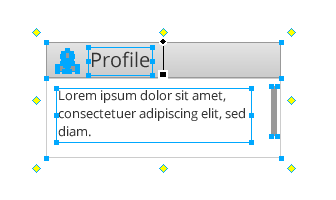
Smart Resize: Save time when resizing a group of objects.
These markers allow you to resize the group in any direction and the magic is that only those elements that occupy more than 50% of the width or height of the group are resized, the rest of the elements remain in their original position.
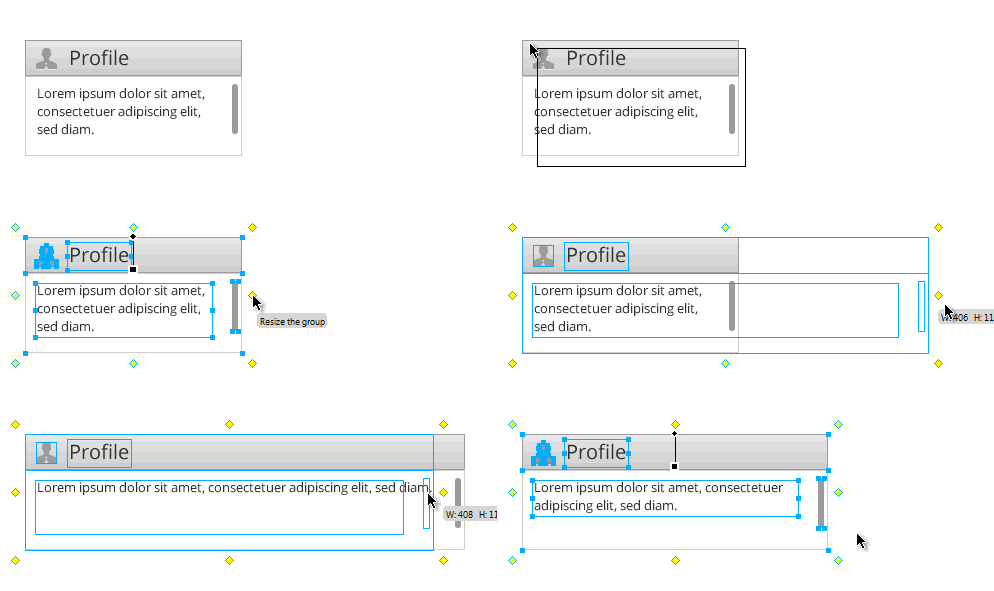
Smart Resize Auto Action.
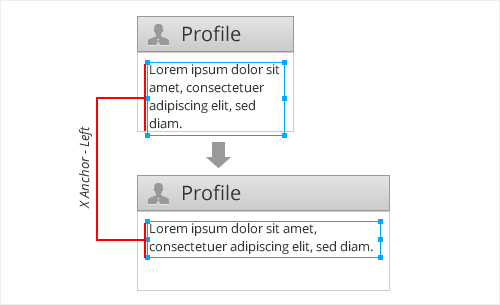
An example of changing a text block with a group.
There are many more cases where you can save time with this extension, such as creating dialog boxes and the like. This extension helps to save time, especially when creating conditional layouts, where the possibility of simple and quick changes is really necessary to search for optimal interface solutions.
4. Panel Tables
The Table panel is perhaps the most underrated extension.
The task that this extension solves seems to be quite simple, but in fact it turns out to be difficult and tedious: creating and editing tables in Fireworks. Unfortunately, decent functionality for creating tables is a rarity for the graphics editor and Fireworks is no exception. Everything from deciding whether to use line-spacing or select individual cells, or align objects manually each time after making changes to the table, can be a lot of inconvenience in Fireworks.
Much has changed with the advent of the Tables extension.
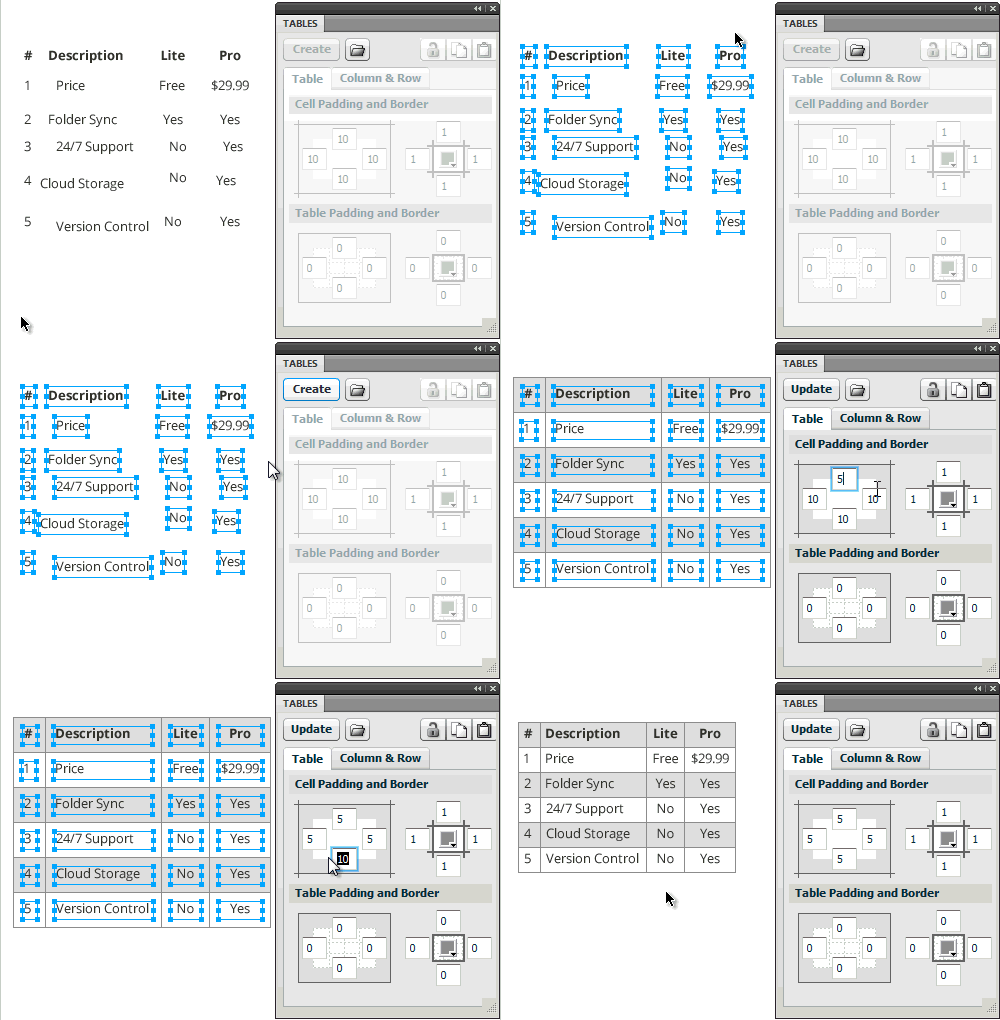
Tables panel: create and edit a table.
To create a table, it is enough to arrange the contents of the future table “by eye”, in the sequence you need, then select all the table elements and click the “Create” button. The extension uses each element as a separate cell, and the elements in the first row become column headings. You can change the indentation, hide or show the outline of the table, and so on - and well, everything always remains editable. Suppose you have changed the text in the table, and now it is too long for the cell containing it - click the "Update" button and the table will automatically rebuild.
In addition to creating tables and grids, you can use the extension for other scenarios. For example, for a block with a quote, the block will adjust to the size of the text and the quotation marks will remain at the edges.
I often use this extension for simple buttons when creating page frames, and now I don’t have to manually adjust the width of the new button to fit its title. In addition, in the panel of this extension you can set different widths of borders around the button.
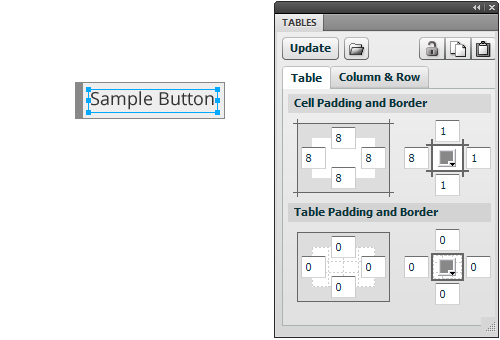
Tables panel: Quickly create a scalable button.
Tables is a fairly flexible extension with many other options. You can insert a table from a text file (with columns separated by spaces or commas - .TXT or .CSV). You can also import tables from web pages by first converting the table to text format with the above conditions.
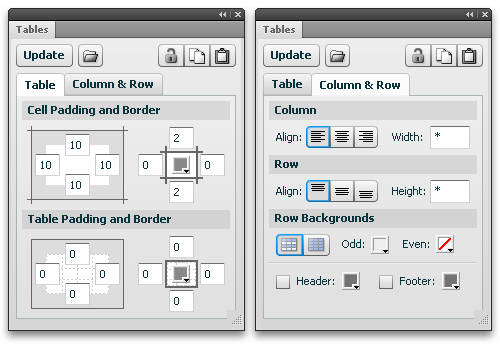
The Tables panel offers great options for customizing tables.
5. Auto Placeholder
If you use Fireworks extensively for conditional prototyping, you are undoubtedly aware of the lack of proper control over your placeholders (placeholders). I usually create a gray rectangle and add text to it with the height and width of the rectangle. The problem is, this “metadata” often has to be changed along with the size and position of the placeholder. Updating this information manually and aligning the text so that it is always in the center is inconvenient.
John Dunning comes to the rescue again, with its Placeholder extension .
Having created the placeholder, using the Placeholder auto-shape in the toolbar (in the list below the standard Rectangle tool), you will get a rectangle with the necessary data, which is automatically updated when the size and position of this object changes.
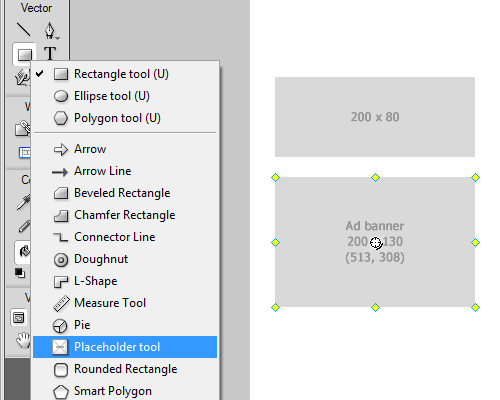
Auto Placeholder: A dynamic placeholder that always contains up-to-date information.
You can specify what information will be displayed in the frame. In addition to the text you specify, you can display the height, width, coordinates. Clicking on the crosshairs in the center of the placeholder opens a dialog box where you can customize it.
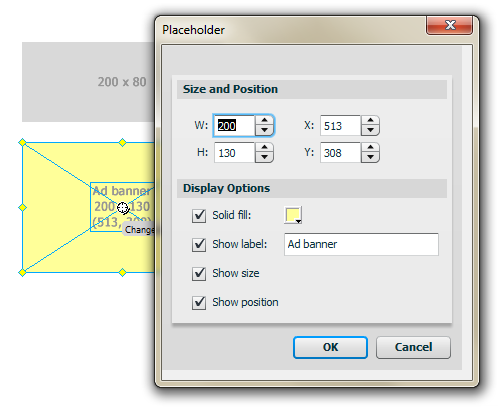
Customize AutoShapes.
In addition, this extension adds autofigure to the Auto Shapes panel (both tools do the same thing).
Good advice: if you have several placeholders, you can select them and change everything at the same time.
6. Orange Commands
Orange Commands by Ale Muñoz is a Swiss Army knife for Fireworks.
Unlike other extensions of this review, Orange Commands presents a set of more than a hundred teams aimed at improving the efficiency of all tasks in Fireworks. From aligning objects and setting guides around them, to combining two text objects into one. Moreover, the set of commands is not only free, but also open source, which allows any user to be quick to complement it with their own teams!
Here are some of my favorite teams:
- The Stroke Alpha command in the Alpha submenu makes it easy to change the transparency of the stroke of an object.
- If you want to add page numbering so that the files are arranged in a certain sequence after exporting, set them in the right order in the Pages panel, then select the Numberize command in the Pages submenu - the command will add a serial number in front of each page name. Reordered pages? Repeating the command will update their numbering. And the De-Numberize command will save you from numbering, if necessary.
- Need to swap two objects? The Swap team will help.
- Fireworks has keyboard shortcuts for aligning several objects with each other, but you still need the Align panel if you want to align objects with the canvas itself. This is where the Center on canvas team of teams in the Align submenu comes into play.
- You can use Space horizontal and Space vertical in the Align submenu to align selected objects with a given distance between them.
This is just a small part of what Orange Commands can do. Check out the documentation to find out what other options are available to you.
Note from the translator: I recently reviewed the complete list of Orange Commands teams on my blog .
Helpful Hint: The Orange Commands extension comes with its own set of keyboard shortcuts - see the “ Instalation ” section .
7. QuickFire
A large number of extensions can seriously complicate access to the desired command, and countless keyboard shortcuts for quick access to all commands, panels and menu items in Fireworks are not a panacea. QuickFire
can help here . This is a simple interface for accessing the necessary Fireworks commands, without slow digging into various menus and submenus.
After installing QuickFire, assign it a hotkey and restart Fireworks. Open the QuickFire panel and start typing the name of the command you want. You will see everything that matches what you type, along with icons to easily distinguish between panels, commands, auto shapes, pages, and more! The most relevant item will be the first on the list and ready to start by pressing Enter.
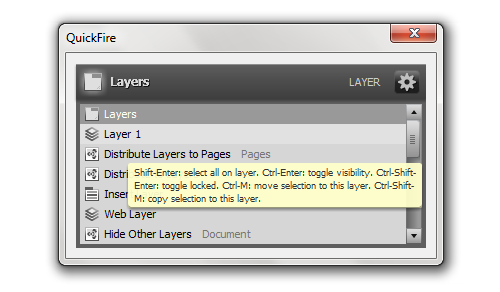
QuickFire: Access any command, panel, and autofigure in Fireworks with just a few keystrokes.
I'll demonstrate how I use the QuickFire panel to increase my productivity. Suppose I need three lines that need to be aligned with each other and add a vertical shadow to each of them. Here is how I do it:

QuickFire: lightning fast control.
Useful tip: when you open QuickFire and search for a specific command in the list, pressing Enter executes the selected command and closes the dialog box, and holding Shift executes the selected command but leaves QuickFire open - this allows you to run several commands in a line, without having to press extra keys .
QuickFire offers many other ways to increase productivity. This will allow you to:
- Quickly open panels.
- Add characters from a shared library.
- Insert auto shapes.
- Access to the standard Fireworks command menu.
- Applying textures to selected objects.
- Open recent files or create new ones from templates.
- Select layers and pages, and move or copy selected objects between layers and pages
You can read more about QuickFire on the extension page .
Conclusion
As you already know, I am a big fan of extensions and use them quite regularly in design processes with Adobe Fireworks. The extensions that I use on a daily basis are much larger than the ones that I can cover in one article - the ones that are described here are just some of them that are most important in Fireworks to make the designer’s life a little easier. And keep in mind: perhaps in the sequel to this article I will try to examine in detail a few more extensions that relate to some other areas within Fireworks.
List of useful resources
Unfortunately, all are English-speaking.
And finally, I think this article should end with a list of sites where you can learn more about the best extensions for Fireworks:
- Fireworks Interviews
The essence of the project is to interview designers from around the world who use Fireworks in their work daily. There are also quite a few recommended extensions (with tips and tricks) from skilled designers such as: Keith Lang, Nick Myers, Benjamin De Cock, Jonathan Snook and many others. - Extending Fireworks
Blog about extensions, teams and other add-ons for Fireworks, interviews with their authors and useful tips. This site is relatively new, but it already has valuable information. - Fw Police
It contains a lot of free resources for Adobe Fireworks - extensions, source codes and other freebies :) By the way, these same guys are now working on a new project of a similar theme. - Adobe Fireworks: The Most Awesome Extensions
Designer Mikko Vartio talks about his favorite extensions. - Favorite Adobe Fireworks Extensions
A long list of extensions prepared by UX designer Dave Hogue. - John Dunning's extensions
Extensions from John Dunning. It is worth getting to know everyone. - Aaron Beall's extensions
Extensions from Aaron Beall, an experienced user and developer for Fireworks and Flash). There are some pretty useful extensions. - Matt Stow's extensions
Matt Stow has several extensions that will help any professional web designer and developer. - Fireworks extensions | Adobe Exchange
Extensions published on the Adobe website.