February 13, 2011 at 10:07
Live prototyping applications on Titanium using Livetanium
Surely many of you have heard about the Appcelerator’s Titanium Mobile platform , which allows you to develop native iOS and Android applications using JavaScript (for those who have not heard or tried, welcome) I’ve been working with Titanium for about 10 months and almost everything suits me, but there is one problem, after using Xcode and Interface Builder, working on the program interface is annoying: Titanium does not support nib files, which means that you have to manually adjust the sizes of the elements and there’s no way to use some elements repeatedly (JSS partially solves this problem, works by analogy with CSS). Actually, the problem is not to adjust the sizes manually (for example, when html-layout I gave up WYSIWYG-editors for a long time and used vim), but after making the changes I need to wait for the compilation and installation of the program in the simulator / emulator, and after all I don’t feel like wasting time on this.
Jacob wallercame up with an interesting solution to this problem (the announcement on the Appcelerator blog was already on December 3rd last year, but I didn’t wait for a topic about it on the hub): Livetanium , thanks to which you can forget about the time of compilation and installation - changes can be observed in the simulator or on the device immediately after saving the file.
Screencast demonstrating the capabilities of Livetanium: While Livetanium is in an early beta state and works only on the iPhone, but this does not interfere with trying it out. To do this, you need:
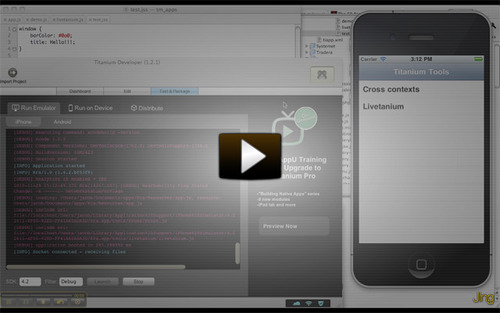
Jacob wallercame up with an interesting solution to this problem (the announcement on the Appcelerator blog was already on December 3rd last year, but I didn’t wait for a topic about it on the hub): Livetanium , thanks to which you can forget about the time of compilation and installation - changes can be observed in the simulator or on the device immediately after saving the file.
Screencast demonstrating the capabilities of Livetanium: While Livetanium is in an early beta state and works only on the iPhone, but this does not interfere with trying it out. To do this, you need:
- Install node.js:
$ git clone git://github.com/ry/node.git; cd node

$ export JOBS=2 # optional, sets number of parallel commands.

$ mkdir ~/local

$ ./configure --prefix=$HOME/local/node

$ make

$ make install

$ export PATH=$HOME/local/node/bin:$PATH - Download Livetanium:
$ git clone git://github.com/krawaller/Titanium-Tools.git - Configure Livetanium: change line 53 in the file Titanium-Tools / Resources / app.js
K.watch("192.168.10.236", 8128, win); # ip, port, window - Launch node.js server:
$ node Titanium-Tools/Resources/server.js - Import Titanium-Tools into Titanium Developer
- Run the project in the simulator or on the device and try to play with the file Titanium-Tools / Resources / Livetanium / demo.js