April 7, 2017 at 11:07
Unity3d / Android: user verification on the Node.JS native server
To implement user verification of your android application created in unity3d on your node.js server, you will need:
- An application in GooglePlay (published even in alpha testing mode)
- GooglePlayGames for Unity3D plugin
- Access to the Google Cloud console
- Your Node. JS-server
- GoogleApis module for node.js:
If your application is still in alpha / beta version in GooglePlay - do not forget to add the account with which you are going to test to the list of testers. Also, your application must be connected in the Game Services.
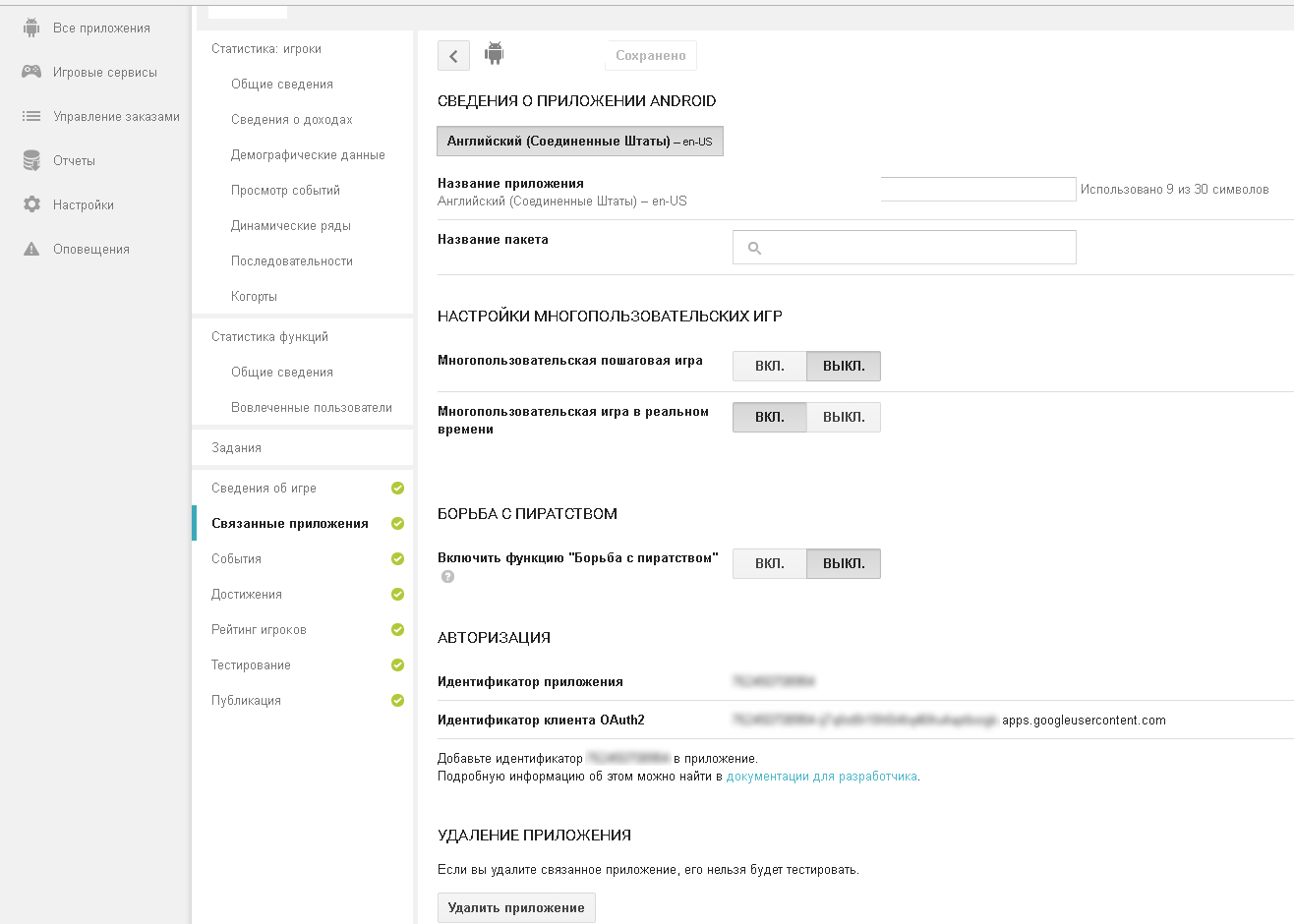
Unpack the GooglePlayForUnity3d plugin in unity3d. Open Window / GooglePlayGames / Setup / Android Setup.
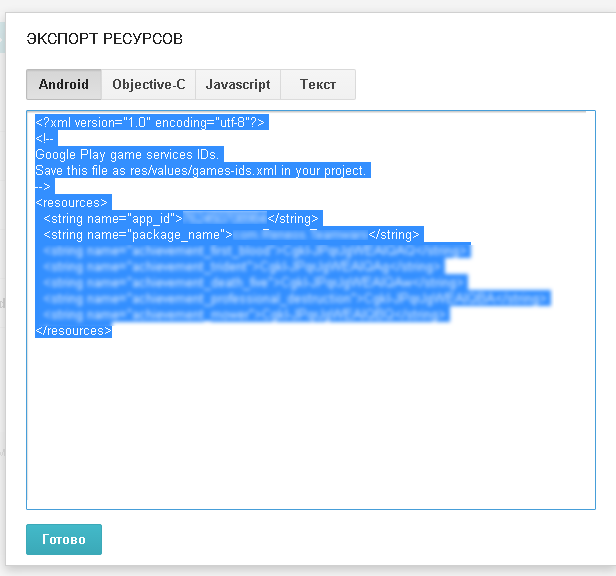
The first two fields can be left unchanged. For information on Resources Definition, go to the GooglePlay console , section Game Services, Achievements. We enter at least 5 achievements (if they are not) and find the link “Get Resources”. Click, open the Android section and copy everything into Unity3d in the Resources Definition field.
Turn on the GooglePlus API. In the Web App Client Id field, enter the identifier of the form XXXXXXX.apps.googleusercontent.com, it can be obtained in the GoogleCloud console (described below).
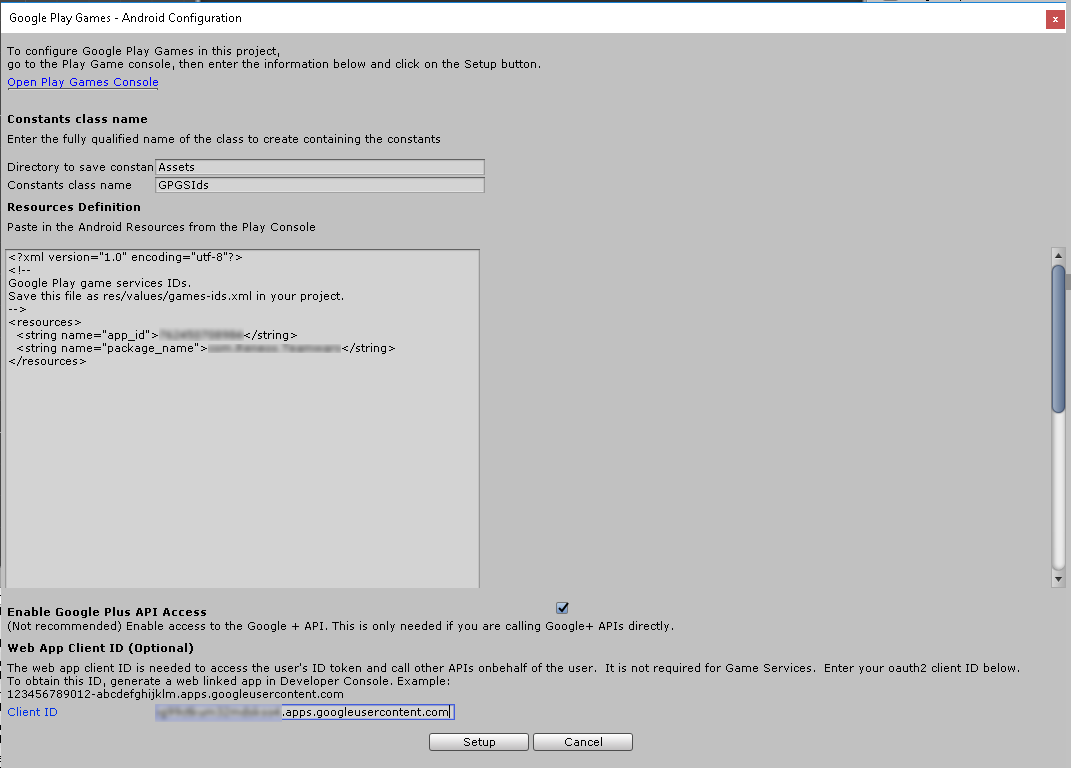
Click Setup. If requests to change file versions from 10.0.1 to 10.2.0 follow, it is better to refuse and select “Keep”.
A small digression - if you have sdk (* .aar) files in the Plugins / Android folder version higher than 10.0.1 - replace them with version 10.0.1 - you can find them in your sdk (sdk \ extras \ google \ m2repository \ com \ google \ android \ gms \) is a temporary step - only with this version.
Next, add in the client GoogleAuth.cs which will receive the server token.
We attach it on the stage to any GameObject.
To obtain a server token, you must call the Auth method with a callback in which the server token will be. You can see the places where errors occurred in the GoogleAuth class - you can either display messages to users, or send statistics, etc.
In AndroidManifest.xml, add:
You need a file containing your server credentials for GooglePlay. Open the Google Cloud console (https://console.cloud.google.com/apis/credentials?project= your_project_id).
In the OAuth 2.0 Client Identifiers section, we find an identifier with the type "Web Application". Open the identifier and download the client-secret (file that ends with apps.googleusercontent.com.json): We save it
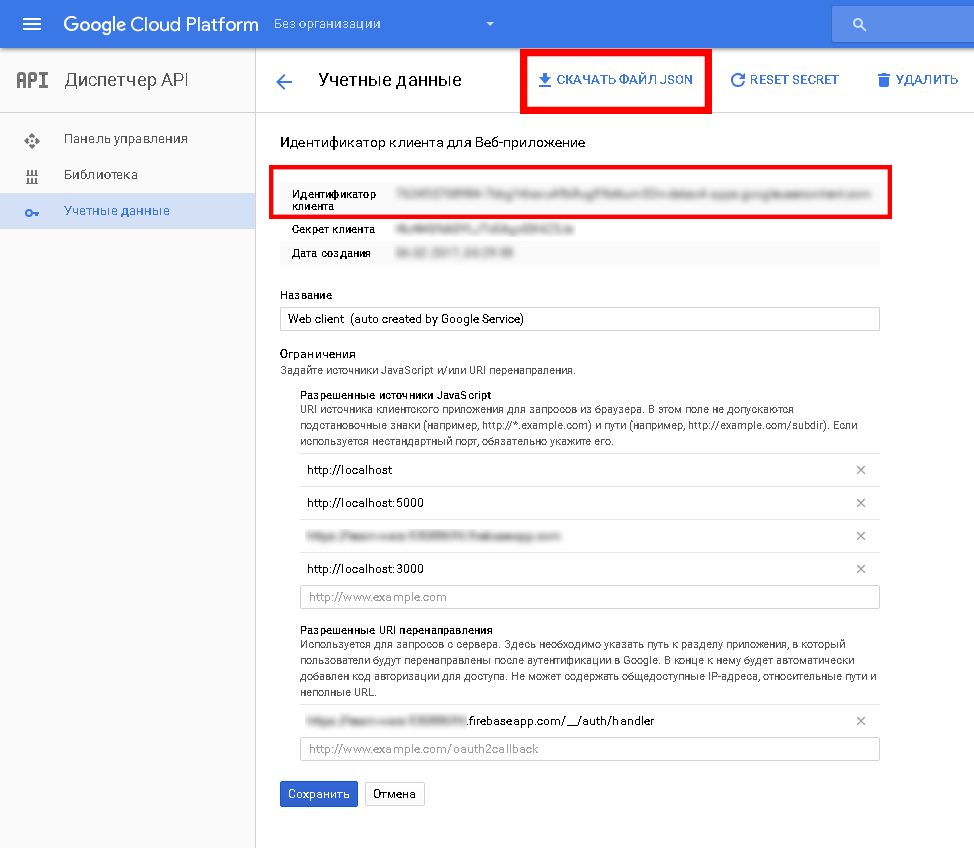
in the folder with the server application. The client identifier specified in the same window is copied and pasted into the client part (Unity3d) in the GooglePlayGames - Android configuration window in the “Web App Client id” field that was previously left blank.
How you will deliver the necessary data from your application to your server is not so important, here is your choice (including express, websocket, socket.io, etc.).
We create a class that will check the token received from the application:
When starting the server, do not forget to call GooglePlayAuth.Init.
The server token received from the client application is sent to GooglePlayAuth.Verify, which will return either an error or user data received from the Google service in the callback.
Thanks for attention!
- An application in GooglePlay (published even in alpha testing mode)
- GooglePlayGames for Unity3D plugin
- Access to the Google Cloud console
- Your Node. JS-server
- GoogleApis module for node.js:
npm install googleapis --saveIf your application is still in alpha / beta version in GooglePlay - do not forget to add the account with which you are going to test to the list of testers. Also, your application must be connected in the Game Services.
Client
Unpack the GooglePlayForUnity3d plugin in unity3d. Open Window / GooglePlayGames / Setup / Android Setup.
The first two fields can be left unchanged. For information on Resources Definition, go to the GooglePlay console , section Game Services, Achievements. We enter at least 5 achievements (if they are not) and find the link “Get Resources”. Click, open the Android section and copy everything into Unity3d in the Resources Definition field.
Turn on the GooglePlus API. In the Web App Client Id field, enter the identifier of the form XXXXXXX.apps.googleusercontent.com, it can be obtained in the GoogleCloud console (described below).
Click Setup. If requests to change file versions from 10.0.1 to 10.2.0 follow, it is better to refuse and select “Keep”.
A small digression - if you have sdk (* .aar) files in the Plugins / Android folder version higher than 10.0.1 - replace them with version 10.0.1 - you can find them in your sdk (sdk \ extras \ google \ m2repository \ com \ google \ android \ gms \) is a temporary step - only with this version.
Next, add in the client GoogleAuth.cs which will receive the server token.
GoogleAuth.cs
using System;
using System.Collections;
using GooglePlayGames;
using GooglePlayGames.BasicApi;
using UnityEngine;
public class GoogleAuth:MonoBehaviour
{
    ///
    /// Возвращает серверный токен для проверки на сервере
    ///
    ///
    public void Auth(Action callback)
    {
        InitAuth(() =>
        {
            GetServerToken(callback);
        });
    }
    private void InitAuth(Action callback)
    {
        var config = new PlayGamesClientConfiguration.Builder()
        .AddOauthScope("profile")
        .AddOauthScope("email")
        .Build();
        PlayGamesPlatform.InitializeInstance(config);
        PlayGamesPlatform.Activate();
        Social.localUser.Authenticate((success, str) =>
        {
            if (success)
                callback();
            else
                Debug.Log("Error on Social Authenticate: " + str);
        });
    }
    private void GetServerToken(Action callback)
    {
        StartCoroutine(ReadToken((serverToken,empty) =>
        {
            callback(serverToken);
        }));
    }
    private IEnumerator ReadToken(Action callback)
    {
        yield return null;
        if (!PlayGamesPlatform.Instance.IsAuthenticated()) //Проверка текущего состояния
        {
            PlayGamesPlatform.Instance.Authenticate((result, msg) => //аутентификация без показа уведомлений игроку
            {
                if (!result)
                {
                    PlayGamesPlatform.Instance.Authenticate(
                        (result2, msg2) => //аутентификация с показом окна googleplay игроку
                        {
                            if (!result2)
                            {
                                PlayGamesPlatform.Instance.GetIdToken(
                                    val => //пробуем получить IdToken и перезапускаем авторизацию
                                    {
                                        StartCoroutine(ReadToken(callback));
                                    });
                            }
                        }, false);
                }
            }, true);
        }
        else
        {
                PlayGamesPlatform.Instance.GetServerAuthCode(
                    (status, code) => //получаем токен для проверки на своем сервере
                    {
                        if (status != CommonStatusCodes.Success || string.IsNullOrEmpty(code))
                            StartCoroutine(ReadToken(callback));
                        else
                            callback(code, null);
                    });
        }
    }
}
We attach it on the stage to any GameObject.
To obtain a server token, you must call the Auth method with a callback in which the server token will be. You can see the places where errors occurred in the GoogleAuth class - you can either display messages to users, or send statistics, etc.
In AndroidManifest.xml, add:
Server
You need a file containing your server credentials for GooglePlay. Open the Google Cloud console (https://console.cloud.google.com/apis/credentials?project= your_project_id).
In the OAuth 2.0 Client Identifiers section, we find an identifier with the type "Web Application". Open the identifier and download the client-secret (file that ends with apps.googleusercontent.com.json): We save it
in the folder with the server application. The client identifier specified in the same window is copied and pasted into the client part (Unity3d) in the GooglePlayGames - Android configuration window in the “Web App Client id” field that was previously left blank.
How you will deliver the necessary data from your application to your server is not so important, here is your choice (including express, websocket, socket.io, etc.).
We create a class that will check the token received from the application:
GooglePlayAuth.js
"use strict";
const fs = require('fs');
const https = require("https");
const google = require('googleapis');
/**
 * Путь к файлу полученному в консоли GoogleCloud
 */
const _clientSecret = "client_secret.apps.googleusercontent.com.json";
const _userInfoUrl = "https://www.googleapis.com/games/v1/players/me";
let oauth2Client;
/**
 *
 */
class GooglePlayAuth {
    /**
     * Единоразовая инициализация
     * @param callback
     */
    static Init(callback) {
        fs.readFile(_clientSecret, function (err, content) {
            if (err) {
                callback(err);
                return;
            }
            const credentials = JSON.parse(content);
            oauth2Client = new google.auth.OAuth2(credentials.web.client_id, credentials.web.client_secret, credentials.web.redirect_uris[0]);
            callback(null);
        });
    }
    /**
     * Проверка пользователя
     * @param serverToken
     * @param callback
     */
    static Verify(serverToken,callback) {
        oauth2Client.getToken(serverToken, function (err, token) {
            if (err) {
                callback(`Error while retrieve access token: ${err}`);
                return;
            }
            oauth2Client.credentials = token;
            //Получение информации о пользователе
            require("https").get(`${_userInfoUrl}?access_token=${token.access_token}`, function (res) {
                res.on("data", function (d) {
                    let userData = {};
                    try {
                        userData = JSON.parse(d);
                    } catch (er) {
                        callback(`Error parse user data ${er}`);
                        return;
                    }
                    if (userData.playerId == null) {
                        callback(`Error read playerId: ${userData}`);
                        return;
                    }
                    //все в порядке - возвращаем данные пользователя в модуль подключения
                    callback(null, userData);
                });
            }).on("error", function (err) {
                callback(`Fail request: ${err}`);
            });
        });
    }
}
module.exports = GooglePlayAuth;
When starting the server, do not forget to call GooglePlayAuth.Init.
The server token received from the client application is sent to GooglePlayAuth.Verify, which will return either an error or user data received from the Google service in the callback.
Thanks for attention!