
 September 25, 2015 at 16:23
Compiling a “cold” database: importing data from 2GIS into Bitrix24
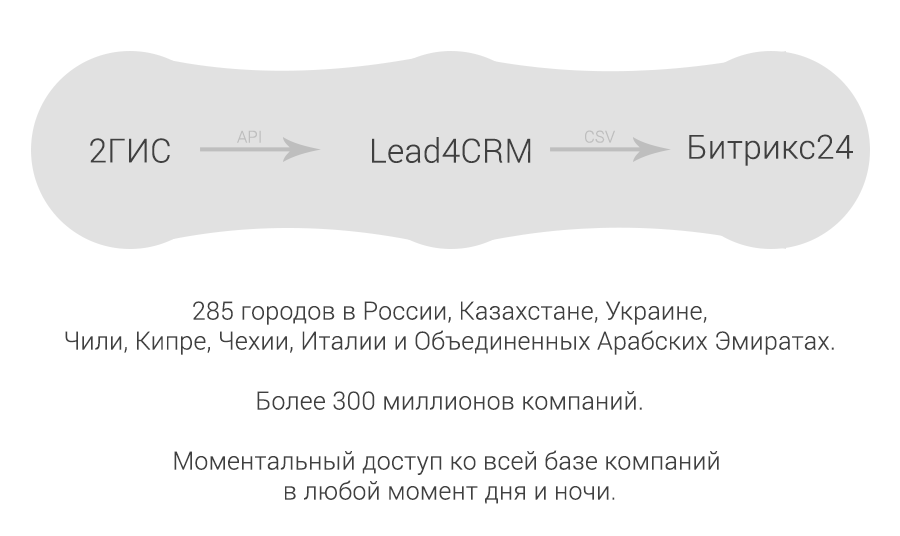
Now we are not talking about the Bitrix24 cloud service, but about the box of the version that used to be called Corporate Portal: Bitrix24, and now just Bitrix24. During the work of the Leader Generator service, questions have also been raised about similar functionality for the version box. Then there was nothing ready and, frankly, we could not even promise when we implement such functionality for the boxed version.
Having summed up the pros and cons to a common denominator, we decided to do what we did. Below is information about the method of compiling the database, about the pros and cons of the developed scheme, as well as instructions for users using the Bitrix24 box.
Attention! Animated PNG
The article uses APNG to fully immerse themselves in the article; users of the Google Chrome and Opera browsers are recommended to install extensions to support APNG.
For Google Chrome it is recommended to install: chrome.google.com/webstore/detail/apng/ehkepjiconegkhpodgoaeamnpckdbblp
For Opera it is recommended to install: addons.opera.com/en/extensions/details/apng/?display=en
Internet Explorer users will not be able to see animated PNG.
For Google Chrome it is recommended to install: chrome.google.com/webstore/detail/apng/ehkepjiconegkhpodgoaeamnpckdbblp
For Opera it is recommended to install: addons.opera.com/en/extensions/details/apng/?display=en
Internet Explorer users will not be able to see animated PNG.
Briefly about the method
For those CRMs for which there is no native module, a scheme for uploading samples of companies sorted by month was implemented. For example, to build a customer base in the cloud version of Bitrix24, you need to install a special native module with which you can search and download data by company. How this is done is written in the article: “ Instantly we collect the customer base ”.
In the case of the boxed version, everything here is much simpler in the initial stages - compiling the database, but there are some disadvantages, but more on that later.
You find the companies you need by any keywords or by type of activity, import and then just download the finished sample in CSV format, which you later upload to your Bitrix24.
Pros and cons
From the pros:
- No additional modules required.
- No need to tinker with an access key.
- There is no need to constantly switch to different browser windows, the whole process of compiling a sample / database occurs in one window on one page.
- A very simple wizard with detailed explanations.
- All imported data is stored in a reliable storage and is always available for reloading.
- Faster work.
Of the minuses:
- There is no way to import a directory of activities.
As you can see, there are much more advantages, and we decided to sacrifice a directory of areas of activity in favor of a better and faster service for our customers.
Instruction for use
Registration / Authorization
We go to the site www.lead4crm.ru and click on the "Login" button, there we select any convenient method of authorization from social services. After the first authorization in your personal account, you can bind the remaining social accounts, if any, so that the next time you could use any available.
Sometimes it happens that let's authorize through Yandex (or any other), after which it is forgotten which account was logged in, because the user uses several accounts in Yandex (or any other). In this case, it is better to write down your personal number so that you can further contact the support service. Or you can simply understand for yourself whether authorization with such an account was previously, if authorization was previously, Yandex will not ask for permission to transfer personal data.
Creating a selection file
Once in your personal account you will need to replenish the balance and if you need to choose a tariff plan, select it.

After crediting funds to the personal account, you can begin to create a sample. Why you need to use the sampling wizard, it is very simple:
1. Select the CRM version: “Bitrix24 Boxed version”
2. Select the required city. The system will automatically substitute your city if it is in the 2GIS directory.
3. Select a search type. In the wizard everything is written in detail what is needed for what.
4. Click the "Import Companies" button to open the search dialog.
5. After you import the companies you need, close the search dialog and download the selection for the current month.
Downloading samples to Bitrix24 CRM
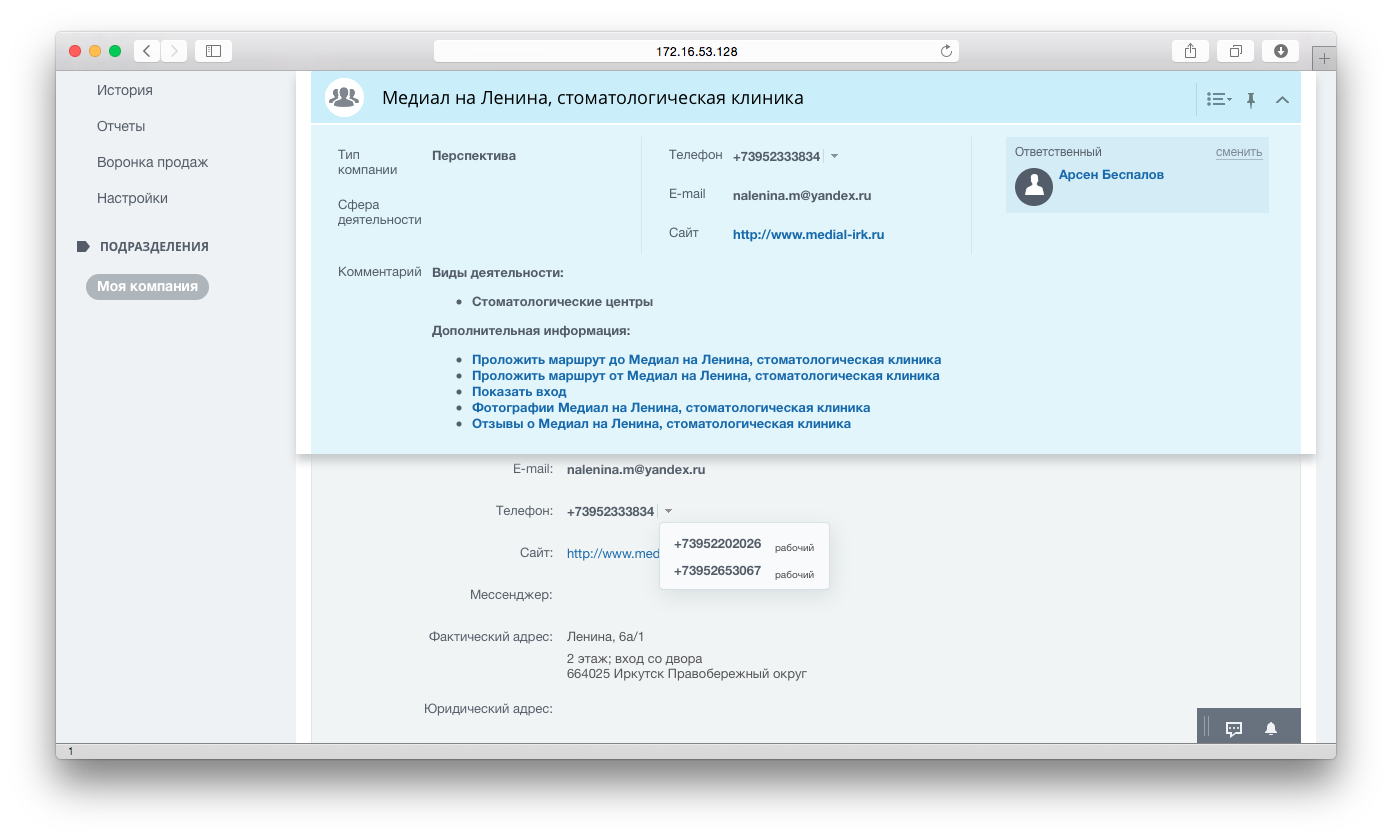
Now you can already go to Bitrix24 CRM. Open your portal and go to the "CRM - Companies" section, and there in the header of the table of companies click on the settings button and select: "Import Company".
Next, select the downloaded selection file and set the following parameter:
- Data File Encoding: Windows-1251
Other parameters should remain by default. You can indicate the person responsible, not necessarily yourself.
At the “Duplicate Control” step, specify what to do with duplicates.

That's all! All selected companies are now in your CRM directory of companies, now you can make a call or newsletter for these companies.
Only registered users can participate in the survey. Please come in.
Do I need a native module for the boxed version of Bitrix24
- 41.6% Yes 5
- 33.3% No 4
- 25% I will refrain 3