February 22, 2016 at 13:27
Free Photoshop Script: Export Vector Layers from PSD to SVG
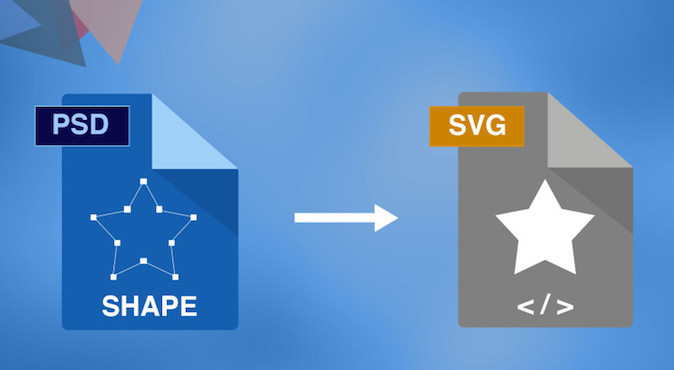
Using a ready-made and free script, which will be discussed, greatly simplifies and speeds up the process of transferring source codes from Photoshop to Sketch. But I think the script may come in handy for those who do not work with the specified program. It exports layers to the .svg format, eliminating the need to generate SVG files one at a time.
Requirements:
- Windows or Mac OSX;
- Photoshop CS5, CS6;
- Adobe Illustrator.
Download PSD script to SVG
1. Download the script according to the instructions described below.
2. Drag and drop Photoshop scripts into your folder (“Adobe Photoshop / presets / scripts”).
3. (OPTIONAL) Go to Photoshop and make a hotkey for the script “Edit” menu -> Keyboard Shortcuts for the script and then to File -> Scripts -> PS to SVG. Alternatively, you can choose a combination of CMD + ALT + E.
4. In the PSD file at the end of the vector layers that will be exported, you need to add the prefix ".svg". For example, a layer called “Sky” is converted to “Sky.svg”.
5. After renaming the layers, it is enough to activate the script with the hot key or through the menu File -> Scripts -> PS to SVG. And the files will be in the same folder where the PSDs are stored.
Note: for the script to work faster, you need to open Illustrator before activating it.
- The script is not compatible with new versions of Photoshop CC;
- in addition to SVG, the script also creates AI files (but you can simply delete them);
- the script works only with vector layers, not with groups of layers.
- make sure you put ".svg" (DOT SVG) at the end of the name of the layer you want to export. And also, that each of the layers is in a single copy;
- check if Illustrator is up and running;
- Before starting the process, make sure that all exported layers are closed vectors.
In some cases, when you export the source, color distortion may occur. Then in the script after the line:
you should insert the line:
Requirements:
- Windows or Mac OSX;
- Photoshop CS5, CS6;
- Adobe Illustrator.
Download PSD script to SVG
How to use a script
1. Download the script according to the instructions described below.
2. Drag and drop Photoshop scripts into your folder (“Adobe Photoshop / presets / scripts”).
3. (OPTIONAL) Go to Photoshop and make a hotkey for the script “Edit” menu -> Keyboard Shortcuts for the script and then to File -> Scripts -> PS to SVG. Alternatively, you can choose a combination of CMD + ALT + E.
4. In the PSD file at the end of the vector layers that will be exported, you need to add the prefix ".svg". For example, a layer called “Sky” is converted to “Sky.svg”.
5. After renaming the layers, it is enough to activate the script with the hot key or through the menu File -> Scripts -> PS to SVG. And the files will be in the same folder where the PSDs are stored.
Note: for the script to work faster, you need to open Illustrator before activating it.
Problems that are encountered:
- The script is not compatible with new versions of Photoshop CC;
- in addition to SVG, the script also creates AI files (but you can simply delete them);
- the script works only with vector layers, not with groups of layers.
If the script does not work:
- make sure you put ".svg" (DOT SVG) at the end of the name of the layer you want to export. And also, that each of the layers is in a single copy;
- check if Illustrator is up and running;
- Before starting the process, make sure that all exported layers are closed vectors.
In some cases, when you export the source, color distortion may occur. Then in the script after the line:
"bt.body += "app.open(" + s.svgFile.toSource() + ", DocumentColorSpace.RGB, dtOpts);"; "
you should insert the line:
"bt.body += "app.executeMenuCommand ('doc-color-rgb');";"