May 29, 2015 at 22:42
SonarQube. Checking the code for quality

SonarQube is a platform for checking quality code according to rules based on conventions and standards. Supports over 20 different programming languages.
Here here you can see all of these rules.
I want to share a little guide on how to make friends sonarQube, PhpStorm and your project. All actions are described for Windows, but it is still configured for another OS.
First you need to download the SonarQube daemon (currently the latest version 5.1), which will start the server and store data about your tests. Unzip it to a folder
C:\sonarqube
Then download the plugin for the programming language that you are going to check (for me it is a PHP plugin ) and put it in the plugins folder
C:\sonarqube\extensions\plugins
In order to run the test itself, you need a runner , which we download in the same place and, if necessary, register it in the system variables.
C:\sonar-runner
It is also necessary to configure test configuration files. To do this, create the sonar-project.properties file in the root of your project with the following contents:
sonar.projectKey=runner // путь, по которому будет доступна страничка с результатами тестов в браузере
sonar.projectName=PHPNAME // имя проекта
sonar.projectVersion=1.0 // версия проверки
sonar.sources=src // папки, которые будут проверяться(можно перечислить через запятую)
sonar.language=php // язык программирования
sonar.dynamicAnalysis=false // включение\отключение функций, отвечающих на юнит тестирование
sonar.sourceEncoding=UTF-8 // кодировка файлов
Before starting SonarQube, make sure that JavaVirtualMachine is installed on your machine. Starting
SonarQube
C:\sonarqube\bin\windows-x86-xx\StartSonar.bat
Go to the root of the project and runner from there runner
C:\sonar-runner\bin\sonar-runner.bat
After successful execution, a text of approximately this content will appear.
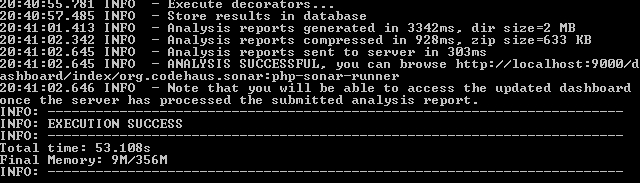
If your test fails, then for me it was for several reasons:
Incorrectly configured configs. For example, the folder that is indicated for verification does not exist.
There is not enough memory for the JVM. Solved by increasing memory for our daemon:
Required in SonarQube settings
C:\sonarqube\conf\sonar.properties
To register:
%JAVA_EXEC% -Xmx1024m -XX:MaxPermSize=512m -XX:ReservedCodeCacheSize=128m %SONAR_RUNNER_OPTS%
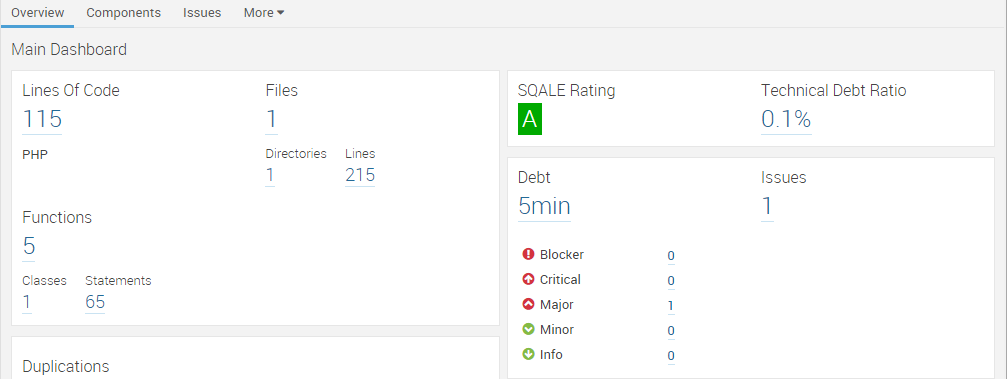
Now we can look at the test results at:
http://localhost:9000/dashboard/index/runner
In the results you can see the number and types of errors, as well as read in detail about each error and an example of its correction.
Download the plugin for the IDE itself:
Go to the menu, to install the plugins in PhpStorm: File-> settings-> plugins-> BrowseRepositories
Find SonarQube there and install it.
(The plugin was developed by Jetbrains, so most likely other IDEs of this company also support it).
Configuring the plugin: Let's go to the plugin
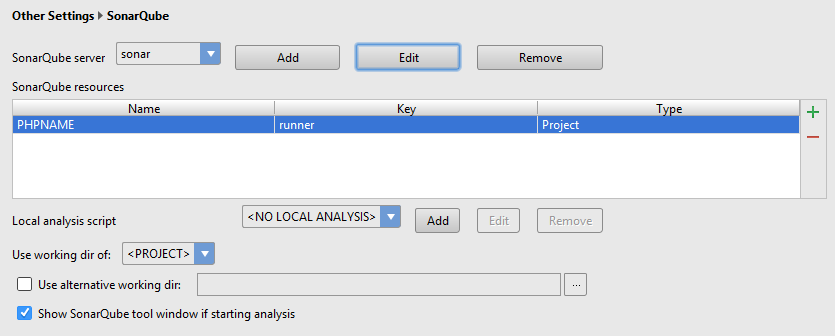
settings: File-> settings-> OtherSettings-> SonarQube
First, configure the server the plugin will access to get the test results. To do this, click on the add button and enter the settings.

Then download the results of our test. To do this, click on the green plus sign, update the list of projects by clicking on the download resources button , select our project and add it.
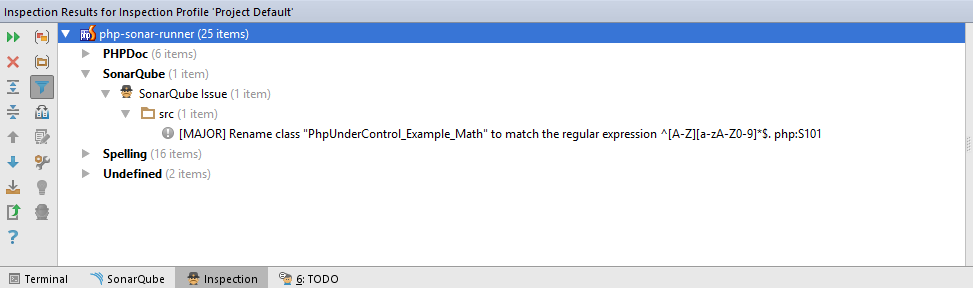
Now you can inspect the code, see what discrepancies with the standards were allowed and correct them.
We will inspect the code in PhpStorm: Code-> InsectCode-> wholeProject:
I hope my instruction is useful to someone.