Sublime Text is currently one of the most popular text editors used for web development, so you need to know its advantages and disadvantages. Instead of describing all the features of Sublime Text step by step, this article will introduce you to the most popular tricks and useful plugins to speed up development.
Syntax highlighting
2015 is coming soon, and a lot has changed in the web over the past few years - new features have appeared in CSS, new functionality and syntax have been introduced in JavaScript; Also, many languages compiled in HTML, CSS and JS have appeared.
The following plugins will provide you with the best syntax highlighting. Even if you have installed plugins for the necessary languages, do not be too lazy to familiarize yourself with this list - you may want to change some of them.
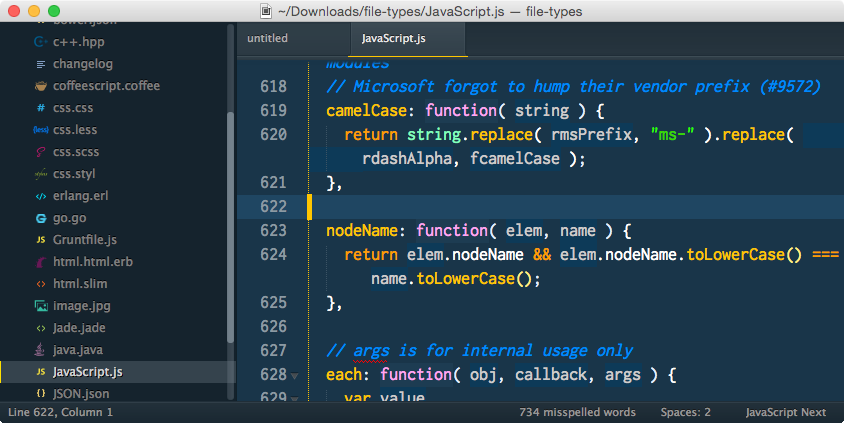
JavaScript Next is a syntax highlighting plugin better than a standard JavaScript highlighter. In addition, this plugin supports EcmaScript 6 features, such as modules, classes, generators, and much more. CSS3
PluginProvides highlighting for every feature in the CSS3 specification. This means that you can use any CSS3 features - even those that are not yet fully implemented - and they will be correctly highlighted by the plugin.
Developers using Sass should install SCSS or Sass plugins (depending on the syntax used). Pay attention to which plugin you installed. A common mistake is to install the Sass plugin, but use the SCSS syntax, and vice versa.
Of course, there are also plugins to highlight the syntax of Stylus and Less .
Do you write in CoffeeScript? Make sure you have the Better CoffeeScript plugin installed. It is important to use it, since the official CoffeeScript plugin is no longer supported by its developers. A TypeScript syntax highlighting plugin is also available .
The Haml plugin expands the standard features for working with Haml and also highlights code in other languages written in the haml file: JS, CSS, Sass, and so on. Slim and Jade plugins add syntax highlighting to these languages.
Plugins
Sublime owes much of its popularity to the community that created such a large number of useful plugins. If you are a beginner, then be aware that plugins are managed through Package Control .
You can discuss the best plugins for Sublime Text all day (I hope that this is what you will do in the comments), but in this article we will consider must-have plugins for the front-end.
Color highlighter
When working with style sheets, it’s useful to have some kind of visual representation of how a particular color looks. Color Highlighter will scan your stylesheet and highlight all colors, painting the text background in the color specified. It is also possible to configure the plugin so that it emphasizes colors or puts a marker of the desired color to the left of the code.
Recently, support for Sass, Less, and Stylus variables has been added to Color Highlighter, making this plugin suitable for almost any work environment.
Emmet
Almost everyone knows about Emmet , and many have been using it ever since it was called Zen Coding. However, I often see developers overlook the rather useful features of this plugin.
HTML
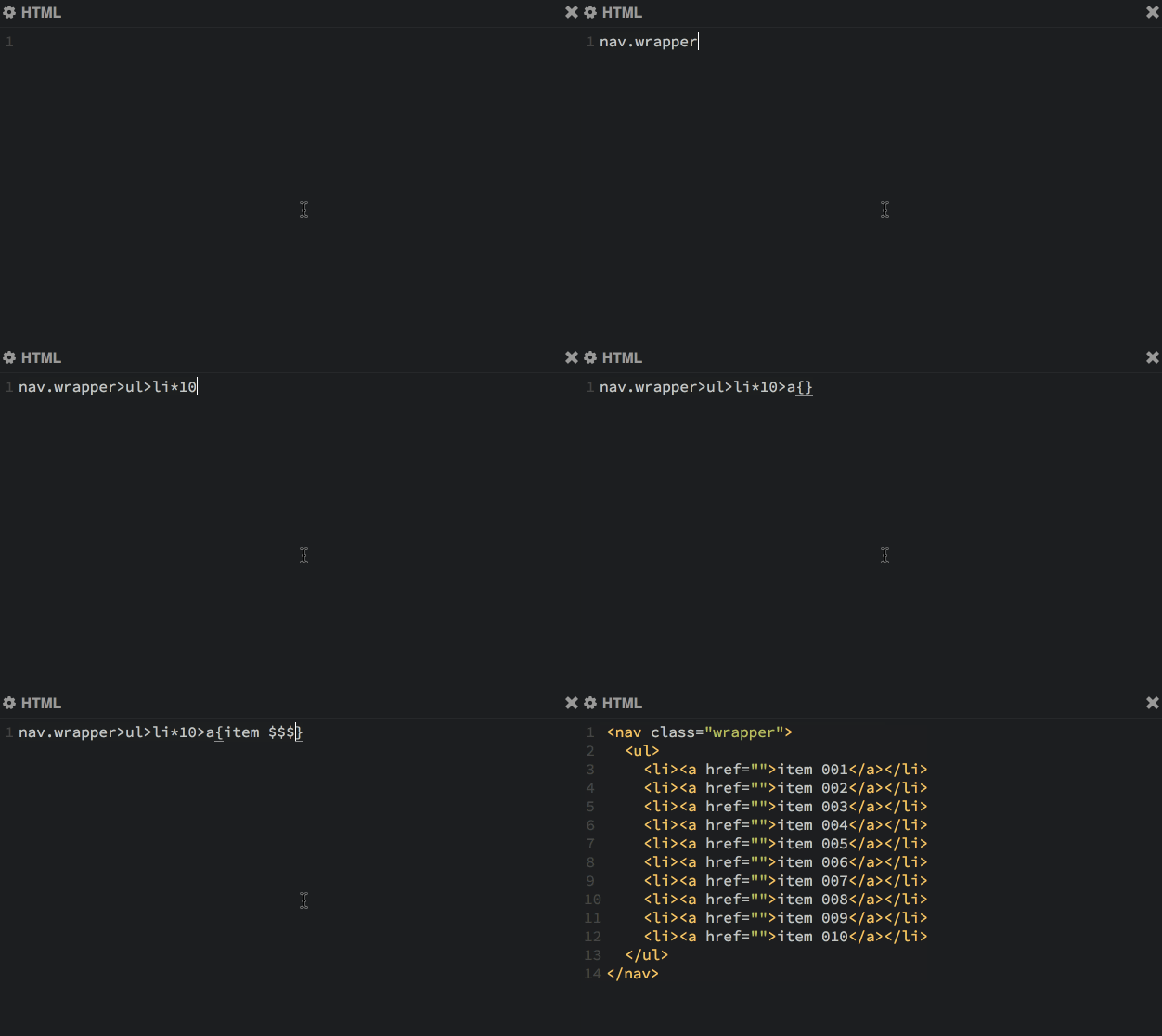
Emmet is great for quickly writing markup. Just print the css selectors for the markup you need, and press tab. Are you using Jade, Slim or Haml? Emmet works with them as well as with HTML.
Check out some examples of using Emmet. Also, do not forget to look at the syntax cheat sheet , which describes all the possibilities for working with markup.
element+ tabcreates an element and positions the cursor inside it.
span+ tab→
element.classNameor element#ID+ tabcreates an element with the specified class or identifier.
span.hello+ tab→
p.odd.warning+ tab→
div#contact+ tab→
element>childElement+ tabcreates nested elements.
ul>li+ tab→
[element*5]+ tabcreates the specified element as many times as specified.
p.hello*2+ tab→
You can also use the $ symbol as a counter. Use $$ for a counter that starts from zero.
li.item$*3+ tab→
Square brackets are used to indicate the attributes of the element, curly brackets are used to indicate the content.
figure*2>img[src="dog$.jpg"]+figcaption{This is dog $}→
This is dog 1This is dog 2
CSS
Learning Emmet's CSS capabilities is one of the best investments for the front-end. This will not only increase development speed, but also help prevent frequently committed errors.
In CSS, emmet works with abbreviations that resemble property / value pairs. There are no clearly defined abbreviations, emmet works on the basis of the so-called fuzzy matching - it makes a choice which property to use based on what you entered.
Examples:
posrel → position: relative;
posab → position: absolute;
fl → float:
fr → float: right;
db → display: block;
dib → display: inline-block;
tdn → text-decoration: none;
c → color: #
w → width:
w100 → width: 100px;
w100p → width: 100%;
p → padding:
p10 → padding: 10px;
p10p → padding: 10%;
bt1-s-red → border-top: 1px solid red;
You understood the idea - it would be nice to train your brain so that you can use this technique on the fly instead of printing full property / value pairs.
Sublime linter
Code verification is a very important part of the development process. If you have never used linter before, then know that this is a tool for checking the quality of the code. He checks the code for errors and the use of bad practices.
With Sublime Linter, you can easily check almost any code. As front-end, we should test our JavaScript and, if possible, CSS. If you make a mistake in the code, Sublime Linter will highlight it with a small red circle.
Themes and color schemes
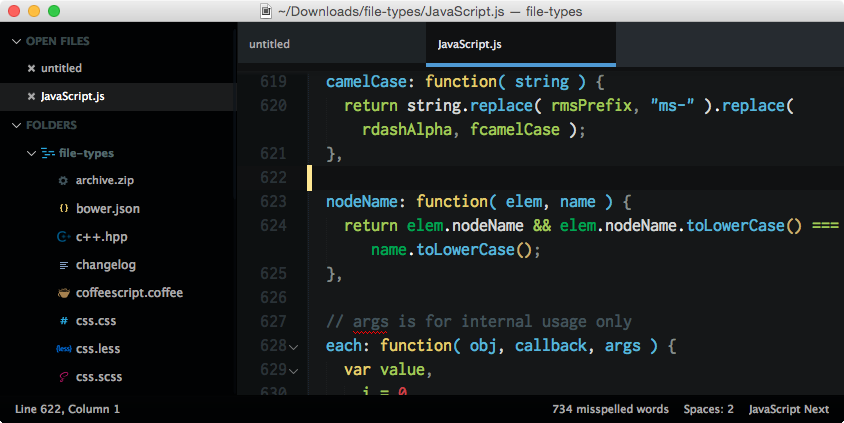
Still using a standard theme and color scheme? Probably worth a look at other themes and color schemes. There are two ways to change the appearance of a sublaym. The color scheme changes the syntax highlighting colors, while the theme changes the color of interface elements such as tabs, sidebars and the like.
In the latest build of Sublime Text 3, it became possible to place different icons for files in the sidebar.
Check out a few popular themes for Sublime Text:
Solarized dark
Solarized is a fantastic theme that is available in many text editors. She has become the favorite standard theme of many developers.
Cobalt2
Cobalt2 is my own theme, which has been debugged and improved over the past five years. It is based on the original Cobalt theme and has many improvements. The emphasis in this topic is on purity and bright contrast.
Seti ui
A very young theme with a dark design with an emphasis on blue.
Goto anything
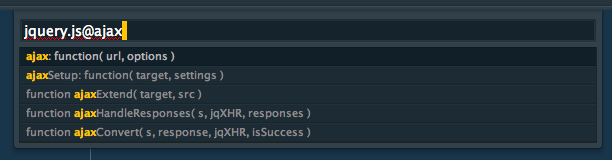
If you switch to a sublime from another text editor, then you are probably used to the sidebar and file navigation from your old editor. Sublime Introduces GoTo anything . In the simplest case, you can use it to open any file from your project folder. Just press ctrl + p, and an input box with a list of files will open. Enter the name of the desired file and press enter. This search box supports fuzzy matching, so you don’t have to worry about the name you typed in or the path to the file.
In addition, GoTo anything supports specifying the line number in the file (jquery.js: 205), the character number (jquery.js: 205: 15), and the whole word (jquery.js@ajax), which allows you to quickly jump to the necessary functions, methods or selectors.
Your opinion
Sublime Text is full of useful features and plugins. There are so many that enough for a book !
Share your favorite plugins and tricks in the comments.
 December 1, 2014 at 15:26