June 17, 2011 at 08:27
Introducing Evernote for Windows Phone 7
From the very first day, the Evernote concept implied creating, in addition to the web client, native clients for various computer platforms and mobile devices. Over the past three years, we have developed more than 13 versions of Evernote for almost all major platforms. And today this collection has replenished with a new application. Let me introduce Evernote for Windows Phone 7 .

Evernote for Windows Phone 7 allows you to save your ideas, thoughts and notes anytime, anywhere. Of course, the application synchronizes without any problems with any other version of Evernote you use, but its advantages are not limited to this. In fact, this debut on the new platform turned out to be the most multifunctional in the history of Evernote. And it is not only functional, but also has a pretty nice appearance, thanks to the innovative interface of Windows Phone 7 Metro.
As usual, Evernote for Windows Phone 7 is free and can already be downloaded on the App Hub.
While we can offer only the English language of the interface, however, as soon as Windows Phone 7 supports Russian localization, we will present a Russian version of the application.
This version of Evernote was developed from scratch for Windows Phone 7. After a single authorization and the first short synchronization (for existing users of the service), you can get acquainted with the completely new Windows Phone 7 interface, which makes the application look like no other version of Evernote. Evernote
Home Panorama
Panels:
Application bar
On all Evernote screens for Windows Phone 7, there is an Application Bar, whose menu provides access to various additional functionality depending on which screen is currently open. Also, with its help you can access advanced features. If you see an ellipsis icon on the right side of the panel, click on it to view all the currently available functions.
Adding a new entry to Evernote is extremely easy. The application panel on the home screen contains buttons for creating a new note (plus sign) and photo notes (“camera”). Here's how they work:
New note
By clicking on the create new note button, a screen with a blank note will open. Here you can set a title, specify a notebook and labels by clicking on the pencil icon, and write the note itself in the main text box. When you're done, click on the floppy disk icon.

You can also click on the camera icon in the application panel to attach a photo, or on the cassette icon to record an audio note. You can attach multiple audio recordings and images to one note.
New photo note
This action allows you to go directly to the camera screen, take a picture and add it to the note. Then, if desired, you can provide this note with a text description.
Evernote for Windows Phone 7 allows you to quickly and easily find notes you need, regardless of whether you created them on your phone or computer. There are several ways to access the necessary notes. You can find them in the list of notes, perform a search query, or find a note on a geographic map.
Navigating notes
All interface panels are oriented towards the simplest navigation through notes. You can scroll through the entire list of notes or find the desired entry through notebooks and tags. Just select the desired panel in the panoramic interface of the application.
Search
Evernote has some great search capabilities to help you find any information in your notes. Click the magnifying glass icon in the application (not on the phone itself) to go to the search interface. There you will find a search bar and two panels:

Evernote can search not only by text, but also by words in photographs and handwritten notes. This feature allows you to easily find pictures of business cards, ads, street signs and many other things.
Map notes
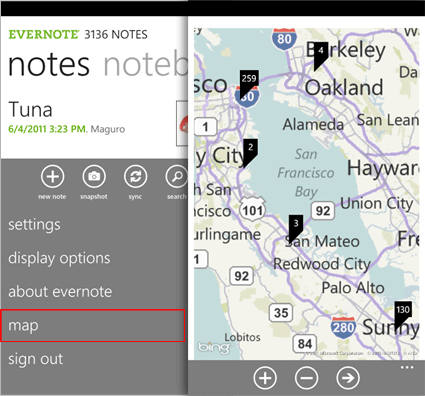
Evernote for Windows Phone 7 can be configured so that the application determines the user's location when creating a note. To allow the application to save your coordinates, go to the Location panel in the Settings menu and activate the appropriate options. Geo-referenced notes can then be viewed on a map. This will be a good help for your memory. To view your notes on a map, click on the ellipsis in the application panel and then on the Map item. Zoom in on the map to view notes created in the visible region. By clicking on the checkboxes you can see a list of notes.
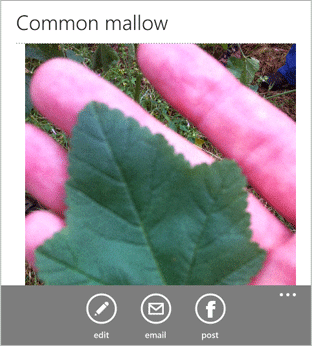
Evernote helps you remember things that matter to you. Some of them are worth sharing with friends. Evernote for Windows Phone 7 makes it easy to share your favorite notes with your Facebook friends. To do this, open the note, then click on the Facebook icon on the application panel (the first time you use this function, you will also need to log in to Facebook). After that, the current note will be visible to all your friends on the social network.
If you need to share the note only with certain people, you can click on the envelope icon and send the note by e-mail.

If you are a premium subscriber of Evernote, then you have the opportunity to download all of your notebooks to the application in order to access them even in the absence of an Internet connection. To do this, click on the same ellipsis icon in the application panel and select Settings from the menu. Then go to the Offline Notebooks panel and check the notebooks you need offline access to. If you do not have a premium subscription, you can connect it on the Account Info page.
These are just some of the features of Evernote for Windows Phone 7, and there is much more to work with. We will be grateful if you tell us about your impressions of the new client. And of course, do not forget to follow the news!
To install the application, enter the search query “Evernote” in the Marketplace application on your phone with Windows Phone 7.
We recommend that you install, as well as the first login and synchronization if you have a Wi-Fi connection.
Evernote for Windows Phone 7 allows you to save your ideas, thoughts and notes anytime, anywhere. Of course, the application synchronizes without any problems with any other version of Evernote you use, but its advantages are not limited to this. In fact, this debut on the new platform turned out to be the most multifunctional in the history of Evernote. And it is not only functional, but also has a pretty nice appearance, thanks to the innovative interface of Windows Phone 7 Metro.
As usual, Evernote for Windows Phone 7 is free and can already be downloaded on the App Hub.
While we can offer only the English language of the interface, however, as soon as Windows Phone 7 supports Russian localization, we will present a Russian version of the application.
Interface Overview
This version of Evernote was developed from scratch for Windows Phone 7. After a single authorization and the first short synchronization (for existing users of the service), you can get acquainted with the completely new Windows Phone 7 interface, which makes the application look like no other version of Evernote. Evernote
Home Panorama
Panels:
- Notes: A list of all scroll notes.
- Notebooks: here you can select notepad to view its contents.
- Tags : View notes by tag.
- Recent notes : this list allows you to quickly jump to the list of recently opened notes.
Application bar
On all Evernote screens for Windows Phone 7, there is an Application Bar, whose menu provides access to various additional functionality depending on which screen is currently open. Also, with its help you can access advanced features. If you see an ellipsis icon on the right side of the panel, click on it to view all the currently available functions.
Create a new note
Adding a new entry to Evernote is extremely easy. The application panel on the home screen contains buttons for creating a new note (plus sign) and photo notes (“camera”). Here's how they work:
New note
By clicking on the create new note button, a screen with a blank note will open. Here you can set a title, specify a notebook and labels by clicking on the pencil icon, and write the note itself in the main text box. When you're done, click on the floppy disk icon.
You can also click on the camera icon in the application panel to attach a photo, or on the cassette icon to record an audio note. You can attach multiple audio recordings and images to one note.
New photo note
This action allows you to go directly to the camera screen, take a picture and add it to the note. Then, if desired, you can provide this note with a text description.
Search for notes
Evernote for Windows Phone 7 allows you to quickly and easily find notes you need, regardless of whether you created them on your phone or computer. There are several ways to access the necessary notes. You can find them in the list of notes, perform a search query, or find a note on a geographic map.
Navigating notes
All interface panels are oriented towards the simplest navigation through notes. You can scroll through the entire list of notes or find the desired entry through notebooks and tags. Just select the desired panel in the panoramic interface of the application.
Search
Evernote has some great search capabilities to help you find any information in your notes. Click the magnifying glass icon in the application (not on the phone itself) to go to the search interface. There you will find a search bar and two panels:
- Previous : This panel displays a list of searches you recently made.
- Saved : Here you can see the search queries that you previously saved in the desktop client or in the Evernote web interface.
Evernote can search not only by text, but also by words in photographs and handwritten notes. This feature allows you to easily find pictures of business cards, ads, street signs and many other things.
Map notes
Evernote for Windows Phone 7 can be configured so that the application determines the user's location when creating a note. To allow the application to save your coordinates, go to the Location panel in the Settings menu and activate the appropriate options. Geo-referenced notes can then be viewed on a map. This will be a good help for your memory. To view your notes on a map, click on the ellipsis in the application panel and then on the Map item. Zoom in on the map to view notes created in the visible region. By clicking on the checkboxes you can see a list of notes.
Sharing
Evernote helps you remember things that matter to you. Some of them are worth sharing with friends. Evernote for Windows Phone 7 makes it easy to share your favorite notes with your Facebook friends. To do this, open the note, then click on the Facebook icon on the application panel (the first time you use this function, you will also need to log in to Facebook). After that, the current note will be visible to all your friends on the social network.
If you need to share the note only with certain people, you can click on the envelope icon and send the note by e-mail.
Premium features
If you are a premium subscriber of Evernote, then you have the opportunity to download all of your notebooks to the application in order to access them even in the absence of an Internet connection. To do this, click on the same ellipsis icon in the application panel and select Settings from the menu. Then go to the Offline Notebooks panel and check the notebooks you need offline access to. If you do not have a premium subscription, you can connect it on the Account Info page.
And much more
These are just some of the features of Evernote for Windows Phone 7, and there is much more to work with. We will be grateful if you tell us about your impressions of the new client. And of course, do not forget to follow the news!
To install the application, enter the search query “Evernote” in the Marketplace application on your phone with Windows Phone 7.
We recommend that you install, as well as the first login and synchronization if you have a Wi-Fi connection.