Android Shopping - Play Billing Library
And how is it still there is no article on Habré about this? It does not matter, it is necessary to correct.
There are 2 ways to add in-app purchases to your Android app - old and new. Until 2017, everyone used the library from anjlab, but since June 2017 the situation has changed, Google released its own library for internal purchases and subscriptions - Play Billing Library. Now the latter is considered the standard.
Play Billing Library is very simple.
Connect the dependency.
implementation 'com.android.billingclient:billing:1.2'Add permission in the manifest.
Create a BillingClient instance and start the connection.
private BillingClient mBillingClient;
...
mBillingClient = BillingClient.newBuilder(this).setListener(new PurchasesUpdatedListener() {
    @Override
    public void onPurchasesUpdated(int responseCode, @Nullable List purchases) {
        if (responseCode == BillingClient.BillingResponse.OK && purchases != null) {
            //сюда мы попадем когда будет осуществлена покупка
        }
    }
}).build();
mBillingClient.startConnection(new BillingClientStateListener() {
    @Override
    public void onBillingSetupFinished(@BillingClient.BillingResponse int billingResponseCode) {
        if (billingResponseCode == BillingClient.BillingResponse.OK) {
            //здесь мы можем запросить информацию о товарах и покупках
        }
    }
    @Override
    public void onBillingServiceDisconnected() {
        //сюда мы попадем если что-то пойдет не так
    }
});
The method onPurchasesUpdated () we get when buying carried out in the method onBillingSetupFinished () can request information about products and purchases.
Request product information. Put querySkuDetails () in onBillingSetupFinished () .
private Map mSkuDetailsMap = new HashMap<>();
private String mSkuId = "sku_id_1";
...
@Override
public void onBillingSetupFinished(@BillingClient.BillingResponse int billingResponseCode) {
    if (billingResponseCode == BillingClient.BillingResponse.OK) {
        //здесь мы можем запросить информацию о товарах и покупках
        querySkuDetails(); //запрос о товарах
    }
}
...
private void querySkuDetails() {
    SkuDetailsParams.Builder skuDetailsParamsBuilder = SkuDetailsParams.newBuilder();
    List skuList = new ArrayList<>();
    skuList.add(mSkuId);
    skuDetailsParamsBuilder.setSkusList(skuList).setType(BillingClient.SkuType.INAPP);
    mBillingClient.querySkuDetailsAsync(skuDetailsParamsBuilder.build(), new SkuDetailsResponseListener() {
        @Override
        public void onSkuDetailsResponse(int responseCode, List skuDetailsList) {
            if (responseCode == 0) {
                for (SkuDetails skuDetails : skuDetailsList) {
                    mSkuDetailsMap.put(skuDetails.getSku(), skuDetails);
                }
            }
        }
    });
}
In code, you might notice the concept of SKU, what is it? SKU - from the English Stock Keeping Unit (commodity item identifier).
Now in mSkuDetailsMap we have all the information about the products (name, description, price) registered in the Play Console of this application (more on that later). Pay attention to this line skuList.add (mSkuId); , here we added the product id from the Play Console, list here all the products you want to interact with. We have one product —sku_id_1.
Everything is ready to fulfill the purchase request. We pass the product id. Run this method, for example, by clicking on the button.
public void launchBilling(String skuId) {
    BillingFlowParams billingFlowParams = BillingFlowParams.newBuilder()
            .setSkuDetails(mSkuDetailsMap.get(skuId))
            .build();
    mBillingClient.launchBillingFlow(this, billingFlowParams);
}
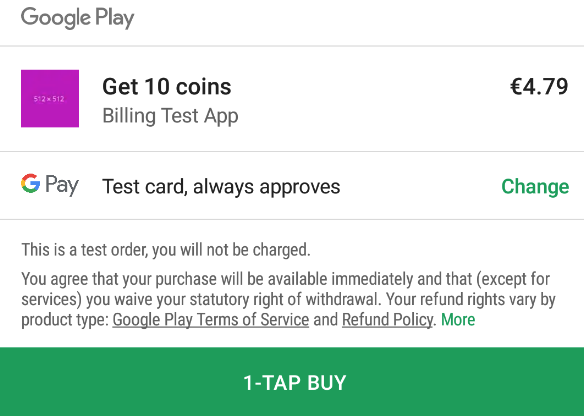
Now, by running this method, you will see this dialog box (approx. Pictures from the Internet).
Now, if the user buys the goods - they need to provide him. Add the payComplete () method and perform actions in it that provide access to the purchased product. For example, if a user bought an ad disconnect, make this method so that the advertisement no longer appears.
...
@Override
public void onPurchasesUpdated(int responseCode, @Nullable List purchases) {
    if (responseCode == BillingClient.BillingResponse.OK && purchases != null) {
        //сюда мы попадем когда будет осуществлена покупка
        payComplete();
    }
}
...
Everything is fine, but if the user restarts the application, our program does not know anything about purchases. It is necessary to request information about them. Do it in onBillingSetupFinished () .
@Override
public void onBillingSetupFinished(@BillingClient.BillingResponse int billingResponseCode) {
    if (billingResponseCode == BillingClient.BillingResponse.OK) {
        //здесь мы можем запросить информацию о товарах и покупках
        querySkuDetails(); //запрос о товарах
        List purchasesList = queryPurchases(); //запрос о покупках
        //если товар уже куплен, предоставить его пользователю
        for (int i = 0; i < purchasesList.size(); i++) {
            String purchaseId = purchasesList.get(i).getSku();
            if(TextUtils.equals(mSkuId, purchaseId)) {
                payComplete();
            }
        }
    }
}
...
private List queryPurchases() {
    Purchase.PurchasesResult purchasesResult = mBillingClient.queryPurchases(BillingClient.SkuType.INAPP);
    return purchasesResult.getPurchasesList();
}
In purchasesList gets a list of all purchases made by the user.
We do a check: if the goods are purchased, execute payComplete () .
Done. It remains to publish this application in the Play Console and add products. How to add a product: Application page description > Content for sale > Create limited content .
Note 1 : You will not be able to add goods until you upload the application build to the Play Console.
Note 2: To see the purchase dialog, you need to upload the build to the Play Console, add the product and wait a while (~ 30 minutes - 1 hour - 3 hours) until the product is updated, only after that a dialog box will appear and it will be possible to implement purchase.
Note 3 : Please fix the input params error . SKU can't be null - the product in the Play Console has not yet been updated, please wait.
Note 4 : You may encounter the Error Error "Your transaction cannot be completed" , in the logs as response code 6while you will test. For what reasons this happens to me is not exactly known, but according to my observations, this happens after frequent manipulations with the purchase and return of goods. To fix this, go to the bank card menu and transfer your card. How to avoid this? Add your account to the Play Console as a tester and buy only from a test card.
Demo on GitHub
Buy me coffee
(By the way, on Habré the system of donets works by the button under the article - approx. Moderator).