July 28, 2016 at 12:49
Windows Server Remote Access Tools
- Tutorial
- Recovery mode
Often, users of our VPS hosting are asked to advise them which of the remote access tools can be used to connect to a virtual server, in addition to the standard Remote Desktop Connection (RDP).
Currently, there are a huge number of different tools that allow you to remotely control a computer or server. Each of them has its pros and cons, various functionalities, paid or free versions, as well as mobile or desktop options only.
This article will discuss two of the most famous and popular applications: Radmin and TeamViewer. Their advantages and disadvantages in benchmarking with Microsoft Remote Desktop Connection (RDP).
First, consider the Remote Administrator (Radmin) program.
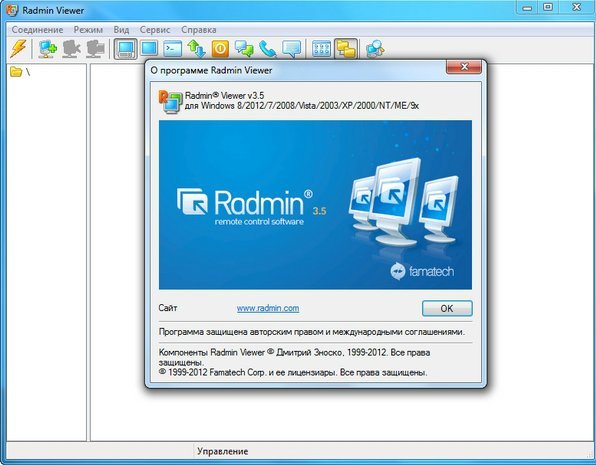
Radmin was created by Famatech, one of the world leaders in the development of remote computer control systems. Since their founding in 1999, they have been developing some of the best solutions in their field, which are widely used to provide technical support to users, administer corporate networks, work remotely, and solve many other problems.
The hallmarks of the program is ease of use with great features and not a high price.
The main advantages that allow you to use it with the maximum capabilities for you are:
However, the program has only a test free version with a 30-day period, after which you will need to refuse further use, or purchase it. At the same time, Famatech provides flexible licensing options. Only the server part of the program - Radmin Server is subject to licensing, the client part - Radmin Viewer is free and can be used on any number of computers.
The next of the most popular solutions for remote access, we reviewed the TeamViewer program.
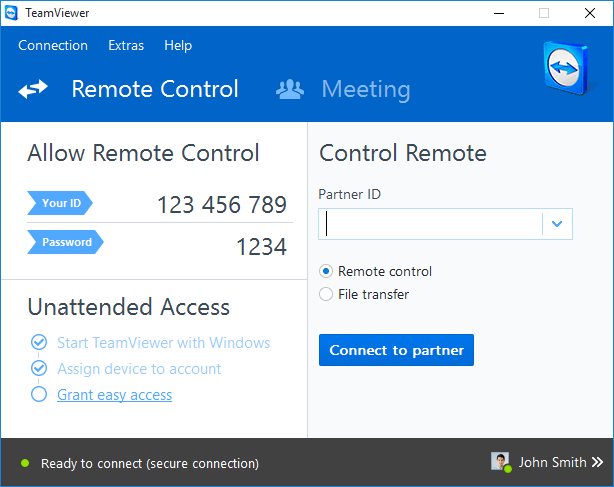
TeamViewer is familiar to many of you as an application for creating conferences, team access and collaboration. In its activities, the developer company specializes in technologies that use cloud resources to provide online support and real-time interaction around the world.
The program has gained great popularity and the number of downloads, according to the information on their website, has reached 1 billion!
The main advantages that have achieved such high rates are as follows:
The disadvantages of TeamViewer include the need for initial registration and its high cost.
The last of the possible ways to connect to the server, consider the standard Windows program, which in the Russian localization Window is called “Remote Desktop Connection”.

This program is presented in all editions of Windows starting with version XP. It is quite simple and convenient to use even for inexperienced users who are just starting their acquaintance with virtual servers.
The main advantages are the following:
Possible disadvantages include several points:
The decisive issue for many users when choosing a means of remote access will be the issue of cost. The licensing conditions are different for everyone, but for the majority of our hosting clients the most popular task is to organize simultaneous access to the server for up to 1 to 10 people (they rarely apply for a large number of fake RDSCALs).
We offer you the corresponding comparative table:
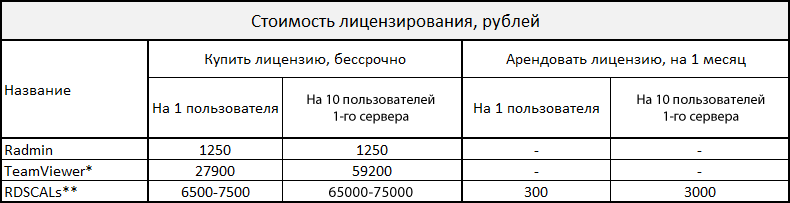
* It is provided free of charge upon condition of non-commercial use
** The cost varies depending on the company providing the service.
The cost for the purchase or rental of licenses is indicated at the time of writing.
When choosing a tool for remote access to VPSIn addition to the cost, you can pay attention to how actively these programs use the resources of your computer and your network.
To find out which of the programs uses your resources the least, we conducted the corresponding load tests in the two most revealing situations:
To view the video on the virtual server , the latest version of the Google Chrome browser was used, and to monitor the load indicators on the client, the standard Windows Resource Monitor program was used.
The obtained indicators were presented in the form of a table, which gives us the opportunity to see how the indicators changed during normal operation and when watching a video in full screen mode.
Table 2. Comparison table of load indicators.
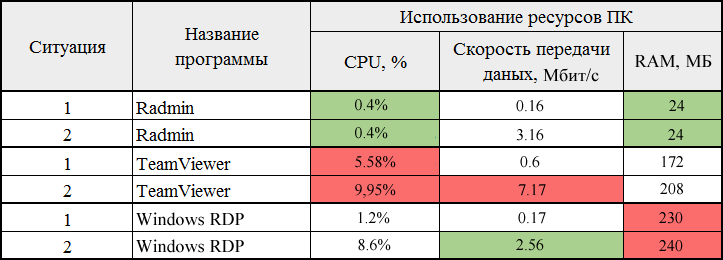
The data transfer rate in the table was converted to Mbit / s, while in the screenshots it is presented in bytes / s. The colors indicate the indicators for the load on the equipment, the minimum indicator is highlighted in green, the maximum indicator is highlighted in red.
We are obliged to note that the quality of the video (the number of frames per second) was disgusting in all cases: 2-3 frames per second
Having tested and reviewed each of the programs, we can draw conclusions on the conditions under which they are best used:
Standard connection to a remote desktop perfect for those cases when you do not want to install third-party applications and you do not need rich functionality, but only access at some point in time to the remote desktop of the server to configure it.
The Radmin program allows you to use it comfortably in any situation, combined with great functionality, low cost and minimal load on the equipment of both the server and your PC.
TeamViewer is wise to use if you need to organize jobs for a large number of employees. And at the same time, you would like to get all its capabilities for providing online support and interaction of employees in real time, despite the heavy load that it generates.
You can see the obtained screenshots at the time of testing below.
Radmin during loading during normal operation

Radmin during loading while watching 720p video on the server
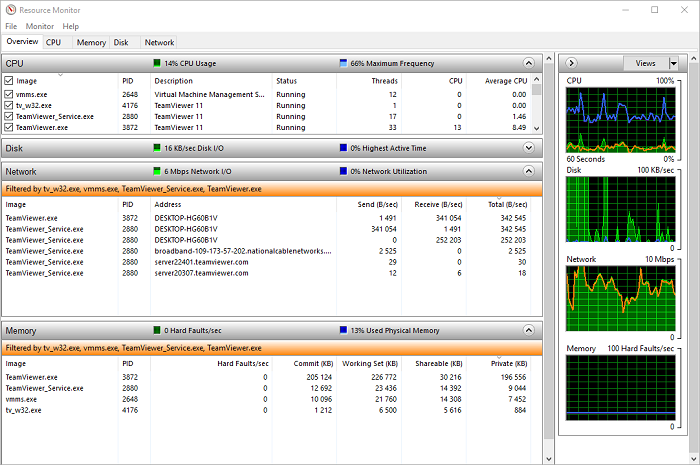
TeamViewer during loading during normal operation
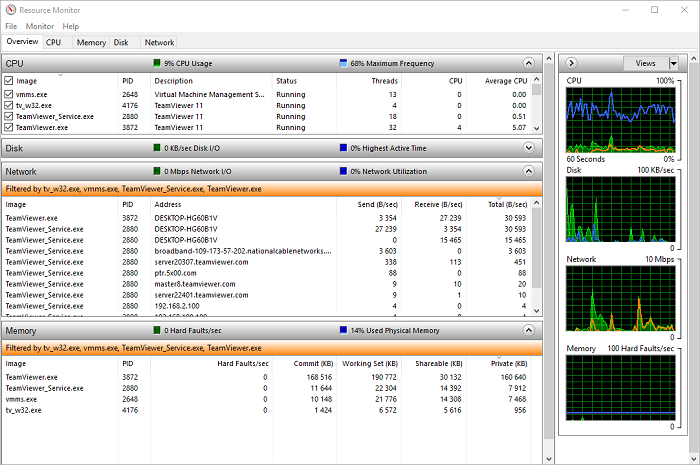
TeamViewer during loading while watching 720p video on the server
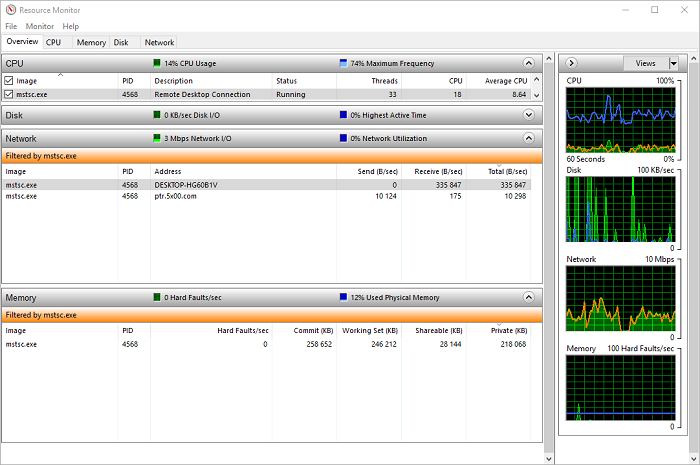
RDP during loading during normal

RDP during loading while watching 720p video server

Currently, there are a huge number of different tools that allow you to remotely control a computer or server. Each of them has its pros and cons, various functionalities, paid or free versions, as well as mobile or desktop options only.
This article will discuss two of the most famous and popular applications: Radmin and TeamViewer. Their advantages and disadvantages in benchmarking with Microsoft Remote Desktop Connection (RDP).
First, consider the Remote Administrator (Radmin) program.
Radmin was created by Famatech, one of the world leaders in the development of remote computer control systems. Since their founding in 1999, they have been developing some of the best solutions in their field, which are widely used to provide technical support to users, administer corporate networks, work remotely, and solve many other problems.
The hallmarks of the program is ease of use with great features and not a high price.
The main advantages that allow you to use it with the maximum capabilities for you are:
- Unmatched DirectScreenTransfer Technology
- Highest AES security
- Hardware-based Remote Management with Intel AMT Technology
- Full Windows Compatibility
- Compatibility with Wine (remote access from machines where Linux is installed)
- Secure file sharing with the resume function
- Support for multiple simultaneous connections
- Two-way operation with the Unicode clipboard
- Delayed password guessing protection after five consecutive failed attempts
- Writing to the log file the username and DNS decryption of its address
- Easy to use
- A 30-day trial version is provided.
- Benefits for registered users:
- Perpetual license
- Full email technical support
However, the program has only a test free version with a 30-day period, after which you will need to refuse further use, or purchase it. At the same time, Famatech provides flexible licensing options. Only the server part of the program - Radmin Server is subject to licensing, the client part - Radmin Viewer is free and can be used on any number of computers.
The next of the most popular solutions for remote access, we reviewed the TeamViewer program.
TeamViewer is familiar to many of you as an application for creating conferences, team access and collaboration. In its activities, the developer company specializes in technologies that use cloud resources to provide online support and real-time interaction around the world.
The program has gained great popularity and the number of downloads, according to the information on their website, has reached 1 billion!
The main advantages that have achieved such high rates are as follows:
- Multi-platform
- High security
- High performance
- Hidden desktop viewing, file transfer, organization of chat and interactive conferences for 25 people
- Remote Desktop Video Recording, Screenshot
- Availability of portable and mobile versions
- Wake-on-LAN
- Synchronous clipboard
- Teamwork
- Connect to mobile devices
- Linux systems without graphical user interface
- Works from browser
- Terminal Server Support
- Free for test and personal use
- Clear interface
- Available in more than 30 languages
The disadvantages of TeamViewer include the need for initial registration and its high cost.
The last of the possible ways to connect to the server, consider the standard Windows program, which in the Russian localization Window is called “Remote Desktop Connection”.
This program is presented in all editions of Windows starting with version XP. It is quite simple and convenient to use even for inexperienced users who are just starting their acquaintance with virtual servers.
The main advantages are the following:
- The program does not require installation if you have all the devices on Windows
- Supports connecting external devices from your computer to the server
- Ability to connect local drives and USB devices
- A shared clipboard is used. Allows you to directly copy files
- Allows you to run an unlimited number of connections
- Ability to adjust color quality and screen settings
- Configuring in the client autorun of various programs when connecting to the server
- High Security, Authentication, and Authorization
- Free use for administration purposes
Possible disadvantages include several points:
- the need to buy / rent an RDS CALs license when using a server not only for its configuration and administration, or if more than two simultaneous connections to the server are required.
- there is no possibility of creating a conference
The decisive issue for many users when choosing a means of remote access will be the issue of cost. The licensing conditions are different for everyone, but for the majority of our hosting clients the most popular task is to organize simultaneous access to the server for up to 1 to 10 people (they rarely apply for a large number of fake RDSCALs).
We offer you the corresponding comparative table:
* It is provided free of charge upon condition of non-commercial use
** The cost varies depending on the company providing the service.
The cost for the purchase or rental of licenses is indicated at the time of writing.
When choosing a tool for remote access to VPSIn addition to the cost, you can pay attention to how actively these programs use the resources of your computer and your network.
To find out which of the programs uses your resources the least, we conducted the corresponding load tests in the two most revealing situations:
- normal server work
- viewing a 720p YouTube video on the server to check how efficiently the desktop image is transmitted (the comfort of your work depends on this in many ways)
To view the video on the virtual server , the latest version of the Google Chrome browser was used, and to monitor the load indicators on the client, the standard Windows Resource Monitor program was used.
The obtained indicators were presented in the form of a table, which gives us the opportunity to see how the indicators changed during normal operation and when watching a video in full screen mode.
Table 2. Comparison table of load indicators.
The data transfer rate in the table was converted to Mbit / s, while in the screenshots it is presented in bytes / s. The colors indicate the indicators for the load on the equipment, the minimum indicator is highlighted in green, the maximum indicator is highlighted in red.
We are obliged to note that the quality of the video (the number of frames per second) was disgusting in all cases: 2-3 frames per second
Having tested and reviewed each of the programs, we can draw conclusions on the conditions under which they are best used:
Standard connection to a remote desktop perfect for those cases when you do not want to install third-party applications and you do not need rich functionality, but only access at some point in time to the remote desktop of the server to configure it.
The Radmin program allows you to use it comfortably in any situation, combined with great functionality, low cost and minimal load on the equipment of both the server and your PC.
TeamViewer is wise to use if you need to organize jobs for a large number of employees. And at the same time, you would like to get all its capabilities for providing online support and interaction of employees in real time, despite the heavy load that it generates.
You can see the obtained screenshots at the time of testing below.
Radmin during loading during normal operation
Radmin during loading while watching 720p video on the server
TeamViewer during loading during normal operation
TeamViewer during loading while watching 720p video on the server
RDP during loading during normal
RDP during loading while watching 720p video server