September 22, 2015 at 14:03
Vector Drawable API. Application possibilities
- Tutorial
2014 was a special year for everyone involved in Android development - it brought one of the most significant Android updates in its history, version Android 5.0. With this update, we got a new visual language, detailed guidelines, many new APIs and tools. And, as always in the case of such massive updates, not all innovations immediately make their way into real projects. Somewhere, the inertia of the thinking of developers who are used to solving certain problems in a certain way interferes, somewhere - the lack of documentation for the new APIs, somewhere - the lack of support for new features on older versions of the platform. But time does not stand still and thanks to the work of the Android team, as well as independent developers, such APIs are gradually gaining backward support. And today I want to talk about the Android Vector Graphics API,
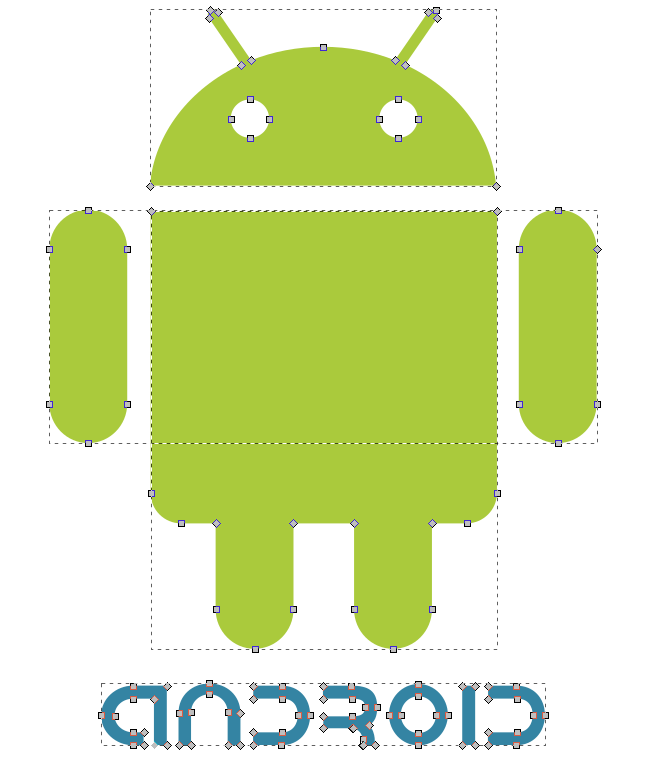
How can we use the support for vector graphics that appeared with the release of Android 5.0? To answer this question, you need to consider Material Design not just as a new Android design style, but as part of a more general trend in interface design, which began with the release of the Metro interface in Windows 8. Then there was Flat Design in iOS 7 and Material Design in Android The key characteristics of this style, the origins of which can be found in the works of representatives of the Bauhaus school , as well as in the direction of the so-called Swiss school of typography , are the rejection of skefomorphism, the use of simple and expressive colors, a clear layout structure.
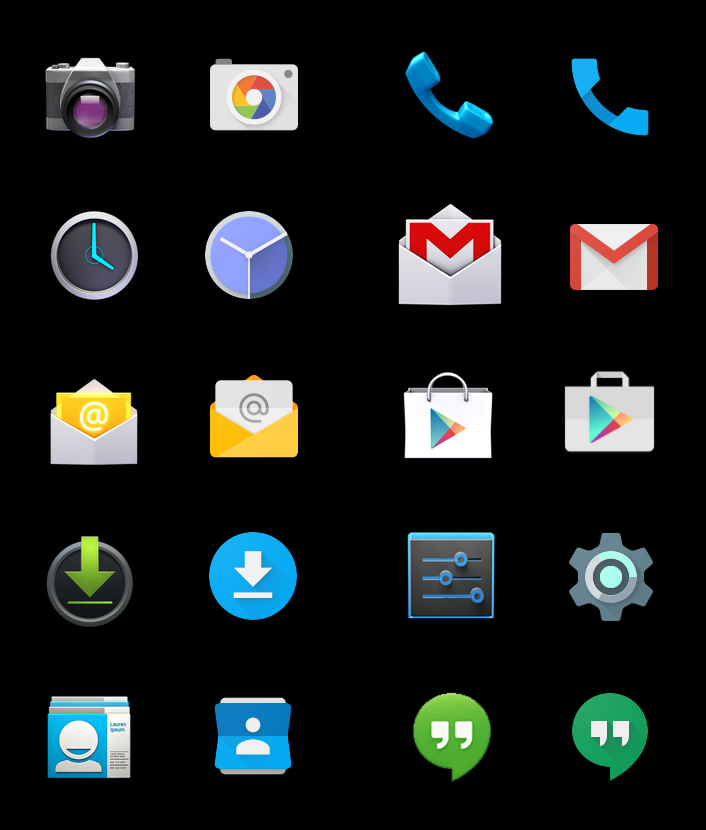
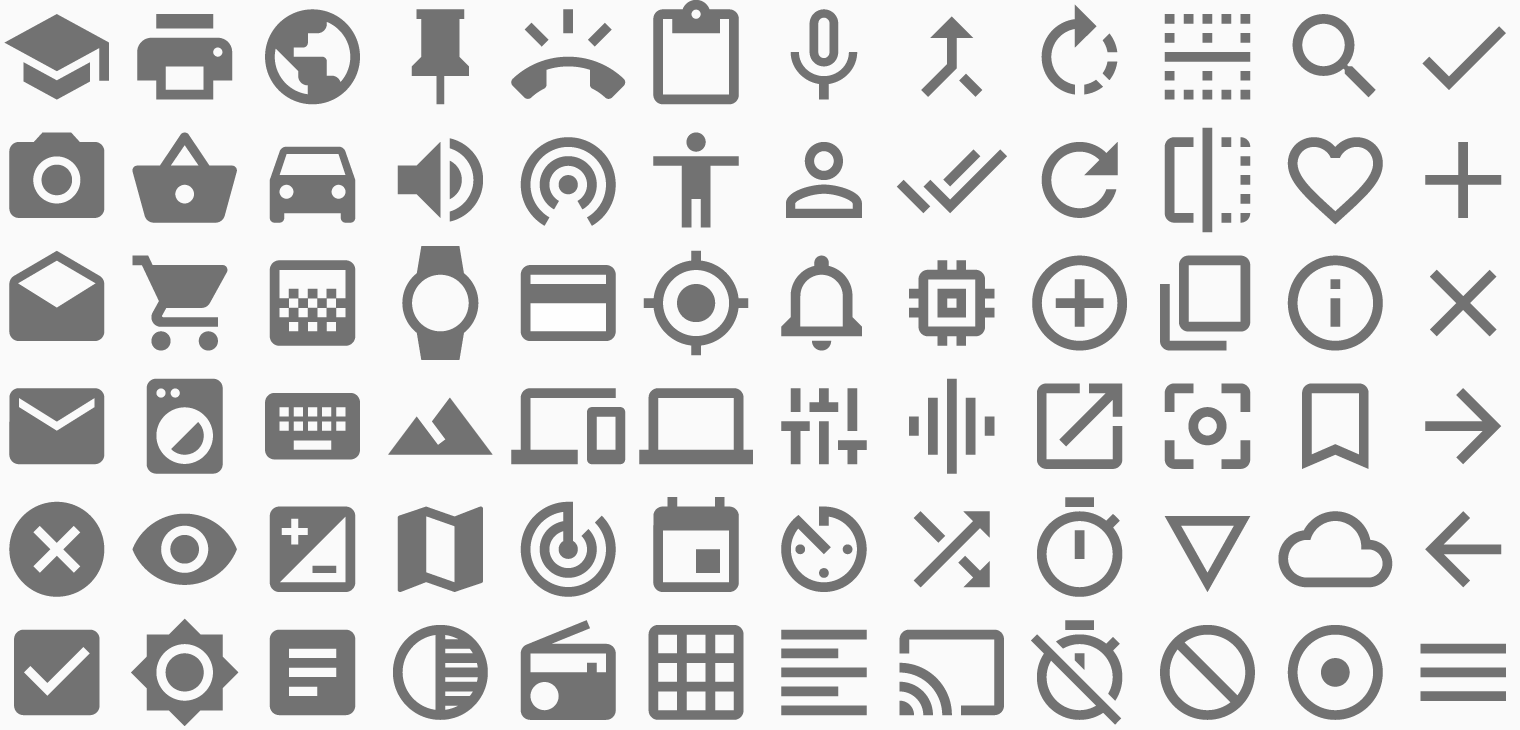
Thanks to this, you can get rid of the use of a huge number of photographic textures, switch to using simple vector graphics in the interface. Just look at the Material Design iconography to make sure that the icons no longer have a place for photorealistic three-dimensionality, glare and gradients, the icon in Material Design is an expressive figure, with clear borders and a flat fill. Thanks to this, we can use vector graphics for icons.
Switching to a vector image format gives us several advantages: we don’t need to cut a set of icons for all screen resolutions, we don’t need to cut it again in case of any changes, we also need to note a decrease in the size of the installation package with the application, as well as a decrease in the load on RAM required to load textures and icons in png. Some time ago, an article appeared on the Instagram technical blog where service engineers described the process of redesigning an application for Material Design guides. According to them, the transition to Material Design and, concomitantly with it, “flattening the interface” allowed to reduce application startup time by 120 ms.
I hope that after such arguments you want to use vector graphics and now I will move on to a detailed analysis of the API structure and methods for working with it.
The basis of the vector graphics API in Android is the class

It is worth noting that there is
The main thing that not a single VectorDrawable file can do without is the tag
SVG is a vector graphics format designed specifically for the Internet, and it is supported by all modern browsers, and export to SVG is available from most image editors. SVG supports a set of primitive shapes, such as an oval, rectangle, spiral, etc., as well as shapes of arbitrary shape. Arbitrary shapes are described using a set of commands, which are the coordinates of points and line segments, Bezier curves and arcs connecting them. Having executed these commands sequentially, it is possible to build the shape we need.
Since XML is also used to describe SVG files, we can open it in a text editor and find the object
In order for us to be able to see our shape, we must assign it a fill and, optionally, a stroke. This is done using the attributes fillColor, strokeColor, strokeWidth. It is worth noting that, unlike SVG, a figure in VectorDrawable cannot have a gradient fill - only a specific color.
The simplest vector file contains only one figure, but in complex images the number of such figures can be in the tens. For the convenience of working with them, individual figures can be combined into groups using an element
Thus, in one VectorDrawable resource, we can create complex graphics using various objects
The second part of the vector graphics API introduced in Android Lollipop is the class
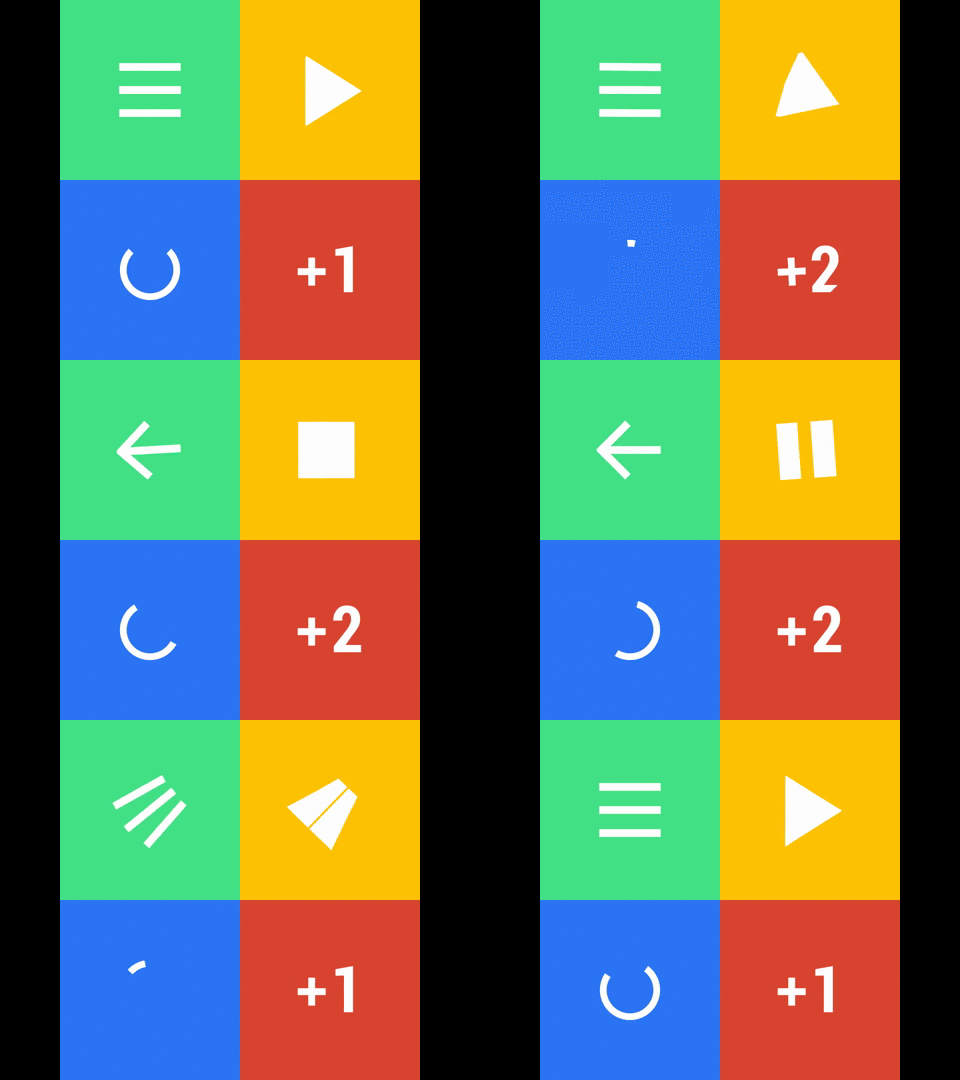
In particular, the famous hamburger-to-arrow animation, which so charmed everyone at the time of the announcement of Android 5.0, is easily created using vector animation: the upper and lower strips of the hamburger move towards the middle, at the same time the whole group rotates 180 ° - here we indicate three
An element
An animation resource is standard
Android Lollipop with the advent of a new type of graphics has brought a new type
It is worth noting that for the animation to work successfully, the number of commands and the type of commands in the source and destination paths must be the same. Otherwise, you will get a runtime exception. This harsh condition once took me a lot of time, but the VectAlign tool has recently appeared , which allows you to automatically align two lines with paths according to the number and type of commands.
Files with vector animation implement the interface
The interface
For versions up to 23, you can use the delayed start features for choreography, for example, using the method
Returning to where I started, I want to remind you that the implementation of vector graphics in projects has still been hindered by the lack of feedback support for this functionality on versions of Android <5.0. However, time does not stand still and although there is no official support for vector formats on older versions of the platform, thanks to independent developers, libraries are appearing that make it possible to use VectorDrawable on devices with API> = 14. And I'm talking about the VectorCompat and BetterVectorDrawable libraries . I myself have experience working only with the VectorCompat library, so I will only talk about it. Those interested in the intricacies of working with BetterVectorDrawable, I refer to the astudent series of articles : Part 1 , Part 2 ;
In order for resources with vector graphics to work through a backward compatibility library, we need to fulfill a number of conditions. Firstly, in the XML resources that describe our VectorDrawable and animations for them, it is necessary to duplicate a number of attributes, such as
Another limitation is that we cannot VectorDrawable directly specify as background for view in the layout XML resource. To use VectorDrawable, we need to load it from an XML resource in java code and already there specify it as a background for ImageView.
The library offers three methods for loading VectorDrawable from XML:
Otherwise, there are no other features of using vector animation using the VectorCompat library.
In conclusion, we need to discuss the topic of preparing vector graphics files for Android. Export to SVG format is supported by most vector editors, including Corel Draw, Adobe Illustrator and Sketch. However, when using Adobe Illustrator, there is a problem with positioning the image relatively
At the same time, do not forget that of the entire set of SVG Android supports only objects
Having an SVG file available, we can open it in a text editor and find the tag
A bit of materiel
Computer graphics operates with two types of files - raster and vector. Raster files are a set of matrices, each cell in which describes one portion of the image, one pixel. Vector files contain a set of primitive figures and commands that allow you to build one or another shape using the given coordinates. Differences in the internal structure of raster and vector graphics files are reflected in the behavior of various types of computer graphics in different usage scenarios. So raster files are very poorly scaled, especially to the larger side - there is simply no information in the source file to fill an image of a larger area. Also, raster formats have a direct correlation between the physical size of the image and the size of the file on disk. In turn,
It is not surprising that over the 30 years of the existence of desktop publishing systems, there has developed a kind of “division of labor” when raster formats are used for photo images, and vector formats for simple graphics, fonts, logos.
It is not surprising that over the 30 years of the existence of desktop publishing systems, there has developed a kind of “division of labor” when raster formats are used for photo images, and vector formats for simple graphics, fonts, logos.
Material Design and Vector Graphics
How can we use the support for vector graphics that appeared with the release of Android 5.0? To answer this question, you need to consider Material Design not just as a new Android design style, but as part of a more general trend in interface design, which began with the release of the Metro interface in Windows 8. Then there was Flat Design in iOS 7 and Material Design in Android The key characteristics of this style, the origins of which can be found in the works of representatives of the Bauhaus school , as well as in the direction of the so-called Swiss school of typography , are the rejection of skefomorphism, the use of simple and expressive colors, a clear layout structure.
Thanks to this, you can get rid of the use of a huge number of photographic textures, switch to using simple vector graphics in the interface. Just look at the Material Design iconography to make sure that the icons no longer have a place for photorealistic three-dimensionality, glare and gradients, the icon in Material Design is an expressive figure, with clear borders and a flat fill. Thanks to this, we can use vector graphics for icons.
Switching to a vector image format gives us several advantages: we don’t need to cut a set of icons for all screen resolutions, we don’t need to cut it again in case of any changes, we also need to note a decrease in the size of the installation package with the application, as well as a decrease in the load on RAM required to load textures and icons in png. Some time ago, an article appeared on the Instagram technical blog where service engineers described the process of redesigning an application for Material Design guides. According to them, the transition to Material Design and, concomitantly with it, “flattening the interface” allowed to reduce application startup time by 120 ms.
I hope that after such arguments you want to use vector graphics and now I will move on to a detailed analysis of the API structure and methods for working with it.
Class VectorDrawable
Tag Vector
The basis of the vector graphics API in Android is the class
VectorDrawable. Objects of this class are resources and are described using the XML language, they are placed in the directory of res/drawableour project. The root element of the class is the tag vector. The tag vectorhas several attributes, two groups of attributes that determine the size of the image of ours are required drawable. I'm talking about the attributes widthand height- they are indicated using certain units (set their standards for the All Android - dp, sp, and px), and viewportWidthand viewportHeight- they are indicated without units. With the help of widthand heightwe can indicate the physical size that will occupy ours drawableon the screen, andviewportcan be compared with the window through which we look at our image. Dimensions viewportmay be the same or different from the size of the image. At the same time, changing the size viewport, we can change the area occupied by the figure inside drawable. It is worth noting that there is
viewportno way to set coordinates pivotPointand resizing viewportwill be counted from the upper left corner. The element also vectorhas a number of other attributes, the meaning of which is clear from the name.Path element
The main thing that not a single VectorDrawable file can do without is the tag
Path. For an element, the Pathmost important attribute is the attribute pathData. Its value is a string of characters separated by commas. These characters are nothing but SVG format commands.SVG is a vector graphics format designed specifically for the Internet, and it is supported by all modern browsers, and export to SVG is available from most image editors. SVG supports a set of primitive shapes, such as an oval, rectangle, spiral, etc., as well as shapes of arbitrary shape. Arbitrary shapes are described using a set of commands, which are the coordinates of points and line segments, Bezier curves and arcs connecting them. Having executed these commands sequentially, it is possible to build the shape we need.
Since XML is also used to describe SVG files, we can open it in a text editor and find the object
Path. This object will have an attribute.dwhose value will be a string with commands identical to what we can find as the value of the attribute of the pathDataobject Pathin the VectorDrawable resource. This fact allows us to easily create VectorDrawable resources - just copy a set of commands from a file in SVG format to our VectorDrawable resource.In order for us to be able to see our shape, we must assign it a fill and, optionally, a stroke. This is done using the attributes fillColor, strokeColor, strokeWidth. It is worth noting that, unlike SVG, a figure in VectorDrawable cannot have a gradient fill - only a specific color.
Group element
The simplest vector file contains only one figure, but in complex images the number of such figures can be in the tens. For the convenience of working with them, individual figures can be combined into groups using an element
Group. The ability to combine several Path objects into a group allows not only to streamline the structure of our drawable resource, but also makes it possible to apply group settings to a set of objects, but most importantly, the group can be used for animation, which we will talk about later. Thus, in one VectorDrawable resource, we can create complex graphics using various objects
Paththat can be set to your own color, transparency, stroke, and indicate the position on the screen. The objectsPathcan be combined into groups for which, again, you can specify a number of group attributes. The most interesting thing is that all attributes can be animated, while for applying one animation to a set of objects Path, it is convenient to combine these objects into a group.Class AnimatedVectorDrawable
The second part of the vector graphics API introduced in Android Lollipop is the class
AnimatedVectorDrawable, which allows you to create animations for the VectorDrawable classes. AnimatedVectorDrawable is a PropertyAnimation extension that enables us to create animations based on changing the values of any attributes of an object. AnimatedVectorDrawable files are also application resources and are created using XML. The root element of a vector animation resource is the animated- vector tag . This tag has only one attribute drawablein which we specify the name of the VectorDrawable resource for which we want to create an animation. Inside the element animated-vectorare objects targetthat represent goals for animations. The most remarkable thing is thatanimated-vectormay contain more than one target. This fact makes it possible to create complex animations, allowing you to animate various parts of the image using various animations, creating complex animations.In particular, the famous hamburger-to-arrow animation, which so charmed everyone at the time of the announcement of Android 5.0, is easily created using vector animation: the upper and lower strips of the hamburger move towards the middle, at the same time the whole group rotates 180 ° - here we indicate three
targetand create three animations for them.An element
targethas two main attributes - namein which we indicate the name of the object Pathor object Groupthat will be animated, and animationwhere we pass the link to the animation resource located in the folder res/anim.An animation resource is standard
animator-set, with an object objectAnimatorinside. As the attribute value, propertyNamewe can specify any attribute of the object Pathor Groupfrom VectorDrawable. Depending on the type of attribute, we must specify the appropriate type of values in the attribute valueType. Android Lollipop with the advent of a new type of graphics has brought a new type
propertyfor which you can create an animation - this is an animation of the attribute value of pathDatathe object Path. To do this, propertyNamea new value has appeared in the field pathDataand the corresponding value valueType- pathType. Moreover, the old fields valueFromandvalueTotake as argument two lines with sets of commands describing the initial and final shape of the figure, respectively. Thanks to this new type of animation, you can create complex animations that transform the shape of a shape previously not available in Android - for example, morphing animations that convert the Play button to the Pause button. Google itself recommends storing data with path commands in string resources. It is worth noting that for the animation to work successfully, the number of commands and the type of commands in the source and destination paths must be the same. Otherwise, you will get a runtime exception. This harsh condition once took me a lot of time, but the VectAlign tool has recently appeared , which allows you to automatically align two lines with paths according to the number and type of commands.
Running animation
Files with vector animation implement the interface
Animatableand to start the animation, we request Drawable, bring it to Animatableand call the method start().((Animatable) imageView.getBackground()).start();
The interface
Animatableis very simple - there are only three methods: isRunning(), start(), stop(). Thus, there is no possibility of assignment AnimationListener. Also, there is no way to transfer our vector animation to AnimatorSet. Therefore, there is no direct opportunity to create animation choreography, or to start some actions upon completion of the animation. More precisely, it was absent - in the 23rd version of the Android SDK, the interface Animatablewas expanded with a new interface Animatable2that allows us to register for our vector animation AnimationCallback. For versions up to 23, you can use the delayed start features for choreography, for example, using the method
Handler.postDelayed().Feedback support
Returning to where I started, I want to remind you that the implementation of vector graphics in projects has still been hindered by the lack of feedback support for this functionality on versions of Android <5.0. However, time does not stand still and although there is no official support for vector formats on older versions of the platform, thanks to independent developers, libraries are appearing that make it possible to use VectorDrawable on devices with API> = 14. And I'm talking about the VectorCompat and BetterVectorDrawable libraries . I myself have experience working only with the VectorCompat library, so I will only talk about it. Those interested in the intricacies of working with BetterVectorDrawable, I refer to the astudent series of articles : Part 1 , Part 2 ;
In order for resources with vector graphics to work through a backward compatibility library, we need to fulfill a number of conditions. Firstly, in the XML resources that describe our VectorDrawable and animations for them, it is necessary to duplicate a number of attributes, such as
viewportHeight, viewportWidth, fillColor, pathData, valueTypewith the namespace of the VectorCompat library. Another limitation is that we cannot VectorDrawable directly specify as background for view in the layout XML resource. To use VectorDrawable, we need to load it from an XML resource in java code and already there specify it as a background for ImageView.
The library offers three methods for loading VectorDrawable from XML:
VectorDrawable.getDrawable(), AnimatedVectorDrawable.getDrawable()andResourcesCompat.getDrawable(). The third method is preferable for two reasons: firstly, when using it, it makes no difference which class object we are trying to load - VectorDrawable or AnimatedVectorDrawable, and secondly, on devices with Lollipop and higher, it will automatically use the native method from the Android SDK. Otherwise, there are no other features of using vector animation using the VectorCompat library.
Vector file preparation
In conclusion, we need to discuss the topic of preparing vector graphics files for Android. Export to SVG format is supported by most vector editors, including Corel Draw, Adobe Illustrator and Sketch. However, when using Adobe Illustrator, there is a problem with positioning the image relatively
viewPort- although when viewing in Illustrator the image is centered relatively viewPort, when you open the exported SVG file, for example, in the browser, it is shifted to the side. Therefore, to use SVG files from Illustrator, you must first save them in another program, for example, free Inkscape . At the same time, do not forget that of the entire set of SVG Android supports only objects
Path. Therefore, primitive figures must be transformed along the way. In Sketch, this is done with the command Layer> Paths> Vectorize stroke, and in Illustrator> Object> Expand. Having an SVG file available, we can open it in a text editor and find the tag
. В нем нас интересует атрибут, озаглавленный d — его значением является строка с командами. Скопировав эту строку, мы можем сохранить ее в нашем проекте и использовать в качестве значения атрибута pathData в файле VectorDrawable.
К сожалению, в Android Studio на данный момент отсутствует возможность редактирования векторных файлов, однако эта возможность должна появиться в будущих версиях. Также в версии 1.4 появился новый инструмент Vector Asset Studio — мы можем указать SVG файл и Vector Drawable из этого SVG будет создан автоматически. Для этого мы должны перейти в папку res/drawable и вызвать его через меню File > New > Vector Asset.
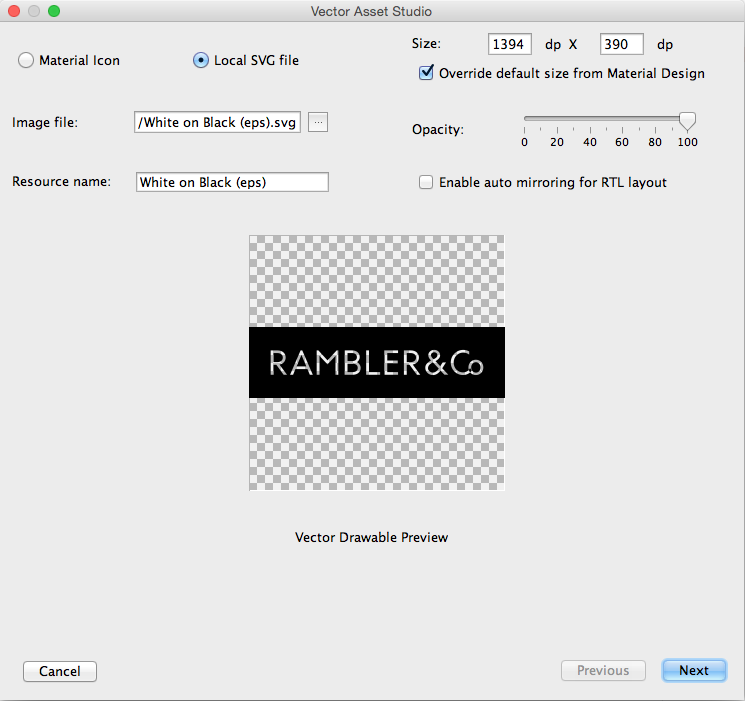
Пока что версия 1.4 находится в стадии Preview и мне удалось заставить ее работать только с SVG файлами из Illustrator. Также минимальная версия вашего проекта должна быть установлена (хотя бы на время импорта) на значение 21. Помимо этого поддерживается выбор из набора иконок Material Design. Использование данного инструмента избавляет от необходимости вручную копировать данные пути из SVG файлов, что может быть особенно востребованным, когда наше изображение состоит из множества фигур. Также в версии 1,4 Android плагина для Gradle должна появиться функция генерации набора png-файлов из векторных ресурсов при сборке проекта.
Широкое распространение SVG формата, а также наличие поддержки векторной графики на старых версиях Android снимают последние возражения относительно ее использования в реальных проектах. Требуйте от дизайнеров иконки в векторе и это избавит от необходимости готовить набор png файлов под все разрешения в случае изменения дизайна, также это позволяет уменьшить вес готового apk-файла. Всем vector!
Эта статья подготовлена по итогам моего выступления на митапе Rambler.Android, прошедшем 10 сентября.
Вы также можете ознакомиться со слайдами и видеозаписью выступления, а также ознакомиться с исходным кодом примера, использованного в презентации