
 May 8, 2015 at 14:23
Upload and store photos in Web applications
Why is it important?
On modern web sites, the volume of images can be from 30% to 70% of the total page size. For example, the volume of images on Habré is usually a few megabytes.
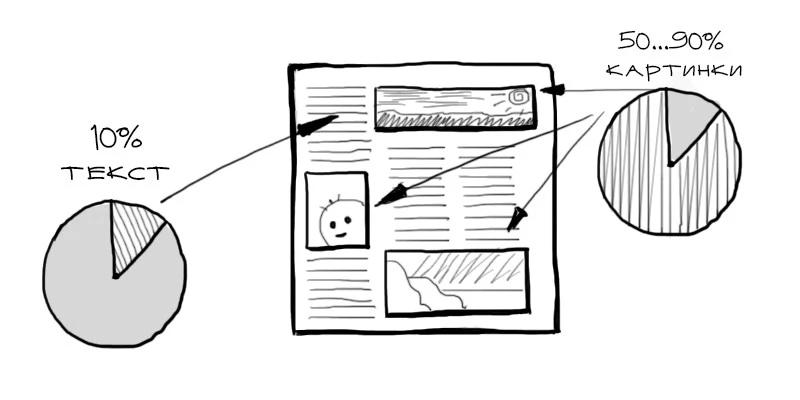
Most of the images on the Web are photographs. Profile photos in social. networks, an album from your phone, professional shots, etc. The right strategy and tools for working with photos will make the site fast for visitors.
Format for photos
The main format for storing photos on the Web is JPEG. However, sometimes other formats should be used.
Jpeg
Well suited for complex images, i.e. just for photos. The main principle of compression in this format is to reduce quality by reducing image detail.
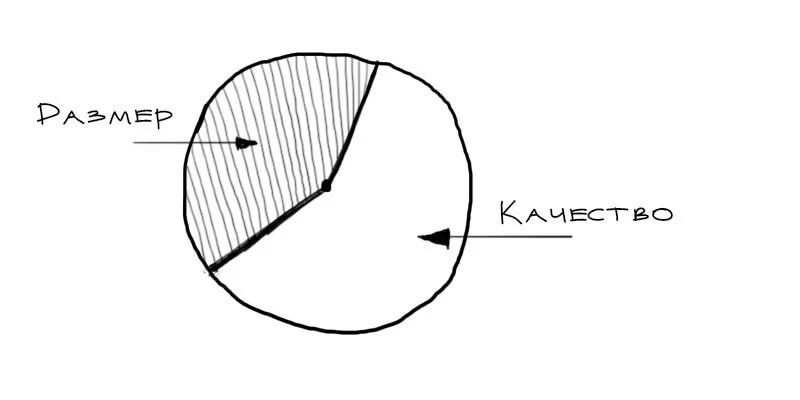
Compression ratio selection can reduce the size of the source file by several times without noticeable quality degradation. The logic is this: the lower the quality, the lighter the file. Usually a quality score of 80 to 90 is used.
Webp
This is a format designed specifically for serving images on the Web. It can reduce file size several times without loss of quality. Compresses pictures much better than JPEG. However, it is not yet supported by all browsers.
PNG and GIF
These formats are not suitable for photographs. PNG images are saved without loss of quality and are best suited for icons and graphics. GIF format has a limited palette, but supports animation.
Uploading photos to the server
If on your project there is a need to upload custom photos, you first need to choose the principle of their storage on the server.
If you intend to work with hundreds of files, you should choose a tree structure:
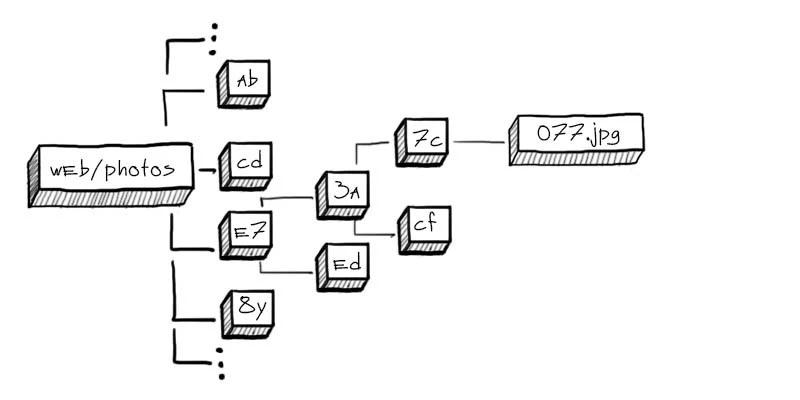
This will avoid the situation with thousands of files in one folder (this slows down the operation of the file system and your own). It is best to use a nested folder structure of two characters long:
$photo = $_FILES['image']['tmp_name'];
$name = md5($photo) . '.jpg';
$dir = substr(md5(microtime()), mt_rand(0, 30), 2) . '/' . substr(md5(microtime()), mt_rand(0, 30), 2);
$path = $dir . '/' . $name; # по этому пути сохраняем фотку
Instruments
After uploading photos to the server, they should be processed:
- Reduce size to acceptable. It makes no sense to store and display the original photograph size 4000x3000 on the server.
- Delete all metadata. Sometimes the volume of such information can be more than half the weight of the image itself.
- Perform optimization to reduce file size. This will speed up the visitor’s download.

There are a number of tools for this.
Imagemagick
Immediately after uploading the photo to the server, it makes sense to delete all the metadata and resize it to 1000x1000:
# 90 - уровень сжатия в итоговом JPEG файле
convert input.jpg -strip -resize 1000x1000 -quality 90 output.jpg
Graphicsmagick
The same thing with the more powerful GraphicsMagick :
# изменение размера до 600х500 с уровнем качества в 90
gm convert input.jpg -strip -resize 600x500  -quality 90 output.jpg
Jpegtran
This tool reduces the size of JPEG files without loss of quality.
jpegtran -copy none -optimize -outfile min.image.jpg image.jpg
cwebp
The utility allows you to convert the image to Webp format.
cwebp -q 85 input.jpg -o output.webp
Return to customer
Photos are best given to Nginx. Be sure to configure Cache-control and Keepalive to increase page loading speed:
http {
	...
	keepalive_timeout 75s;
	server {
		listen 80;
		location ~ .\.jpg$ {
			expires max;
		}
	}
}
Preview (thumbnails)
Often you need to be able to show small versions of photos (for example, a thumbnail of a profile photo).
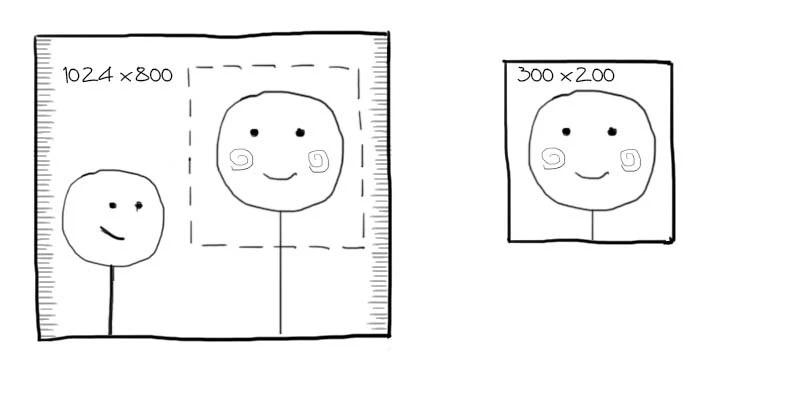
To do this, you need to generate the necessary dimensions at boot time:
convert file.jpg -resize 50x50 file.s.jpg
convert file.jpg -resize 250x250 file.m.jpg
Then each image will have a corresponding thumbnail.
A more convenient approach is to generate previews on the fly using, for example, the Nginx image_filter module.
Webp Support
Webp is not supported by all browsers, but is slowly gaining popularity . In order to benefit from this format, you can give different versions of photos depending on the browser of the visitor.
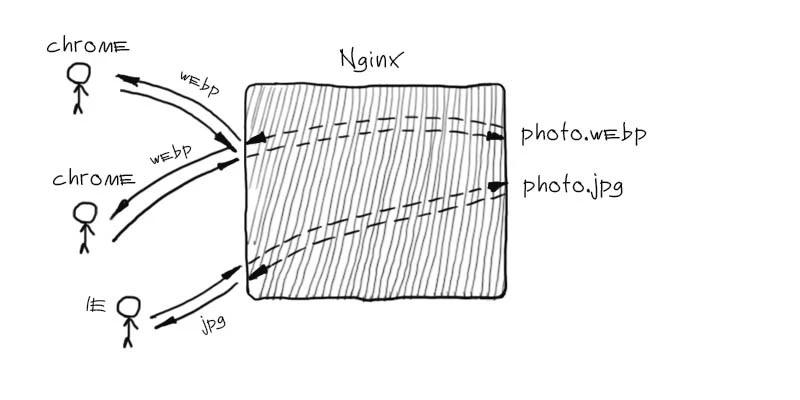
For each photo you need to generate a webp version:
cwebp file.jpg -o file.jpg.webp
Now you need to give the appropriate version of the picture, depending on the browser support for this format:
server {
	...
	location ~* ^/.+\.(jpg|jpeg)$ {
	  if ($http_accept ~* "webp")    {
	      rewrite (.+) $1.webp;
	  }
	}
...
}
The clouds
Cloud technology is evolving and getting cheaper. If you do not have specific tasks for processing photos, it is better to look at the option of using an external service for storing and uploading them.
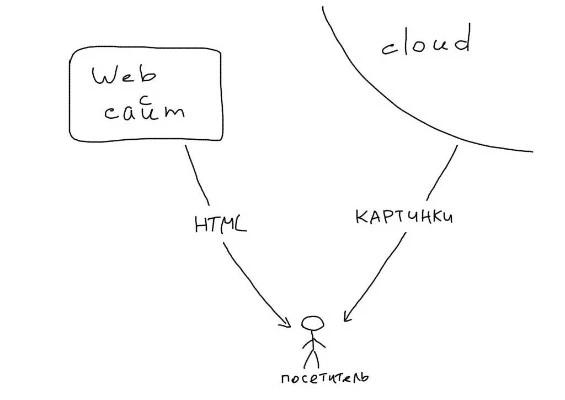
Amazon s3
This is a cloud storage with which you do not have to think about scaling. Store terabytes and do not worry. An example implementation of uploading photos to S3 in PHP :
$path = 'photo_name.jpg';
$s3 = new S3('ключ', 'секрет');
$s3->putObjectFile($_FILES['image']['tmp_name'], 'букет', $path, S3::ACL_PUBLIC_READ, []);
After that, you can show the photo directly from Amazon:
...
 ...
...
Cloudinary
A powerful service for working with photos in the cloud. Resize, crop, face recognition, various formats, online editor and other functions.
i.onthe.io
Mega is a simple service that recognizes the capabilities of the browser and selects the optimal output format. Supports URL API for resize and crop.
Abstract
- The correct format and compression of photos can save up to 70% of the page size.
- Use only JPEG for photos.
- If possible, enable Webp support.
- Imagemagick, Graphicsmagick and Jpegtran for manipulating and optimizing photos.
- Explore cloud-based photo storage solutions - it's fast and convenient.