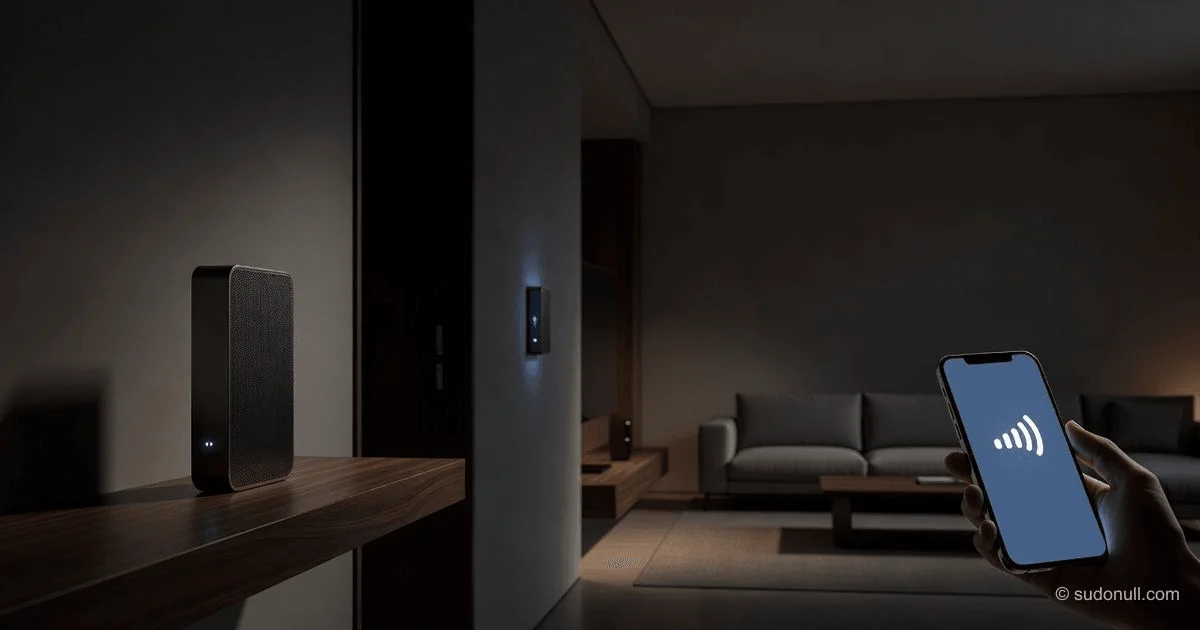
The Complete Guide to Setting Up a Mesh Wi-Fi System at Home
If you have a “dead zone” in your bedroom, garage, or home office where video calls stutter and pages time out, you have likely experienced the limitations of a single router. Mesh Wi-Fi systems solve this by using multiple nodes that work as a single, unified network, eliminating the need to manually switch between different Wi-Fi names as you move through your home . This guide provides a step-by-step, evidence-based approach to selecting, installing, and optimizing a mesh system, moving beyond marketing hype to focus on what actually works.
Before You Buy: The Diagnostic Phase
Investing in a mesh system is not always the solution. According to wireless network engineers, mesh systems are primarily designed to solve one specific problem: bad signal strength, not necessarily slow internet speeds .
Step 1: Measure Your Signal Strength
Before spending money, you need to verify that the issue is coverage, not bandwidth.
- Use a Wi-Fi analyzer tool like the free inSSIDer Lite or a similar app on your phone.
- Walk to the area where you experience problems.
- Interpret the dBm reading: A signal between -30 dBm and -67 dBm is considered good. If the reading drops below -70 dBm, performance will degrade. Below -80 dBm, connectivity becomes unreliable .
Step 2: Test Your Raw Internet Speed
Connect a laptop directly to your modem via an Ethernet cable and run a speed test (Ookla is the industry standard) . Compare this to a Wi-Fi test done right next to your current router.
- If the Ethernet test is slow: Your ISP plan is the bottleneck. A mesh system will not help; you need a faster internet package.
- If the Wi-Fi test is much slower than Ethernet: Your router is the bottleneck, and a mesh system will likely help .
Step 3: Choosing the Right Hardware (Mesh vs. Extender)
If you have confirmed a coverage issue, you have two paths. While both extend range, they function differently.
| Feature | Wi-Fi Range Extender | Mesh Wi-Fi System |
|---|---|---|
| Network Logic | Creates a new network (e.g., "Home_EXT"). You often have to manually switch networks as you move . | Creates a single network with one name. Handoff is seamless . |
| Speed & Efficiency | Halves bandwidth because it listens and re-broadcasts every packet on the same channel . | Uses dedicated "backhaul" channels (often tri-band) to relay data without slowing down your connection . |
| Management | Often requires logging into a web portal. Firmware updates are manual. | Managed entirely via a smartphone app, often with automatic updates and AI-driven optimization . |
The Verdict: Based on expert analysis from wireless engineers, mesh systems are unequivocally better for whole-home coverage and modern usage (gaming, 4K streaming). Extenders are only recommended for fixing a single, small dead zone on a strict budget .
Mesh Technical Standards (Wi-Fi 5, 6, or 7?)
When selecting a mesh system, the generation of Wi-Fi matters significantly for longevity.
- Wi-Fi 5 (802.11ac): Obsolete for new purchases. Avoid unless budget is extremely tight.
- Wi-Fi 6 (802.11ax): The current sweet spot. Excellent for most homes with 20-30 connected devices .
- Wi-Fi 6E / 7: Adds a 6 GHz band. This band is like a "private highway" free from interference from your neighbors’ microwaves or old routers. If you live in a crowded apartment building, the 6 GHz band provides a massive stability improvement .
Step 4: Physical Installation and Placement
Once you have your system (typically a 2 or 3-pack), the setup process usually takes 15 to 20 minutes via the manufacturer's app (e.g., eero, Google Home, TP-Link Deco, or Aginet) .
The Golden Rules of Node Placement
Do not just put the nodes where the signal is dead. Put them where the signal is still good.
- The "Two-Room" Rule: Place satellite nodes no more than two rooms away from the main router. If you put a node in the basement and the main router is on the second floor, the wireless link will be too weak to function .
- Avoid the Floor: Elevate the nodes. Wi-Fi broadcasts slightly downward from the antenna. Place them on shelves or tables, not on the floor .
- Centralize the Main Hub: The primary node (connected to the modem) should be as central to the home’s layout as possible. Avoid basements or far corners .
- Watch for Interference: Keep nodes at least 3-5 feet away from microwaves, baby monitors, fish tanks (water absorbs signal), and large metal appliances .
Step 5: The Configuration Process
While each app looks slightly different, the technical workflow is standardized.
- Replace your router: Most mesh systems are designed to replace your existing router completely. Unplug your old router and connect the primary mesh node directly to your modem .
- ISP Router "Bridge Mode": If your Internet Service Provider forces you to use their modem/router combo, you must log into that device and enable "Bridge Mode." This turns off the ISP’s routing functions to prevent "Double NAT," which causes issues for gaming and VPNs .
- SSID and Password: When the app asks for a network name (SSID) and password, use the exact same name and password as your old router. This ensures all your existing smart bulbs, printers, and phones connect automatically without needing to re-enter passwords .
Step 6: Optimization and "Backhaul"
Most people stop here, but this is where you unlock professional-grade performance.
Wired Backhaul (The Gold Standard)
If your home is wired with Ethernet jacks (Cat5e or Cat6), you can connect the satellite nodes directly to the main router via cables. This is called Ethernet backhaul.
- Why do it: Wireless is "half-duplex" (it can only send or receive at one time). Wired backhaul frees up the Wi-Fi radios entirely for your phones and laptops, doubling the available speed to your devices .
Wireless Placement Tuning
If you cannot use wires, use the app’s diagnostic tools. Many modern systems (like MSI's "Find WiFi Spot" or Google's mesh testing) allow you to test the connection strength before finalizing placement.
- Goal: Ensure the "RSSI" (signal strength between nodes) is strong enough to support the highest channel width. If the nodes cannot "see" each other well, the whole system falls back to slower speeds .
⚠️ When to Upgrade Your Clients
A common mistake in 2025/2026 is buying a top-tier Wi-Fi 7 mesh system but using an old laptop. Wi-Fi is a negotiation; the connection only runs as fast as the slowest device .
- The Bottleneck: If your laptop has a Wi-Fi 5 or Wi-Fi 6 card, your new $800 Wi-Fi 7 router will communicate with it using old protocols.
- The Fix: For desktops, install a PCIe Wi-Fi 7 card (like the MSI Herald BE9400) to bypass the metal chassis shielding. For laptops, a USB 3.0 Wi-Fi 7 adapter provides an instant speed boost without opening the case .
Key Takeaways
- Diagnose first: Use a signal meter (dBm) to confirm dead zones are the issue. Below -70 dBm warrants a mesh system; slow ISP speeds do not .
- Placement > Hardware: A well-placed mid-tier mesh system will always outperform a top-tier system hidden in a cabinet or placed too far apart .
- Seamless roaming matters: Unlike extenders, mesh networks allow you to move through your home without dropping calls or manually switching Wi-Fi names .
- Utilize wired backhaul: If you have Ethernet ports in your walls, use them to connect your nodes. This eliminates wireless interference and maximizes speed .
- Match your clients: Your network is only as fast as its oldest device. Upgrading a laptop’s USB or PCIe adapter may yield a bigger performance jump than upgrading the router itself .
Frequently Asked Questions
Q: Can I use a mesh system with my existing router, or do I have to replace it?
A: You can do either. Most manufacturers recommend replacing your old router entirely to avoid "Double NAT" conflicts. However, if you must keep the ISP router (e.g., for cable TV features), you can put the ISP router into "Bridge Mode" or connect the mesh system via Ethernet and enable "Access Point Mode" on the mesh .
Q: How many mesh nodes do I actually need?
A: This depends on construction, not just square footage. As a rule of thumb:
- 1 Router + 1 Satellite: Covers up to 3,000 sq. ft. (standard wood-frame house).
- 3-Piece System: Necessary for multi-story homes or homes with brick/concrete walls. In European or older construction, you may need a node every 1-2 rooms due to signal attenuation .
Q: Will a mesh system stop my neighbors from interfering with my Wi-Fi?
A: Partially. If you buy a Tri-Band or Wi-Fi 6E/7 system, it uses the 6 GHz band. Very few neighbors currently use 6 GHz, so it acts as a "clean sheet" free from congestion. If you buy a standard dual-band system, you are still sharing the crowded 2.4 GHz and 5 GHz airspace .
Q: Why is my mesh speed half of what the box promised?
A: Box speeds (e.g., "AX3000") are aggregate speeds of all bands combined (2.4 + 5 + 6 GHz). No single device can use all bands at once. Furthermore, wireless backhaul consumes one band to talk to the other nodes. Unless you use wired backhaul, expect real-world speeds to be roughly 40-60% of the router's maximum single-band rating .
— Editorial Team










No comments yet.